DeepSeek to Word: Math, Code & Chinese Export 2026
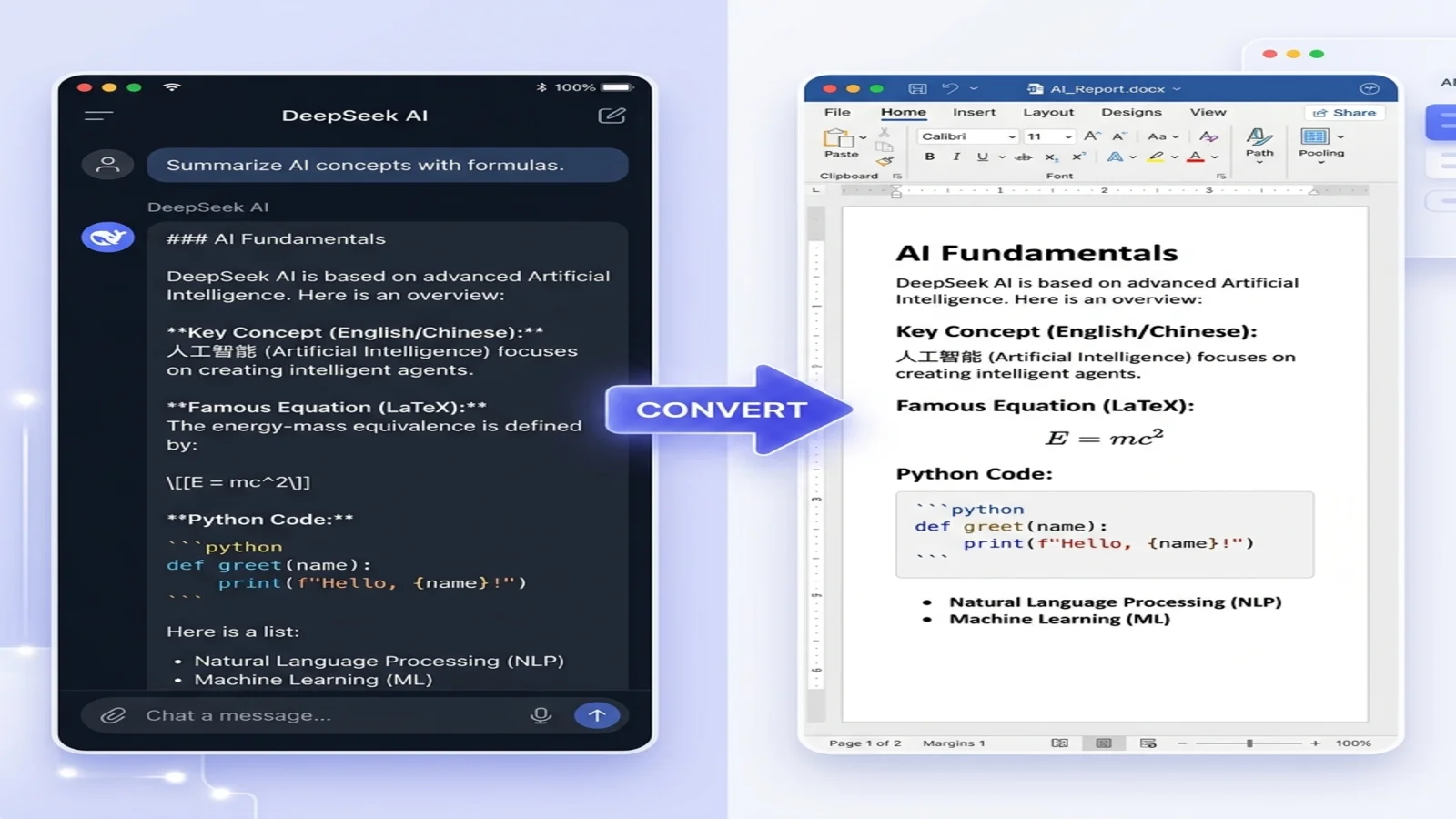
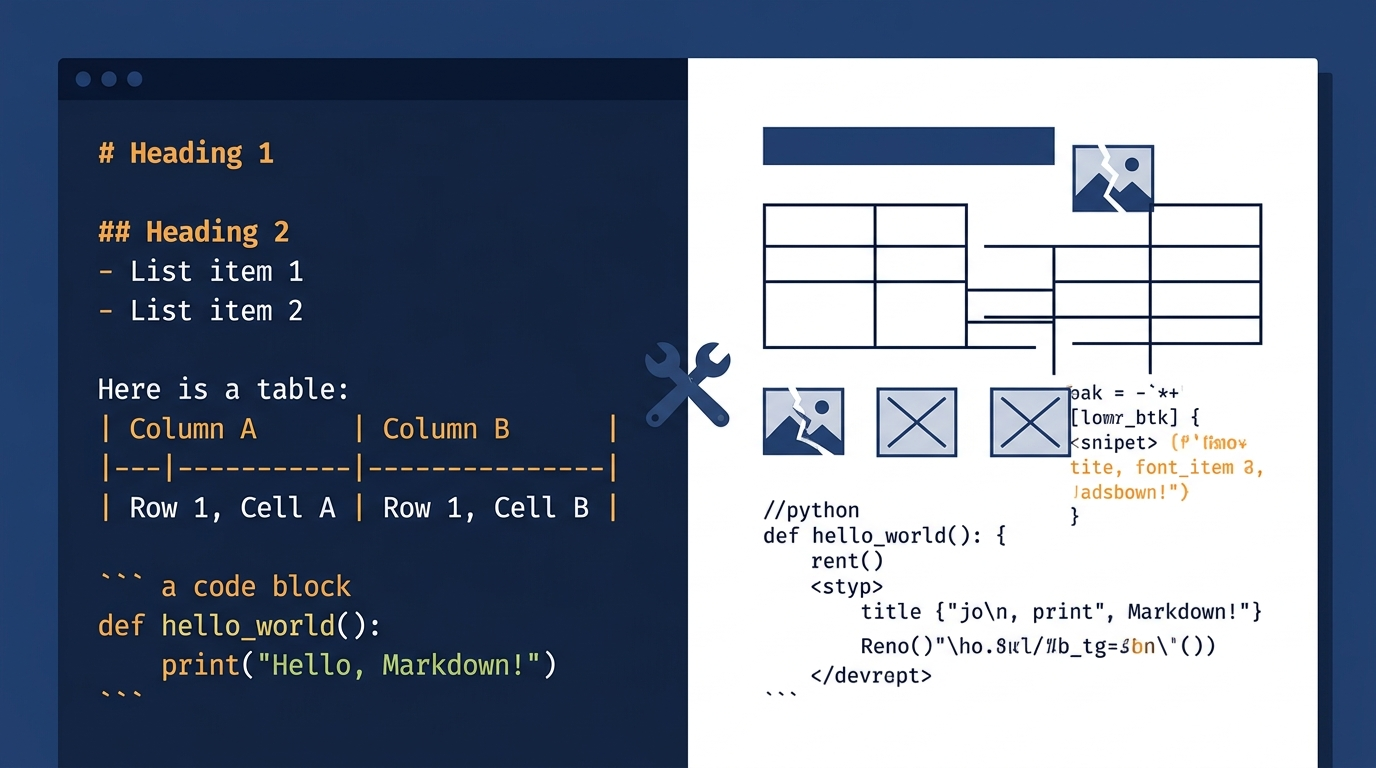
You asked DeepSeek to write a research summary with mathematical proofs and bilingual notes. The output looks beautiful in the chat window. Then you paste it into Word and watch it fall apart: LaTeX equations turn into raw $$ symbols, Chinese characters become empty boxes, and your code blocks lose every trace of indentation. Twenty minutes of cleanup later, you wonder why this is still so hard in 2026.
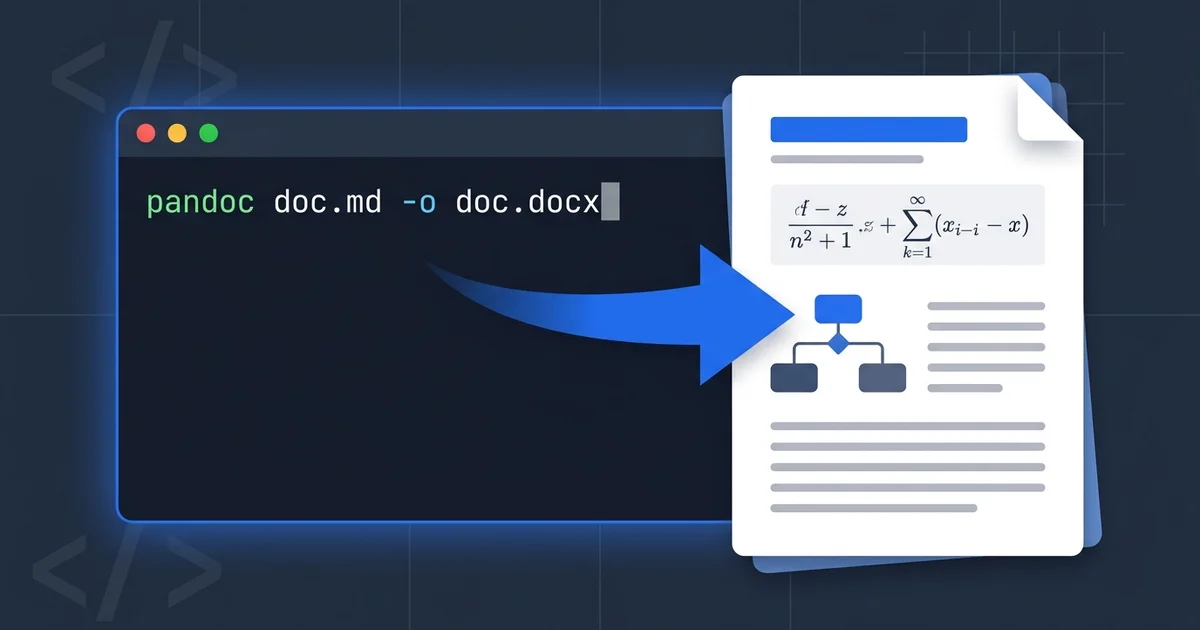
The fix is not another formatting plugin. It is changing the format DeepSeek hands you in the first place. Ask DeepSeek for Markdown and convert that Markdown directly into Word — equations stay editable, Chinese stays crisp, code stays formatted.
Why the Markdown Workflow Wins
Pasting DeepSeek output straight into Word and routing it through Markdown produce very different results — especially for the math, code, and bilingual content DeepSeek handles well. Here's how the two approaches compare:
| Aspect | Direct Copy-Paste | Markdown Workflow |
|---|---|---|
| Cleanup effort | Manual fixes after every paste | Convert and download — no cleanup |
| LaTeX equations | Pasted as raw $$E=mc^2$$ text | Native, editable Word equations |
| Chinese characters | Often empty boxes (□□□) | Renders correctly with proper font fallback |
| Python code blocks | Lost indentation, no monospaced font | Monospaced font, indentation preserved |
| Tables | Broken borders | Clean Word-native tables |
This guide walks through the workflow, the elements DeepSeek handles best, and the prompts that produce convert-ready Markdown.
Quick Start: 3 Steps to Convert DeepSeek to Word
If you only have 60 seconds:
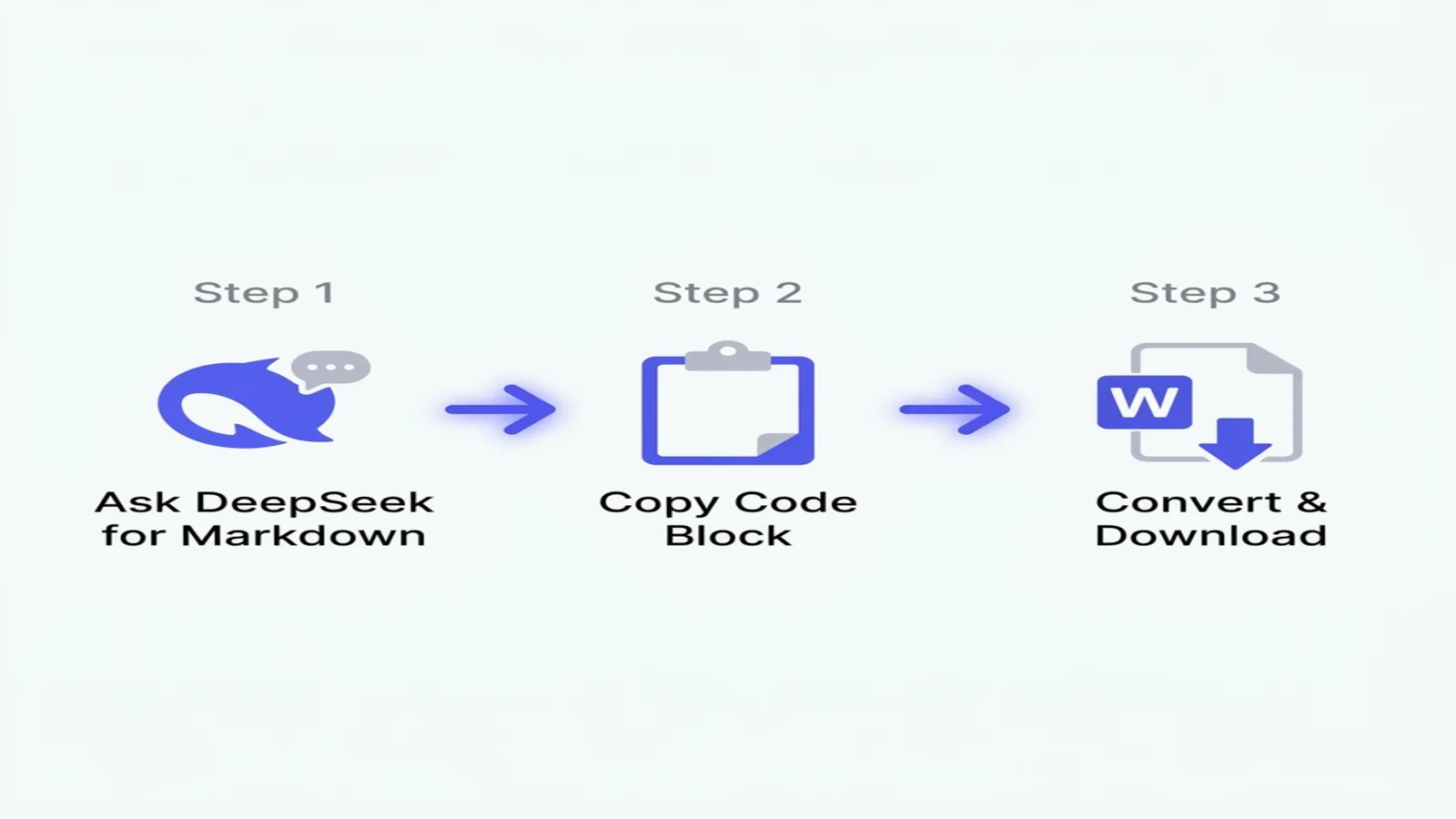
- Add "in Markdown format" to your DeepSeek prompt — the model will wrap the answer in a copyable code block.
- Click the "Copy code" button at the top-right of the response (don't manually highlight text).
- Paste into our free converter and download a clean DOCX file — math, code, and Chinese all preserved.
That's the whole workflow. The rest of this guide covers what to do when DeepSeek's output gets complex — math-heavy reasoning chains, mixed Chinese/English documents, and large code blocks.
👉 Jump to the step-by-step guide | Skip to the math & Chinese deep dive
Why Direct Copy-Paste Breaks DeepSeek Output
DeepSeek's chat interface renders content using HTML and CSS — KaTeX for equations, syntax-highlighting libraries for code, system fonts for Chinese. When you select text and copy, the browser hands Word a tangled mix of HTML, inline styles, and font references that Word's clipboard parser cannot interpret cleanly.
Three failure modes show up over and over:
- LaTeX equations get pasted as raw text.
$$\frac{-b \pm \sqrt{b^2-4ac}}{2a}$$shows up literally instead of as a rendered equation. This is especially painful for DeepSeek-R1 outputs, which lean heavily on math notation. - Chinese characters fall back to a broken font. When the source font isn't available in Word, characters render as
□boxes or substitute glyphs. This wipes out any bilingual document you intended to share. - Code blocks lose all indentation. Python's
defblocks collapse into a single line, syntax highlighting disappears, and the monospaced font reverts to Calibri.
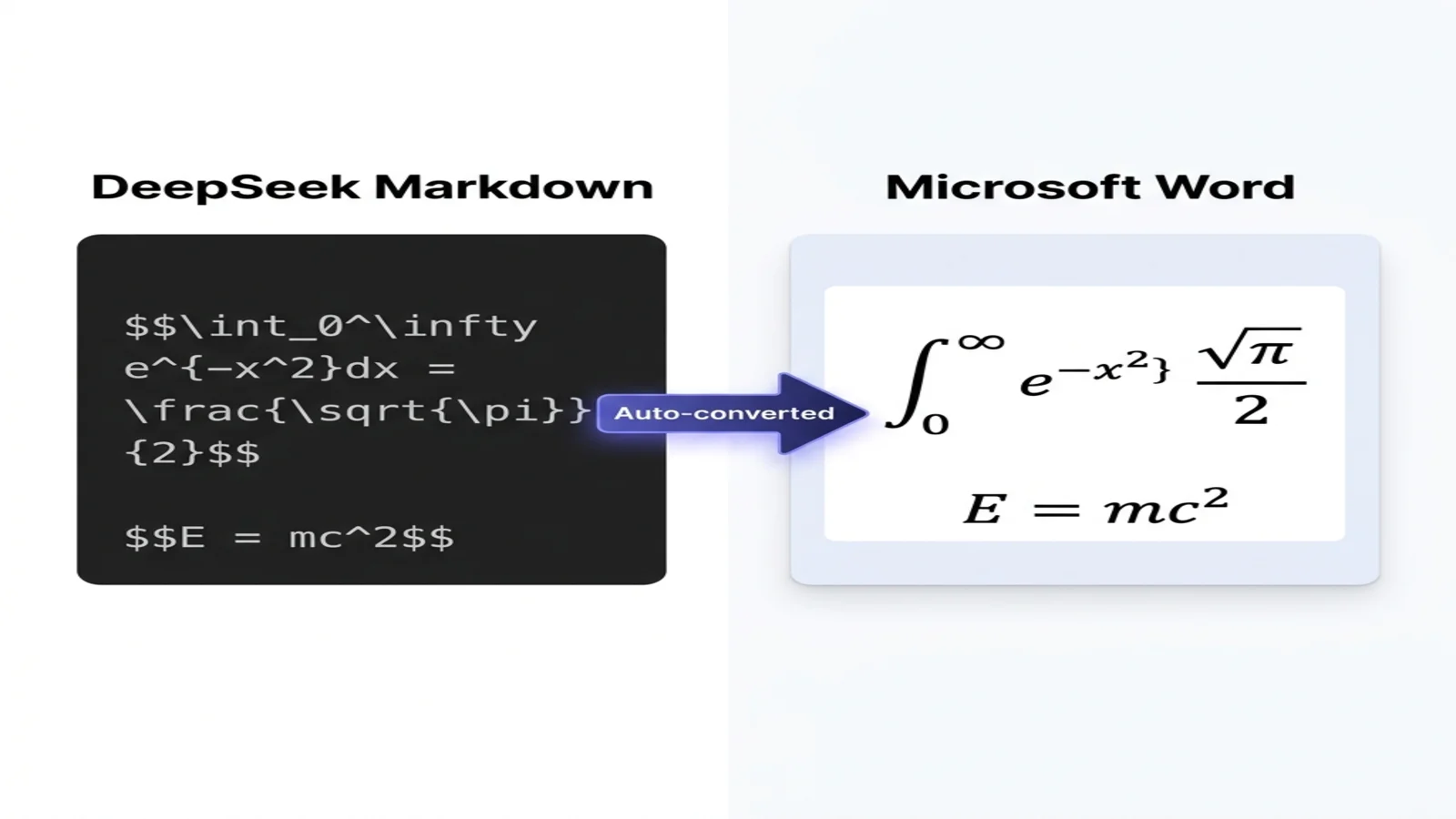
Markdown sidesteps every one of these because it is plain text with semantic markers. A Word converter can read those markers and map each one to a proper Word feature: $$...$$ becomes a Word equation, fenced code blocks become formatted code paragraphs, and Chinese characters are inserted as Unicode without any font hijacking.
Why Markdown Is the Right Bridge for DeepSeek
DeepSeek was trained on enormous amounts of GitHub, arXiv, and technical documentation — all of which use Markdown natively. The model produces clean, spec-compliant Markdown by default, often cleaner than ChatGPT or Gemini for technical content.
Three properties matter for the Word workflow:
- Math is first-class. DeepSeek emits LaTeX inside
$$...$$delimiters that any decent converter can detect and convert into Word's Office Math Markup Language (OMML). - Bilingual content stays clean. Markdown does not embed font references, so a converter can apply Word's default Asian font (typically SimSun or Microsoft YaHei) without conflicts.
- Code blocks carry language tags.
```pythonand```rustsurvive the conversion, so downstream tools can re-apply highlighting if needed.
If you've been pasting from DeepSeek into Word manually, this workflow removes most of that repetitive cleanup.
Step-by-Step: DeepSeek to Word
1: Ask DeepSeek for Markdown Output
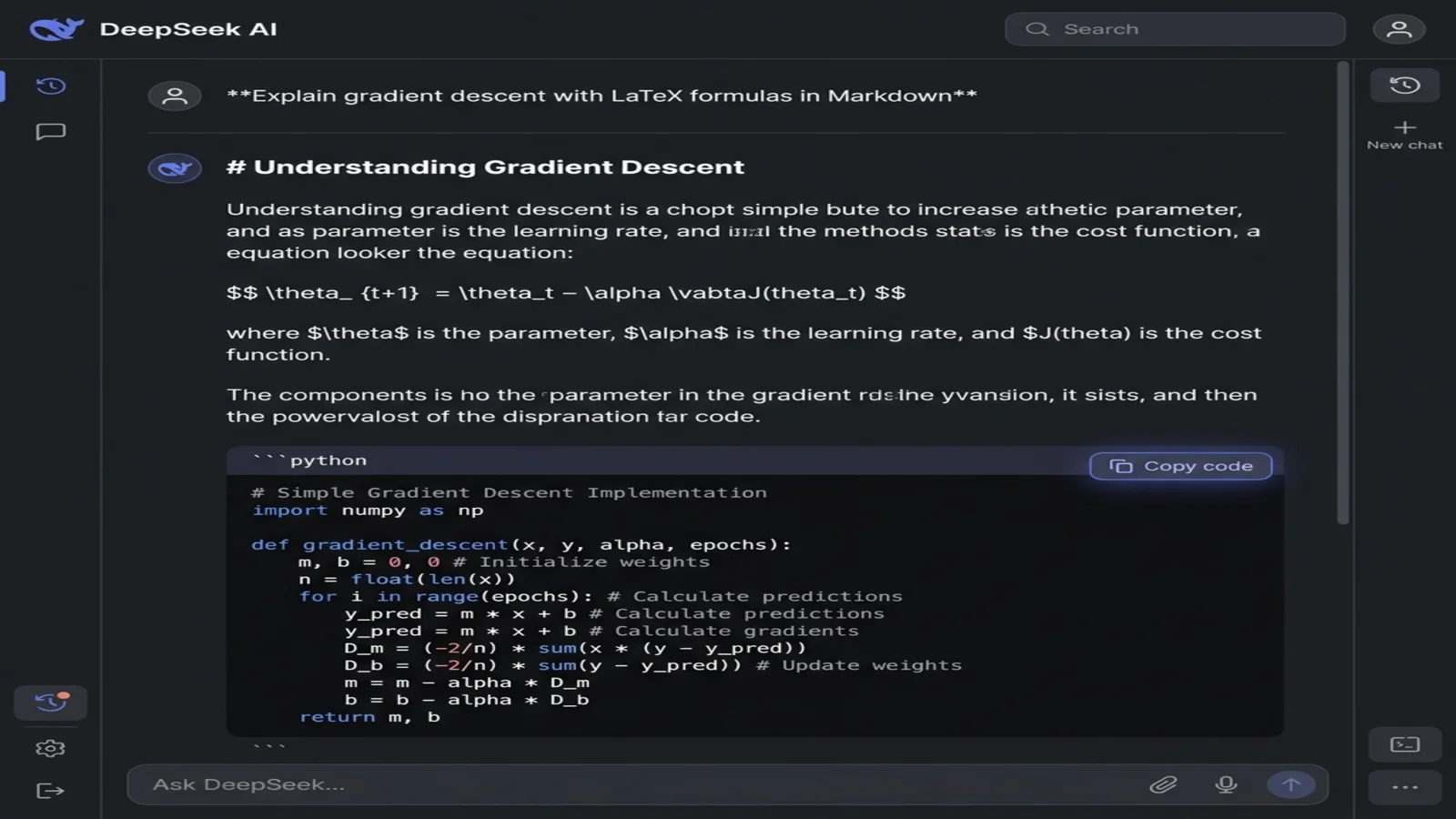
The phrasing of your prompt determines whether DeepSeek returns rendered HTML or raw Markdown. The fix is one extra sentence:
Generic prompt (returns rendered output, hard to copy cleanly):
Explain gradient descent with formulas and a Python example
Markdown-aware prompt (returns a clean code block):
Explain gradient descent in Markdown format. Include:
- H2 and H3 headings for sections
- LaTeX equations using $$...$$ delimiters
- A Python code example in a fenced code block
- A summary table at the end
DeepSeek will respond with a single code block containing pure Markdown — # for headings, $$ around math, triple-backtick fences around code. You'll see the syntax instead of the rendered version, which is exactly what you want.
Pro tip for R1 (reasoning model): DeepSeek-R1 produces long chain-of-thought sections before the final answer. Add Output only the final answer in Markdown, no reasoning trace if you only need the deliverable.
2: Copy the Markdown Code Block
Look at the top-right corner of the response. DeepSeek shows a "Copy code" button (sometimes labeled as a clipboard icon) on every code block. Click it.
Important: do not manually select and copy the text. Manual selection picks up DeepSeek's CSS styling, which is exactly the noise that breaks Word. The copy-code button delivers raw plain-text Markdown — that's the version your converter wants.
If your DeepSeek response is split across multiple code blocks, copy each one and concatenate them in a plain-text editor before converting.
3: Convert to Word
- Open MarkdownToWord.pro.
- Paste your Markdown into the input area.
- Click "Convert to Word".
- Download the DOCX file.
The conversion takes only a few seconds and needs no account. Your content is used solely to perform the conversion and deleted immediately afterward — it is never stored.
Handling DeepSeek's Strongest Elements
LaTeX Equations from DeepSeek-R1
DeepSeek's reasoning model (R1) is one of the most math-fluent open models available. It frequently uses LaTeX even when not explicitly asked. To make sure that math survives the trip to Word:
Prompt explicitly for LaTeX:
Derive the quadratic formula step by step in Markdown.
Use $$...$$ for display equations and $...$ for inline math.
DeepSeek will produce something like:
The quadratic equation is $ax^2 + bx + c = 0$.

Solving by completing the square gives:

$$x = \frac{-b \pm \sqrt{b^2 - 4ac}}{2a}$$
After conversion, the inline $ax^2 + bx + c = 0$ becomes inline Word math, and the display equation becomes a centered, fully editable Word equation. Click the equation in Word and the equation editor opens — you can change variables, add steps, or copy it into PowerPoint.
Common issue: if your equation renders as plain text after conversion, check that DeepSeek used $$ delimiters and not Unicode math symbols. You can re-prompt with Use LaTeX delimiters $$...$$, not Unicode characters.
Chinese and Bilingual Documents
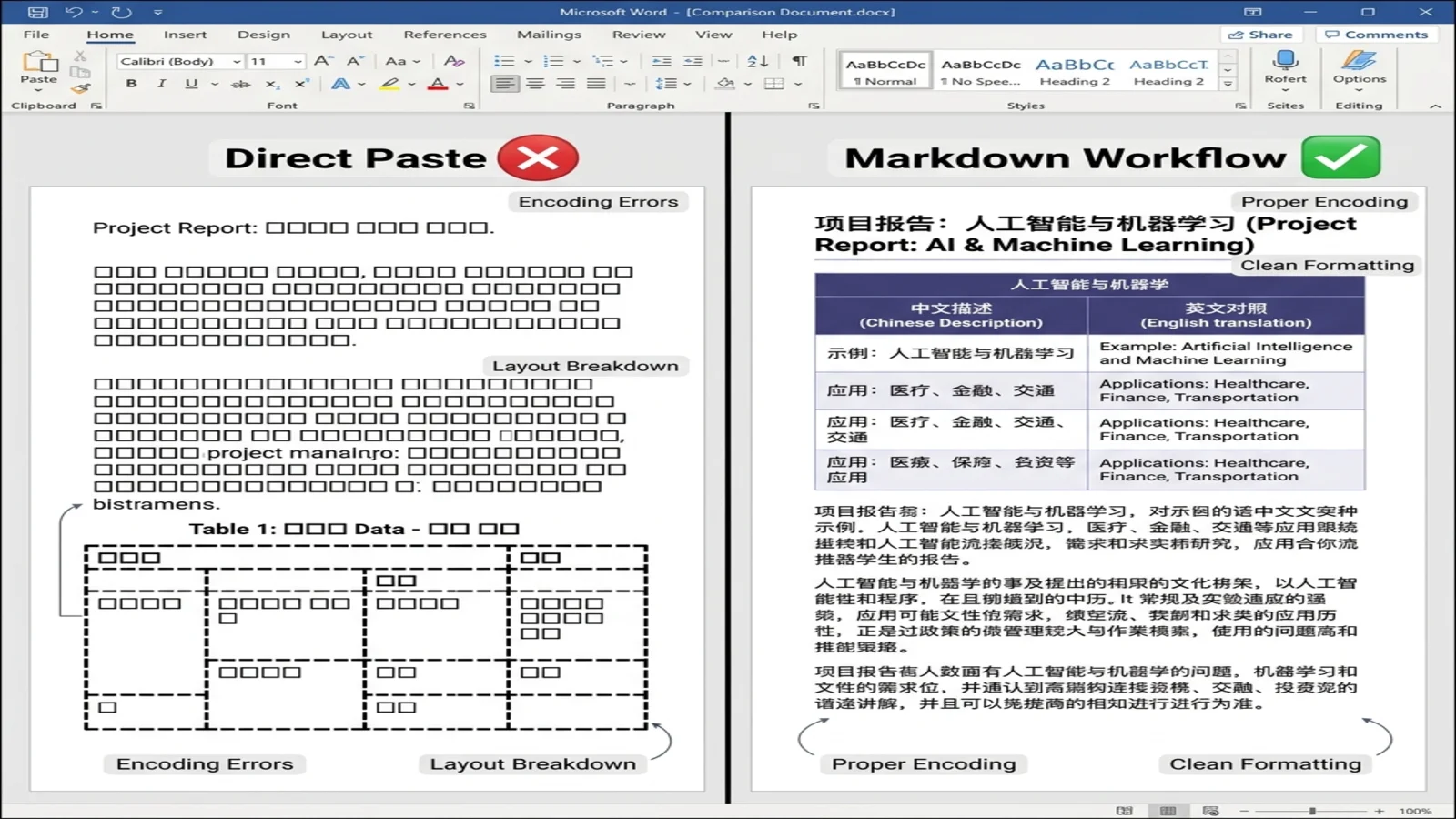
DeepSeek is one of the few frontier models trained heavily on Chinese-language content. Its bilingual output quality is genuinely useful for cross-border teams, technical translators, and academic writing. The Markdown workflow preserves this completely.
Prompt for clean bilingual output:
Write a product specification in Markdown with bilingual columns:
- Left column: English
- Right column: Simplified Chinese (简体中文)
Use a Markdown table.
DeepSeek returns:
| Feature | English | 中文 |
|---------|---------|------|
| Storage | 5 GB free tier | 5 GB 免费额度 |
| Users | Unlimited | 无限制 |
| Support | Email & chat | 邮件与在线客服 |
After conversion, Word renders this as a proper table with both languages crisp and aligned. Word automatically falls back to its default East Asian font (SimSun or Microsoft YaHei on most systems) — no manual font fixing needed.
Tip for Traditional Chinese: specify "繁體中文 (Traditional Chinese)" in your prompt. DeepSeek handles both scripts well, but defaults to Simplified unless asked.
Code Blocks (Python, Rust, JavaScript, SQL)
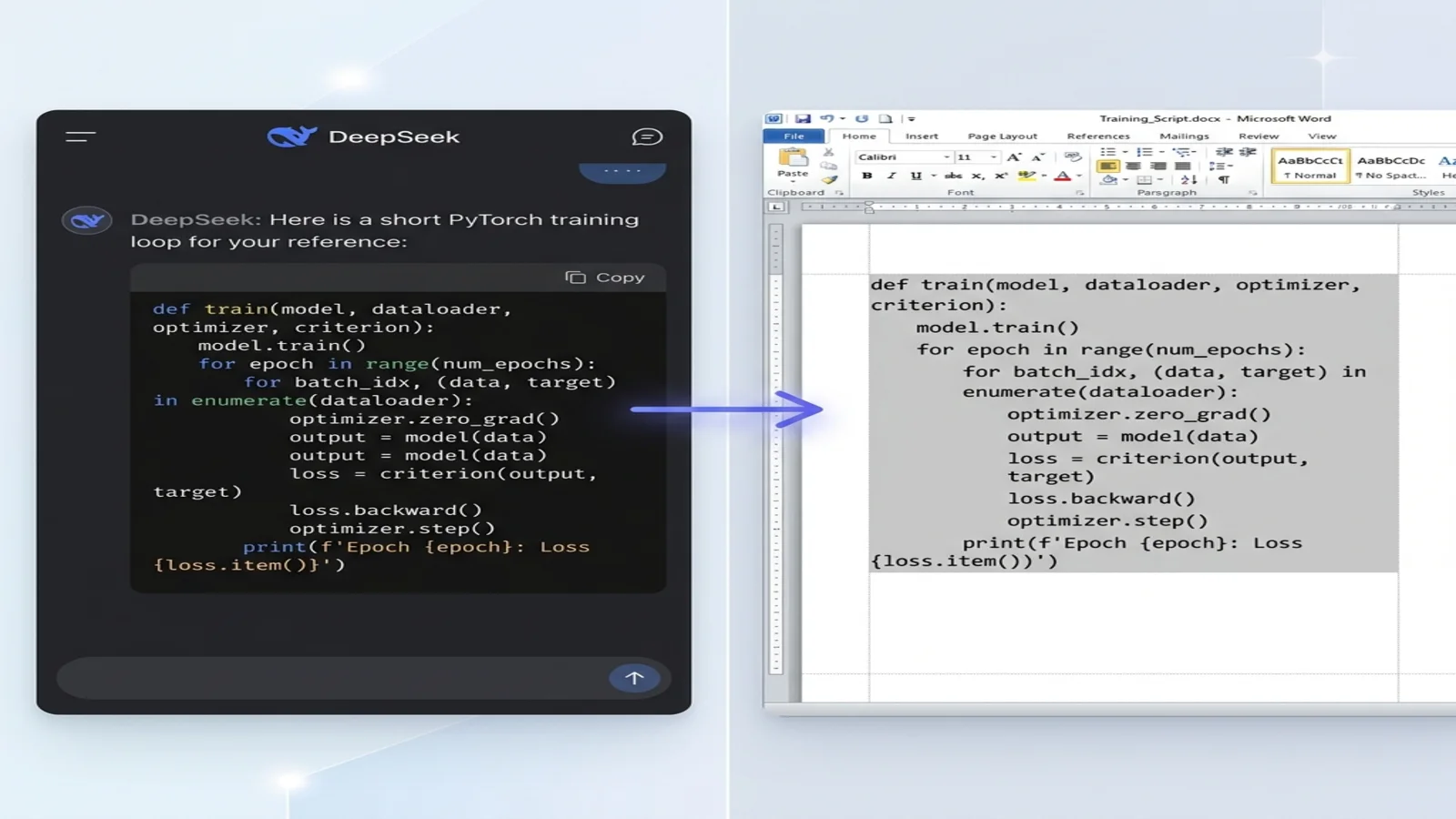
DeepSeek-Coder is the developer-focused variant of the model and produces some of the cleanest code output of any LLM. To convert code into a Word document that's actually readable:
Always tag your code language:
Show me a PyTorch training loop in Markdown.
Use a fenced code block with python language tag.
DeepSeek returns:
```python
def train(model, dataloader, optimizer, loss_fn):
    model.train()
    for batch in dataloader:
        optimizer.zero_grad()
        loss = loss_fn(model(batch.x), batch.y)
        loss.backward()
        optimizer.step()
    return model
```
After conversion to Word:
- Code paragraph uses Consolas (or your system's monospaced font)
- 4-space indentation is preserved exactly
- Background gets a subtle gray shade so it stands out from prose
- Lines do not wrap awkwardly mid-statement
If you're producing technical documentation that mixes prose and code, this single change alone makes Word a viable output format again.
Tables and Comparison Matrices
DeepSeek's table output is GitHub Flavored Markdown (GFM) compliant. Tell it the columns and it will produce a clean pipe-syntax table:
| Model | Parameters | Context Window | License |
|-------|-----------|----------------|---------|
| DeepSeek-V3 | 671B | 128K | MIT |
| DeepSeek-R1 | 671B | 128K | MIT |
After conversion, you get a Word-native table with editable cells, clean borders, and proper column alignment — no more fixing manually misaligned columns.
Ready to Try?
You've seen the workflow and the differentiators. Here's your action plan:
- Bookmark this page so the prompt patterns are one click away.
- Try the 3-step flow with your next DeepSeek session — start with something math-heavy if you want to see the biggest "wow."
- Share with anyone on your team still copy-pasting DeepSeek into Word manually.
Convert Your DeepSeek Markdown Now
Free and fast.
For Developers: How DeepSeek-to-Word Conversion Works
Click to expand: the math, code, and Chinese conversion pipeline
Why DeepSeek Markdown Converts So Reliably
DeepSeek's training corpus skews heavily toward arXiv papers, GitHub repositories, and Chinese technical forums — all of which produce structured Markdown. Three properties make its output unusually clean for downstream conversion:
- CommonMark compliance. DeepSeek consistently uses
#headings (not===underlines), fenced code blocks (not indented), and pipe tables — all the GFM extensions that mainstream parsers handle natively. - Stable LaTeX delimiters. It defaults to
$$...$$for display math and$...$for inline math, which are the delimiters every major Markdown-to-DOCX library (pandoc,docx-templates,mdast-util-to-docx) recognizes. - Language tags on code blocks.
```python,```rust,```sqlsurvive the conversion and let renderers re-apply syntax highlighting if needed.
The Conversion Pipeline
A converter has four jobs:
1. Tokenization. Parse the Markdown into an Abstract Syntax Tree (AST) — typically using markdown-it, marked, or remark. Each heading, paragraph, equation, and code block becomes a node.
2. AST → DOCX mapping. Walk the AST and emit Office Open XML (OOXML) for each node:
| Markdown | OOXML Element |
|---|---|
# Heading | <w:pStyle w:val="Heading1"/> |
**bold** | <w:b/> |
| Code block | Paragraph with <w:shd> shading + monospace font |
$$...$$ | <m:oMath> block |
3. Equation handling (LaTeX → OMML). This is where DeepSeek output benefits the most. The LaTeX inside $$...$$ is parsed (typically with mathjax-node or temml) and emitted as Office Math Markup Language:
<m:oMath>
  <m:f>
    <m:num><m:r><m:t>-b ± √(b² − 4ac)</m:t></m:r></m:num>
    <m:den><m:r><m:t>2a</m:t></m:r></m:den>
  </m:f>
</m:oMath>
The result is a Word equation that opens in Word's equation editor — fully editable, not a flat image.
4. CJK font fallback. Chinese characters need explicit East Asian font specification in OOXML so Word picks the right font:
<w:rPr>
  <w:rFonts w:ascii="Calibri" w:eastAsia="SimSun"/>
</w:rPr>
Good converters detect Han characters in the input and inject this run property automatically.
Performance Notes
Conversion speed depends on a few stages:
- Parsing the Markdown into an AST is fast and rarely the bottleneck.
- DOCX assembly — building the OOXML structure — grows with document length.
- Equation rendering is usually the most expensive step; a document with many equations takes noticeably longer than a text-only one.
For typical documents the whole process still completes in seconds. A document with hundreds of equations will take longer.
Pro Tips for DeepSeek Prompts
The output quality depends heavily on how you frame the prompt. Patterns that work well:
For research notes and study guides:
Summarize [topic] in Markdown with:
- An H2 introduction
- 3-4 H3 subsections
- LaTeX for any equations
- A "Key Takeaways" bullet list at the end
For technical documentation:
Write API documentation in Markdown including:
- H2 per endpoint
- Code examples in ```bash and ```json blocks
- A parameters table with: Name, Type, Required, Description
For bilingual deliverables:
Write a project proposal in Markdown, output in two parallel sections:
First in English, then 中文翻译.
Use H2 for each language section.
For DeepSeek-R1 specifically:
Output only the final answer in Markdown.
Do not include the reasoning trace.
Pitfalls to Avoid
- Don't ask for "Markdown with embedded HTML." Word converters handle pure Markdown well; mixed Markdown/HTML often confuses parsers.
- Don't skip the language tag.
```without a tag still works but you lose syntax highlighting metadata. - Avoid lists nested deeper than 3 levels. Word handles them, but they look cramped.
- Keep blank lines between sections. Markdown parsers need them to detect block boundaries; without them, headings can be absorbed into the previous paragraph.
Frequently Asked Questions
Q: Does this workflow work with DeepSeek-R1's reasoning output?
A: Yes. R1's chain-of-thought is also in Markdown, so it converts cleanly. Add Output only the final answer in Markdown to your prompt if you only want the answer, not the reasoning trace.
Q: Can I preserve DeepSeek's bold and italic formatting?
A: Yes. Markdown's **bold** and *italic* map directly to Word's bold and italic styles.
Q: What about images that DeepSeek references?
A: Currently DeepSeek does not generate images, but if you reference image URLs with  syntax, the converter inserts the image into Word automatically (when the URL is publicly accessible).
Q: What's the file size limit? A: Our converter handles up to 10 MB of Markdown, which covers very long documents including book-length material. For anything larger, split it into chapters and merge in Word.
Q: Does this work for Traditional Chinese (繁體中文)? A: Yes. Specify "Traditional Chinese / 繁體中文" in your prompt, and Word will render it correctly using the system's default Traditional Chinese font (typically PMingLiU or Microsoft JhengHei).
Q: What happens to my DeepSeek content? A: Your Markdown is sent over an encrypted connection, used only to perform the conversion, and deleted immediately afterward — it is never permanently stored, read, or shared. The live preview while you edit is rendered in your browser.
Q: Can I get a Word document with my company's branding? A: After conversion, the document uses standard Word styles (Heading 1, Heading 2, Normal). Apply your company's template via Word's Styles pane to brand the entire document in one click.
Related Resources
Continue improving your AI-to-document workflow:
- ChatGPT to Word: The Complete Export Guide — the same workflow for ChatGPT users
- Mastering ChatGPT Markdown Output Prompts — prompt patterns that produce convert-ready output
- Markdown for AI and LLMs — why Markdown became the lingua franca of AI output
- Markdown Conversion Troubleshooting — fixes for tables, code, and image issues
- How to Write in Markdown — Markdown syntax from scratch
Or explore other formats:
- Markdown to PDF — for final-deliverable PDFs with the same fidelity
- Markdown to HTML — for web-ready content
- Live Markdown Editor — preview your DeepSeek output before exporting
Conclusion
DeepSeek produces some of the cleanest Markdown of any frontier LLM, especially for math, code, and bilingual content. The trick to getting that output into Word is asking for Markdown explicitly, copying the raw code block, and converting through a tool that understands LaTeX and CJK characters.
The three-step workflow:
- Ask DeepSeek for Markdown
- Click "Copy code"
- Convert with a tool that handles math and Chinese natively
Equations stay editable, Chinese stays crisp, code stays readable — with no manual formatting cleanup after every DeepSeek session.
Ready to convert your first DeepSeek output? Open the free converter → and paste your Markdown.
Find this tool helpful? Help us spread the word.