ChatGPT to Word: The Complete Export Guide (Free Tool 2026)
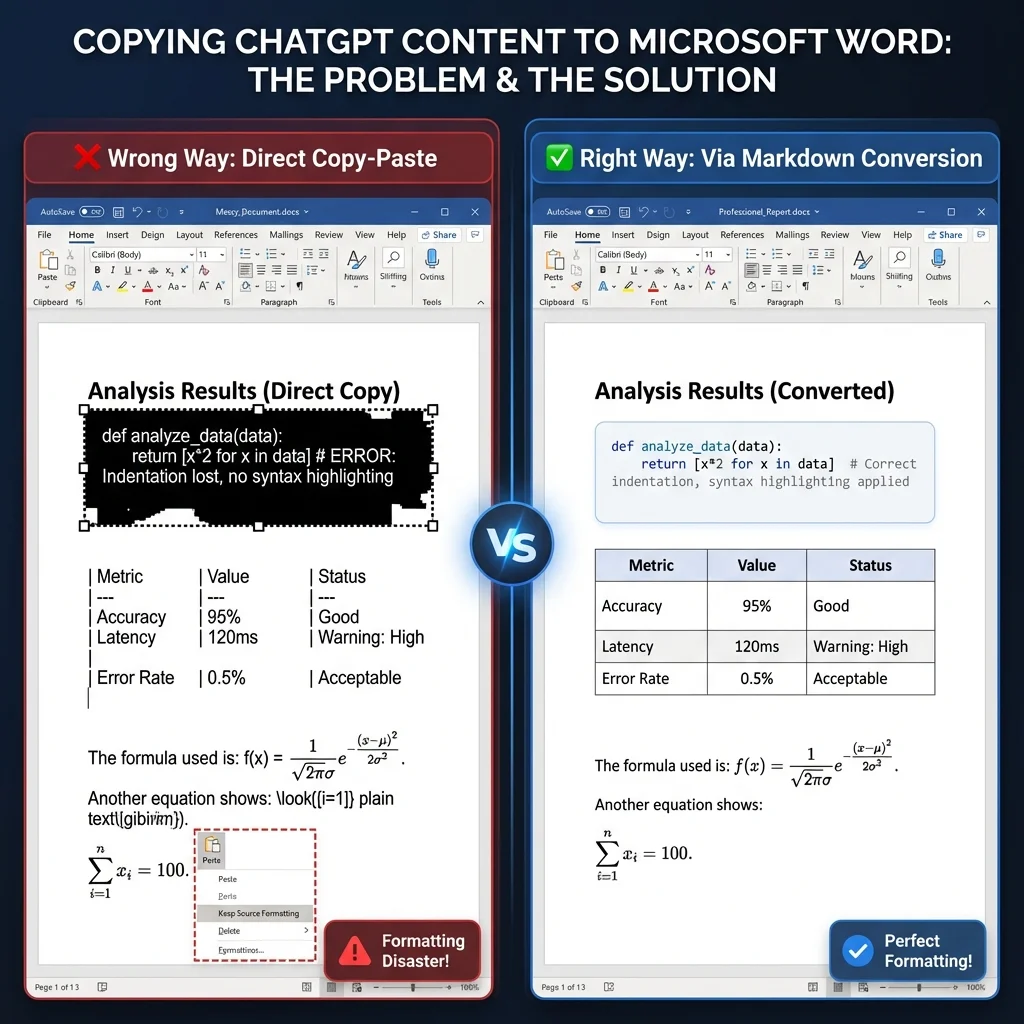
Have you ever spent hours crafting the perfect report in ChatGPT, only to watch it turn into a formatting disaster when you paste it into Word? Black code blocks, broken tables, and mathematical formulas that look like gibberish — most people who use ChatGPT for documents have run into this. The frustration is real, and it costs time.
Markdown solves it. By using Markdown as an intermediate format, you can move ChatGPT content into clean, well-formatted Word documents reliably — without the manual style cleanup.
Why the Markdown Workflow Beats Direct Copy-Paste
Pasting ChatGPT output straight into Word and going through Markdown produce very different results. Here is how the two approaches compare:
| Aspect | Direct Copy-Paste | Markdown Workflow |
|---|---|---|
| Cleanup effort | Manual style fixes after every paste | Convert and download — no cleanup |
| Code blocks | Dark background, lost colors, prints poorly | Proper monospaced styling |
| Tables | Borders and alignment often break | Clean, editable Word tables |
| Consistency | Ad-hoc formatting, document by document | Uniform Word styles throughout |
Quick Start: 3 Steps to a Clean Conversion
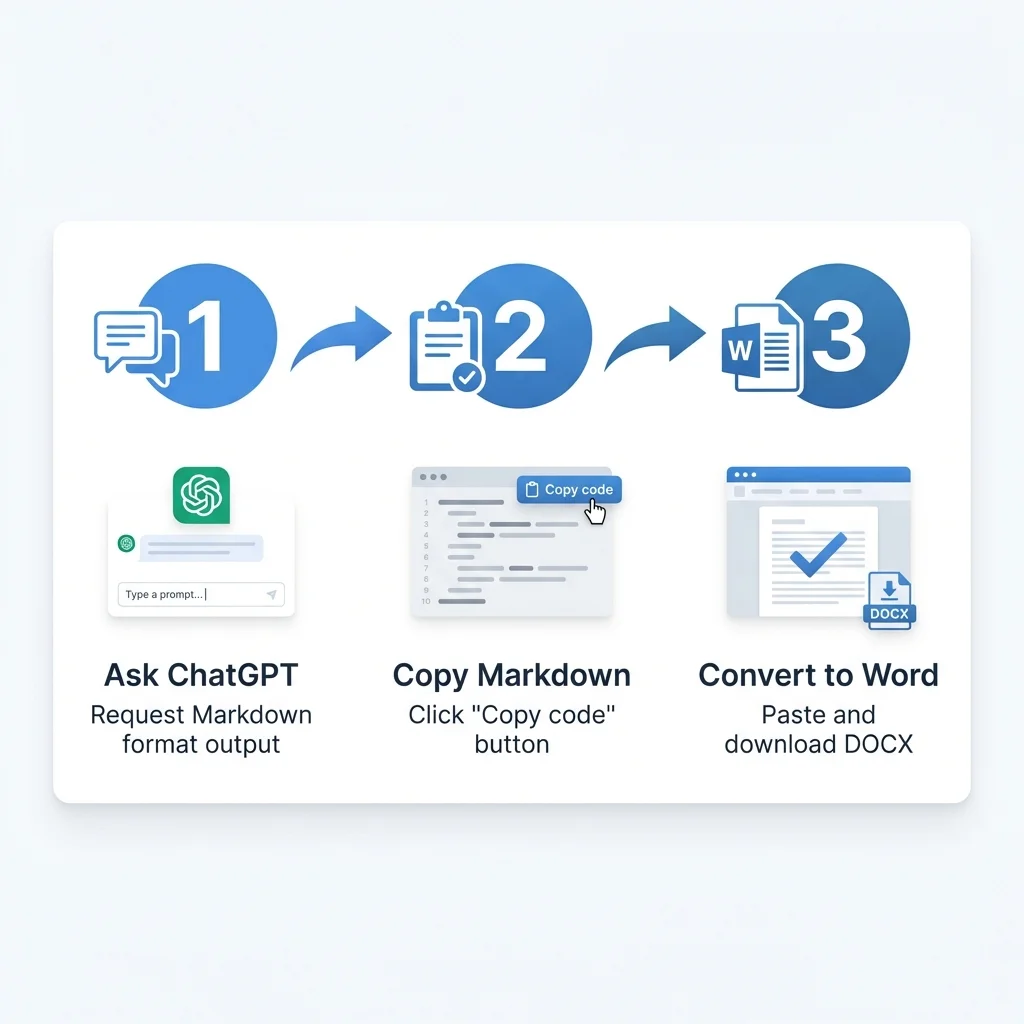
Don't have time to read the full guide? Here's the quick version:
- Ask ChatGPT for Markdown: Add "output in Markdown format" to your prompt
- Copy the code block: Click the "Copy code" button on ChatGPT's response
- Convert to Word: Paste into our free converter and download your formatted DOCX
That's it. This simple workflow solves most formatting issues. Keep reading for detailed explanations and advanced scenarios.
👉 Jump to detailed guide | Skip to technical deep dive
The Problem: Why Direct Copy-Paste Fails
When you copy ChatGPT's output directly into Microsoft Word, you're actually copying formatted HTML with inline styles. Word tries to interpret these styles, but the results are often catastrophic:
- Code blocks appear with dark backgrounds that won't print
- Tables lose their borders and alignment
- Mathematical formulas display as plain text instead of proper equations
- Formatting becomes inconsistent and unprofessional
This happens because ChatGPT's web interface uses CSS styling that's incompatible with Word's document model. The solution? Use Markdown as an intermediate format.
The Solution: Markdown as the Bridge
Markdown is a lightweight markup language that ChatGPT understands natively. It's the "source code" behind ChatGPT's formatted responses. When you request Markdown output:
- Structure is preserved: Headers, lists, and tables maintain their hierarchy
- Formatting is clean: No conflicting styles or hidden HTML
- Conversion is reliable: Markdown-to-Word tools can accurately map elements
Think of Markdown as the universal translator between AI outputs and professional documents.
Step-by-Step Guide
1. Request Markdown Output from ChatGPT
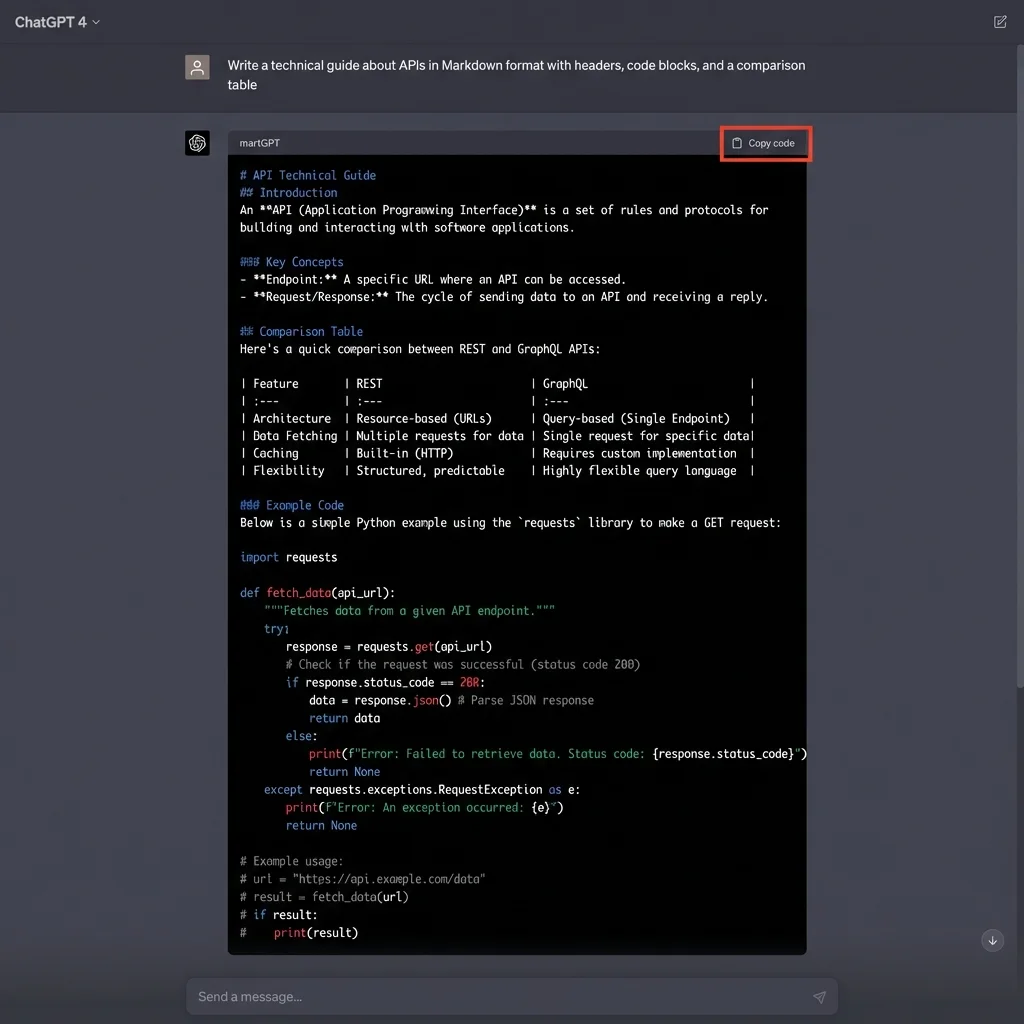
The key is in how you phrase your prompt. Instead of just asking for content, specify the format:
❌ Wrong prompt:
Write a technical guide about APIs
✅ Correct prompt:
Write a technical guide about APIs in Markdown format,
including headers, code blocks, and a comparison table
Pro tip: For complex documents, be even more specific:
Output in full Markdown with:
- H2 and H3 headers for sections
- Bullet lists for features
- A table comparing REST vs GraphQL
- Python code examples in fenced code blocks
ChatGPT will respond with a code block containing clean Markdown syntax. You'll see symbols like # for headers, - for lists, and | for tables.
2. Copy the Markdown Code
Once ChatGPT generates the Markdown, you'll notice a "Copy code" button in the top-right corner of the code block. Click it — this copies the raw Markdown without any web formatting.
Common mistake: Don't select and copy the text manually. This can include hidden formatting. Always use the "Copy code" button.
3. Convert to Word
Now comes the useful part. Paste your Markdown into a reliable converter:
- Visit MarkdownToWord.pro
- Paste your Markdown into the text area
- Click "Convert to Word"
- Download your formatted DOCX file
The conversion takes only a few seconds. Your content is used solely to perform the conversion and deleted immediately afterward — it is never stored.
Handling Specific Elements
Tables Without Losing Formatting
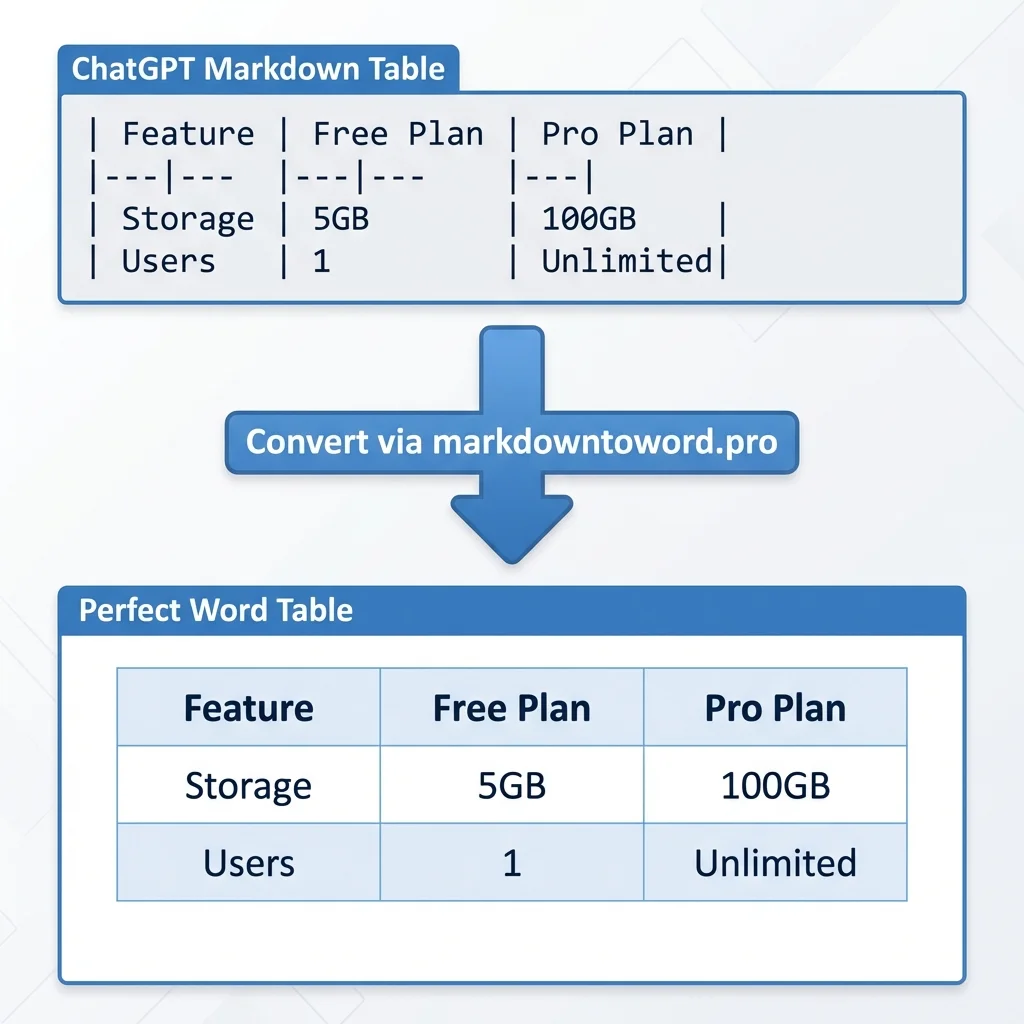
Tables are where direct copy-paste fails most spectacularly. Here's how to do it right:
In your ChatGPT prompt, specify:
Create a comparison table in Markdown format with these columns:
Feature, Free Plan, Pro Plan
ChatGPT will generate a Markdown table like this:
| Feature  | Free Plan | Pro Plan   |
|----------|-----------|------------|
| Storage  | 5GB       | 100GB      |
| Users    | 1         | Unlimited  |
When converted to Word, this becomes a properly formatted table with:
- Clean borders
- Aligned columns
- Editable cells
- Professional styling
Troubleshooting: If your table looks misaligned, ensure there are pipes (|) at both ends of each row in the Markdown.
Code Blocks
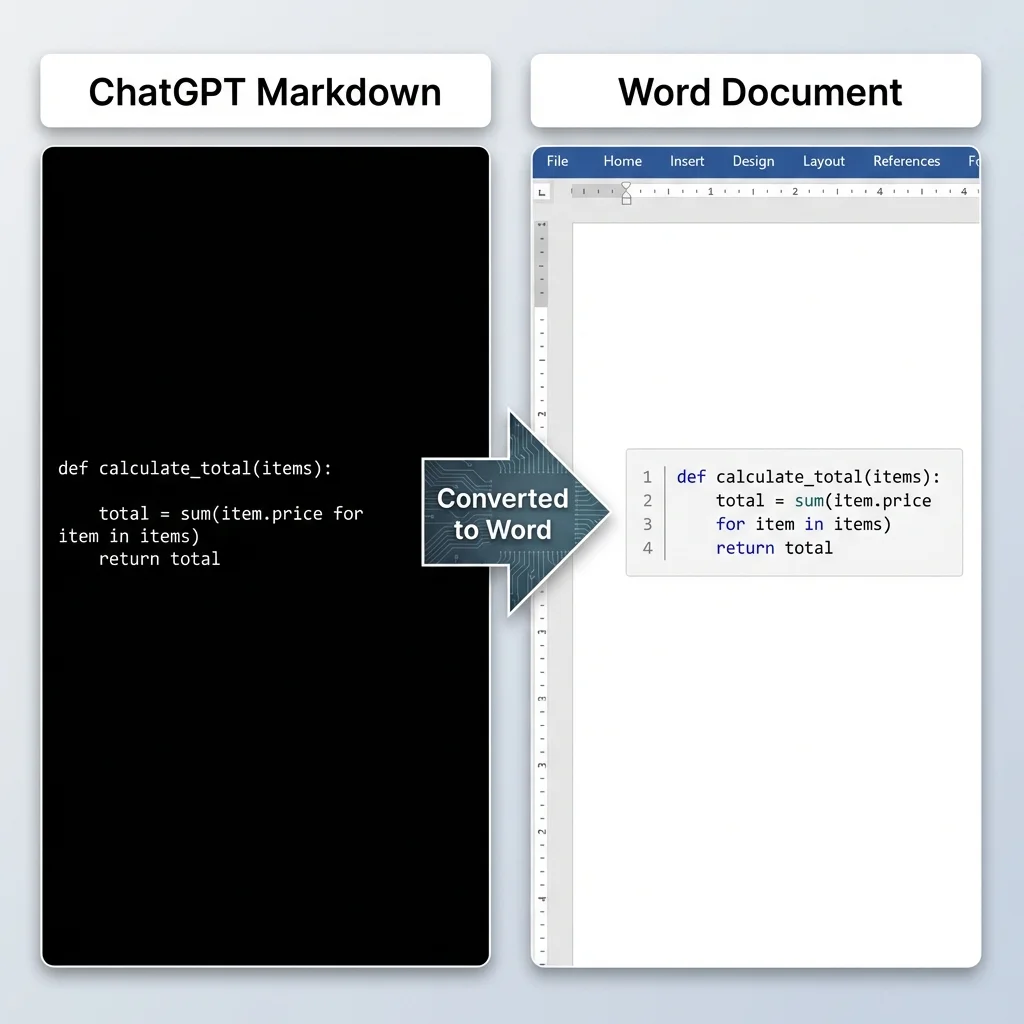
For developers and technical writers, code formatting is critical. Here's the workflow:
Request code with language tags:
Show me a Python function with proper syntax highlighting
ChatGPT will wrap code in triple backticks with a language identifier:
\`\`\`python
def calculate_total(items):
    total = sum(item.price for item in items)
    return total
\`\`\`
After conversion, your Word document will have:
- Monospaced font (Consolas or Courier New)
- Preserved indentation
- Clear distinction from body text
- Optional syntax highlighting (depending on your converter)
Mathematical Formulas
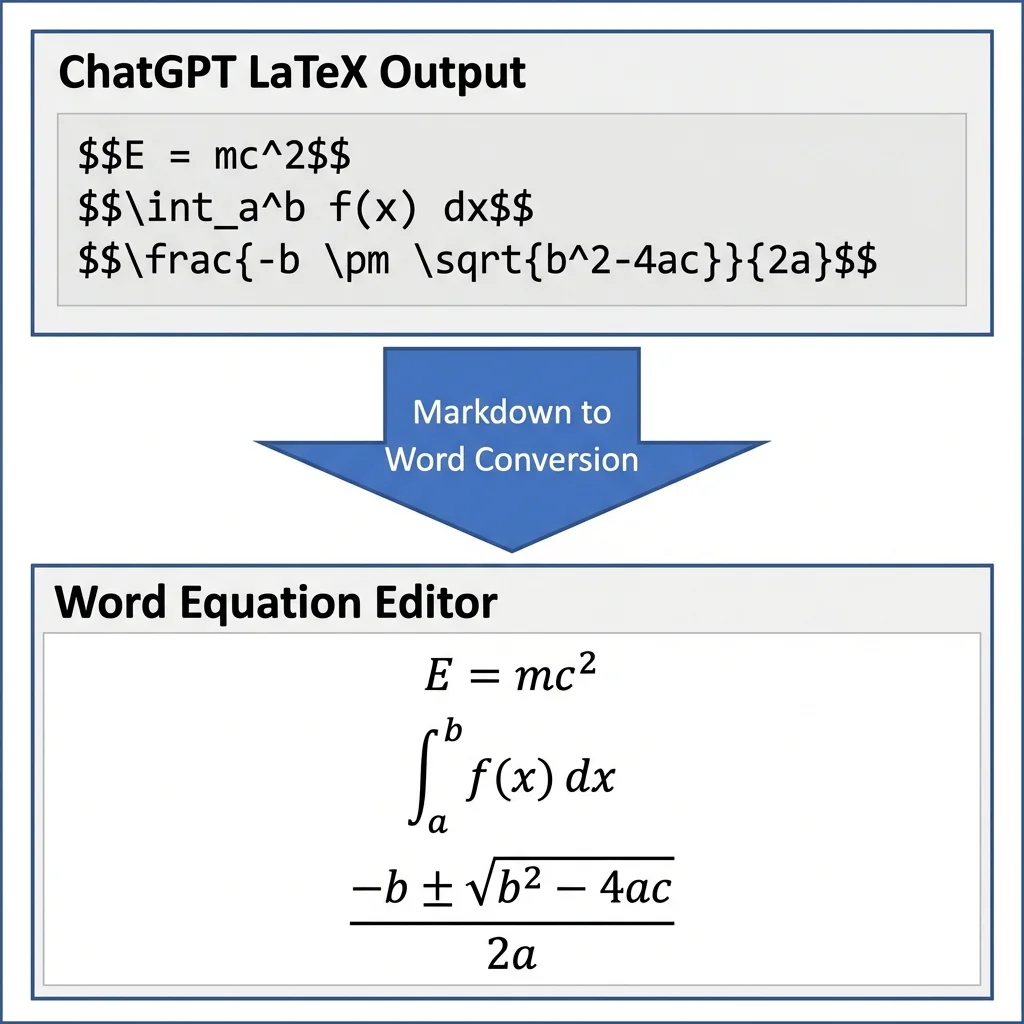
For academic or scientific content, mathematical notation is essential. ChatGPT can output LaTeX-style formulas:
Prompt example:
Explain the quadratic formula using LaTeX notation in Markdown
ChatGPT will generate:
The quadratic formula is: $$\frac{-b \pm \sqrt{b^2-4ac}}{2a}$$

Einstein's famous equation: $$E = mc^2$$
When properly converted, these render as mathematical equations in Word's native equation editor, fully editable and print-ready.
Note: Not all converters support LaTeX. Our tool at MarkdownToWord.pro handles formulas automatically.
Ready to Try?
You now have everything you need to export ChatGPT content to Word. Here's your action plan:
- Bookmark this guide for future reference
- Try the 3-step workflow with your next ChatGPT session
- Share this with colleagues who struggle with formatting
Convert Your ChatGPT Markdown Now
Free and fast.
For Developers: Technical Details
Click to expand: How Markdown-to-Word Conversion Works Under the Hood
The Conversion Pipeline
Converting Markdown to Word isn't just simple text replacement — it involves parsing and document object model (DOM) manipulation. Here's what happens behind the scenes:
1. Markdown Parsing (Tokenization)
The converter first parses Markdown into an Abstract Syntax Tree (AST). Tools like marked.js or markdown-it break down the text into tokens:
// Example AST for "## Hello World"
{
  type: 'heading',
  depth: 2,
  children: [
    { type: 'text', value: 'Hello World' }
  ]
}
This tokenization handles:
- GitHub Flavored Markdown (GFM) extensions (tables, strikethrough, task lists)
- Nested structures (lists within blockquotes)
- Inline elements (bold, italic, code spans)
2. AST to DOCX Mapping
Word documents use the Office Open XML (OOXML) format, which is essentially a ZIP file containing XML files. The converter maps Markdown tokens to OOXML elements:
| Markdown Element | DOCX Equivalent |
|---|---|
# Heading 1 | <w:pStyle w:val="Heading1"/> |
**bold** | <w:b/> |
| Code block | <w:pPr><w:shd w:fill="F5F5F5"/></w:pPr> |
| Table | <w:tbl> with <w:tr> and <w:tc> |
3. Style Application
Professional converters apply Word styles rather than direct formatting:
<w:style w:type="paragraph" w:styleId="Heading1">
  <w:name w:val="Heading 1"/>
  <w:basedOn w:val="Normal"/>
  <w:next w:val="Normal"/>
  <w:rPr>
    <w:b/>
    <w:sz w:val="32"/>
  </w:rPr>
</w:style>
This ensures:
- Consistent formatting throughout the document
- Easy global style changes
- Compatibility with Word's table of contents feature
4. Special Element Handling
Tables: Markdown's pipe syntax is parsed into a grid structure, then mapped to Word's table model with proper cell borders and alignment.
Code Blocks: Fenced code blocks (```language) are converted to paragraphs with:
- Monospaced font family
- Background shading
- Preserved whitespace
- Optional syntax highlighting via color runs
LaTeX Formulas: Delimiters like $$..$$ are detected and converted to OMML (Office Math Markup Language):
<m:oMath>
  <m:f>
    <m:num><m:r><m:t>-b±√(b²-4ac)</m:t></m:r></m:num>
    <m:den><m:r><m:t>2a</m:t></m:r></m:den>
  </m:f>
</m:oMath>
Performance Considerations
For large documents, conversion speed depends on a few factors:
- Parsing: Tokenizing Markdown into an AST is fast and rarely the bottleneck.
- Document assembly: Building the DOCX XML structure is the most expensive step, and the cost grows with document length.
- Document size: Short documents convert almost instantly; very long ones (tens of thousands of words) take noticeably longer, but conversion still completes within seconds for typical files.
Why ChatGPT Output Converts Cleanly
ChatGPT is trained on large amounts of Markdown-formatted content from sources like GitHub and technical documentation. In practice this means:
- Syntax compliance: ChatGPT's Markdown closely follows the CommonMark spec
- Consistent structure: Headings follow a logical hierarchy
- Clean output: Relatively few edge cases or malformed syntax
Markdown is also more token-efficient than equivalent HTML, which makes it a natural output format for language models.
Custom Conversion Rules
For developers building custom workflows, you can extend converters with plugins:
// Example: Custom handling for callout boxes
const customRenderer = {
  blockquote(quote) {
    if (quote.startsWith('> [!NOTE]')) {
      return createWordCallout(quote, 'blue');
    }
    return defaultBlockquote(quote);
  }
};
This allows mapping Markdown extensions (like GitHub's alerts) to Word's custom styles.
Security Considerations
When processing user-generated Markdown:
- Sanitize HTML: If allowing raw HTML in Markdown, strip
<script>tags - Limit file size: Prevent denial-of-service from massive inputs
- Validate structure: Reject malformed Markdown that could crash parsers
Best practice: Use an established library such as DOMPurify for sanitization before conversion.
Best Practices and Pro Tips
Optimizing Your ChatGPT Prompts
The quality of your Word document starts with your ChatGPT prompt. Here are proven strategies:
For reports and articles:
Write a [topic] article in Markdown with:
- An H1 title
- 3-4 H2 sections
- Bullet points for key takeaways
- A summary table at the end
For technical documentation:
Create API documentation in Markdown including:
- H2 headers for each endpoint
- Code examples in ```bash and ```json blocks
- A parameters table with columns: Name, Type, Required, Description
For academic content:
Explain [concept] in Markdown format with:
- LaTeX formulas for equations
- Numbered lists for step-by-step processes
- Citations in [text](url) format
Pitfalls to Avoid
- Mixing formats: Don't ask ChatGPT for "Markdown with some HTML" — stick to pure Markdown
- Ignoring language tags: Always specify the language for code blocks (
python, not just) - Over-nesting: Avoid lists more than 3 levels deep — they're hard to convert cleanly
- Inconsistent spacing: Ensure blank lines between sections for proper parsing
Automating the Workflow
If you convert ChatGPT output regularly, a couple of habits speed things up:
- Save a reusable prompt: Keep a "respond in full Markdown" instruction as a ChatGPT custom instruction, so every response is conversion-ready.
- Draft in a Markdown editor: Refine the document in a dedicated Markdown editor, then convert in one step when it's final.
Frequently Asked Questions
Q: Does this work with other AI tools like Claude or Gemini?
A: Yes. The same Markdown workflow applies to any AI that can output Markdown format. Just request "Markdown output" in your prompt.
Q: Can I preserve ChatGPT's formatting (bold, italic) in Word?
A: Yes. Markdown supports **bold**, *italic*, and ***bold italic***, which convert to the matching Word formatting.
Q: What about images generated by ChatGPT?
A: You'll need to download images separately and insert them into Word. Markdown image syntax () referencing an external URL will be embedded if the image is reachable.
Q: Is there a file size limit?
A: Our converter handles Markdown files up to 10 MB, which covers very long documents including full-length technical guides. For anything larger, split it into sections.
Q: Can I customize the Word styles after conversion?
A: Yes. The converted document uses standard Word styles (Heading 1, Heading 2, and so on), which you can modify globally via Word's Styles pane.
Q: Does this work offline?
A: No — the converter runs online and needs an internet connection. Your Markdown is sent over an encrypted connection, used only to perform the conversion, and deleted immediately afterward; it is never stored.
Related Resources
Want to expand your document workflow? Check out these complementary guides:
- Markdown to PDF: Convert directly to PDF for final deliverables
- Markdown to HTML: Create web-ready content from your Markdown
- Notion to Word Guide: Export Notion pages to Word documents
- How to Write in Markdown: Master Markdown syntax from scratch
Conclusion
Exporting ChatGPT content to Word doesn't have to mean fighting with formatting. Using Markdown as an intermediate format turns a manual cleanup job into a short routine: ask ChatGPT for Markdown, copy the code block, then convert it. Tables, code blocks, and equations carry over as proper Word elements instead of broken styling.
Ready to try it? Convert your ChatGPT Markdown now — it's free and takes only a few seconds.
Find this tool helpful? Help us spread the word.