Markdown Conversion Troubleshooting: Fix LaTeX, Tables & Mermaid
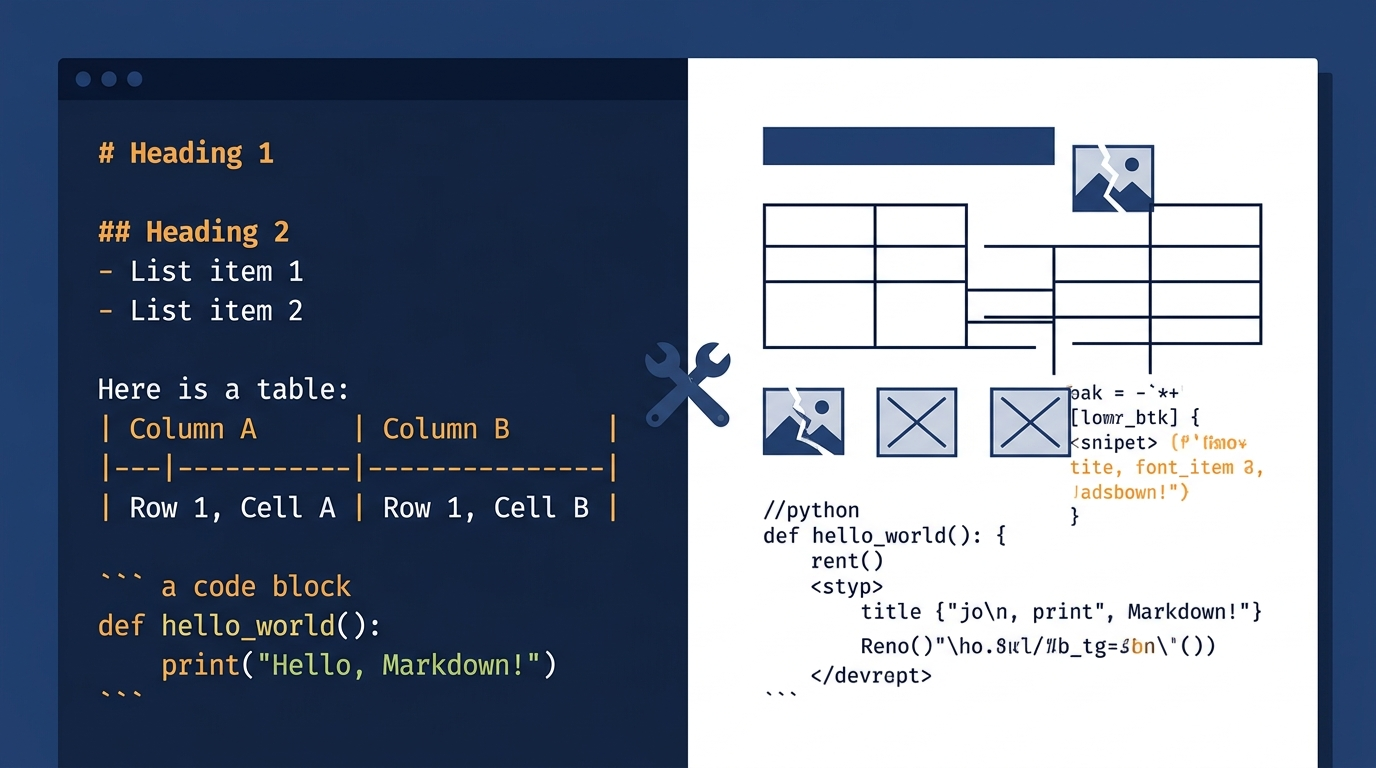
You wrote clean Markdown. You hit "Convert." And the output looks nothing like what you expected — tables are mangled, code blocks are plain text, images are missing, and your LaTeX formulas turned into gibberish.
Sound familiar? Markdown-to-Word and PDF conversion tends to fail in the same handful of ways. This guide covers the 15 most common problems — each with its actual cause and a concrete fix.
Quick Reference: Problem → Fix
| Problem | Most Likely Cause | Quick Fix |
|---|---|---|
| Table columns misaligned | Missing or inconsistent pipe syntax | Validate table with linter |
| Code block loses highlighting | No language identifier specified | Add language tag after ``` |
| Images not displaying | Broken path or unsupported protocol | Use absolute URL or embed as base64 |
| LaTeX renders as plain text | Converter doesn't support math | Switch to a KaTeX/MathJax-capable tool |
| Mermaid diagrams missing | No Mermaid rendering engine | Use a converter with Mermaid support |
| Nested lists flatten | Mixed tabs and spaces | Standardize to 4-space indentation |
| Footnotes disappear | Converter ignores footnote syntax | Check GFM footnote support |
| Emoji shows as squares | Font doesn't include emoji glyphs | Use a converter with emoji font mapping |
Table Issues
Problem 1: Table Columns Are Misaligned or Merged in Word
What you see: Your neatly formatted Markdown table turns into a mess in Word — columns are merged together, content overflows, or the table structure disappears entirely.
Why it happens:
The most common cause is invalid table syntax. Markdown tables are surprisingly strict. A single missing pipe character or misaligned separator row breaks the entire table.
Here's what goes wrong:
<!-- BROKEN: Missing leading pipe -->
Header 1 | Header 2
--- | ---
Cell 1 | Cell 2

<!-- BROKEN: Separator row doesn't match column count -->
| Header 1 | Header 2 | Header 3 |
| --- | --- |
| Cell 1 | Cell 2 | Cell 3 |
How to fix it:
Always use consistent pipe syntax with matching column counts:
| Header 1 | Header 2 | Header 3 |
|:---------|:--------:|----------:|
| Left     | Center   | Right     |
| Cell 1   | Cell 2   | Cell 3    |
Key rules:
- Start and end every row with a pipe
| - The separator row must have the same number of columns as the header
- Use alignment colons —
:---left,:---:center,---:right - Don't use merged cells — standard Markdown doesn't support them. If you need merged cells, you'll have to edit the Word document manually after conversion
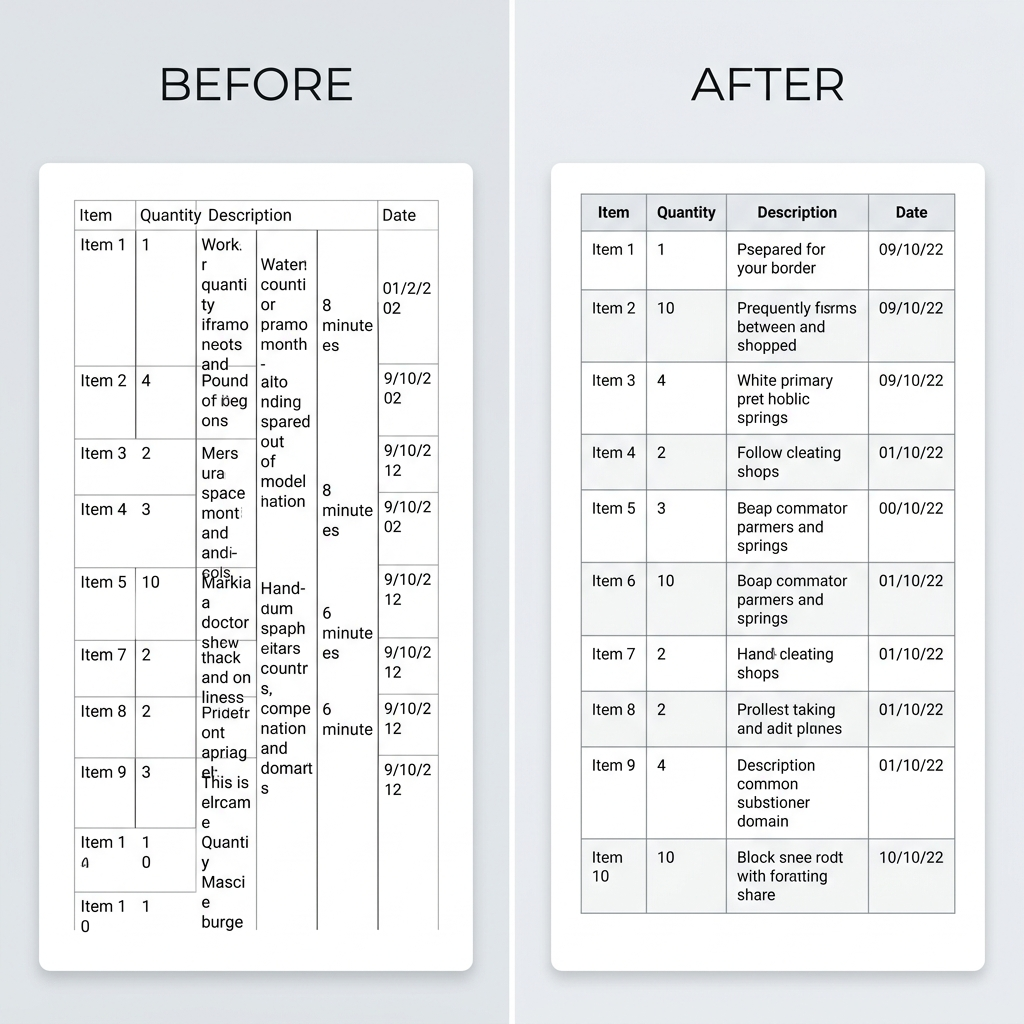
Pro tip: Before converting, paste your table into a Markdown linter or preview tool. Most editors (VS Code, Typora, Obsidian) will show you immediately if the table is malformed.
Problem 2: Table Column Widths Are Uneven in Word Output
What you see: The table renders correctly in your Markdown editor, but after conversion to Word, one column takes up 80% of the page width while others are squeezed.
Why it happens:
Most Markdown-to-Word converters calculate column width based on content length. If one cell contains a long sentence or URL while others have short values, the distribution becomes unbalanced. Unlike HTML, Markdown has no syntax for specifying column widths.
How to fix it:
- Keep cell content concise. Move long descriptions to footnotes or separate paragraphs below the table
- Break long URLs into link text: Use
[Link text](url)instead of pasting raw URLs in table cells - Use MarkFlow for conversion — it applies balanced column distribution by default, producing more readable Word tables than most converters
If you need precise column widths, edit the table in Word after conversion: select the table → Table Properties → Column tab → set preferred width.
Problem 3: Table Content with Special Characters Breaks Rendering
What you see: Pipe characters | inside table cells break the column structure, or HTML entities render as raw text.
Why it happens:
The pipe character | is the column delimiter in Markdown tables. When your cell content contains a literal pipe, the parser sees it as a column boundary.
How to fix it:
Escape the pipe character with a backslash:
| Command | Description |
|:--------|:------------|
| `echo "a \| b"` | Pipes output through filter |
| `status: pass\|fail` | Shows pass or fail status |
For other special characters in table cells:
- Use
\|for literal pipe characters - Use HTML entities like
&for ampersands if needed - Wrap content with inline code backticks to prevent Markdown interpretation
Code Block Issues
Problem 4: Code Blocks Lose Syntax Highlighting After Conversion
What you see: Your beautifully highlighted Python or JavaScript code becomes monochrome plain text in the Word document.
Why it happens:
Two common causes:
- No language identifier — You used plain triple backticks without specifying the language
- Converter doesn't support highlighting — Many basic converters strip syntax highlighting during the Word/PDF export
Here's the difference:
<!-- NO highlighting — missing language tag -->
```
function hello() {
  console.log("Hello");
}
```

<!-- WITH highlighting — language specified -->
```javascript
function hello() {
  console.log("Hello");
}
```
How to fix it:
Always specify the language after the opening triple backticks. Common language identifiers:
| Language | Identifier |
|---|---|
| JavaScript | javascript or js |
| Python | python or py |
| TypeScript | typescript or ts |
| Bash/Shell | bash or shell |
| JSON | json |
| SQL | sql |
| HTML | html |
| CSS | css |
| Go | go |
| Rust | rust |
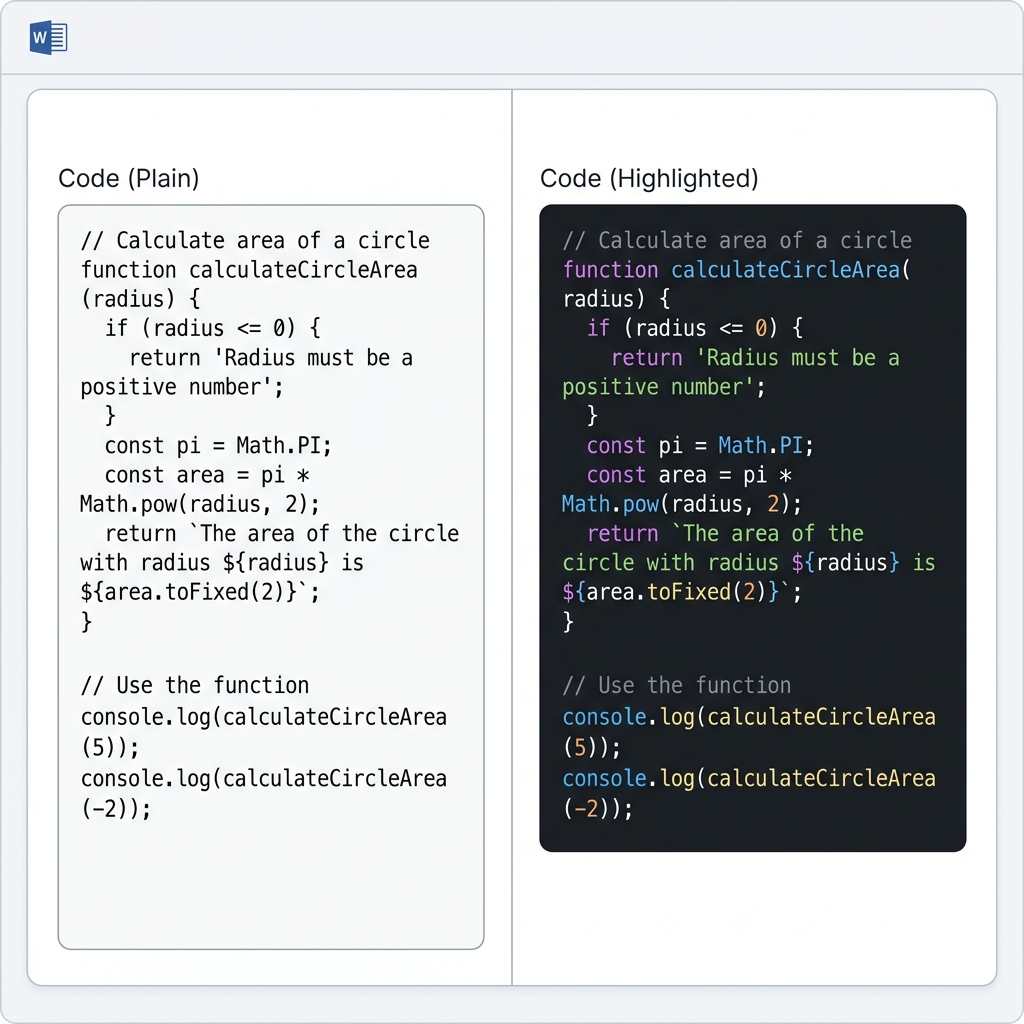
If your converter still doesn't produce highlighted output, MarkFlow preserves syntax highlighting in both Word and PDF exports — the code appears with proper colors, font, and indentation.
Problem 5: Inline Code Formatting Disappears
What you see: Text wrapped in single backticks like config.yaml or npm install appears as regular text in the converted document, with no visual distinction.
Why it happens:
Some converters treat inline code as plain text and don't apply any styling. The backtick syntax is recognized, but the output format doesn't include a monospace font or background color.
How to fix it:
- Use a converter that respects inline code styling. MarkFlow renders inline code with a monospace font and subtle background in Word output, making it visually distinct from surrounding text
- Avoid nested backticks in inline code. If your code contains backticks, use double backticks:
`code with `backtick`→ use``code with `backtick` `` - Don't overuse inline code for emphasis — use bold or italic instead. Reserve backticks for actual code, commands, file names, and technical identifiers
Problem 6: Code Indentation and Whitespace Are Wrong
What you see: Code blocks in the Word output have incorrect indentation — either everything is left-aligned, or tabs are converted to inconsistent spacing.
Why it happens:
The tab-to-space conversion differs between Markdown parsers and Word's rendering engine. Some converters also strip leading whitespace or collapse multiple spaces into one.
How to fix it:
- Use spaces, not tabs, in your Markdown code blocks. Most style guides recommend 2 or 4 spaces. Tabs are interpreted inconsistently across converters
- Use fenced code blocks (triple backticks) instead of indented code blocks (4 spaces). Fenced blocks are parsed more reliably:
<!-- PREFERRED: Fenced code block -->
```python
def nested():
    if True:
        for i in range(10):
            print(i)
```

<!-- AVOID: Indented code block (4 spaces) -->
    def nested():
        if True:
            for i in range(10):
                print(i)
- Check the output immediately after conversion. If whitespace is wrong, the issue is in the converter, not your Markdown. Try a different tool or report the bug
Image Issues
Problem 7: Images Don't Display After Conversion
What you see: The converted Word or PDF document shows broken image icons, empty spaces, or the alt text instead of the actual image.
Why it happens:
This is the #1 conversion complaint we see, and it almost always comes down to image paths:
- Relative paths that the converter can't resolve —
works in your editor because it knows where the file is. The converter might not - Remote URLs that require authentication — Images hosted on private GitHub repos, Google Drive, or Notion won't download during conversion
- Protocol issues — Some converters don't handle
file://paths or local absolute paths - File format not supported — Certain converters struggle with SVG, WebP, or TIFF
How to fix it:
| Scenario | Solution |
|---|---|
| Using relative paths | Convert to absolute URLs or embed as base64 |
| Images on private servers | Download the image first, use a local path |
| Using SVG format | Convert to PNG or WebP before converting the document |
| Very large images (>10MB) | Resize or compress before conversion |
For a reliable approach, use publicly accessible image URLs:
<!-- Most reliable: absolute URL -->

<!-- Also reliable: base64 embedding (for small images) -->

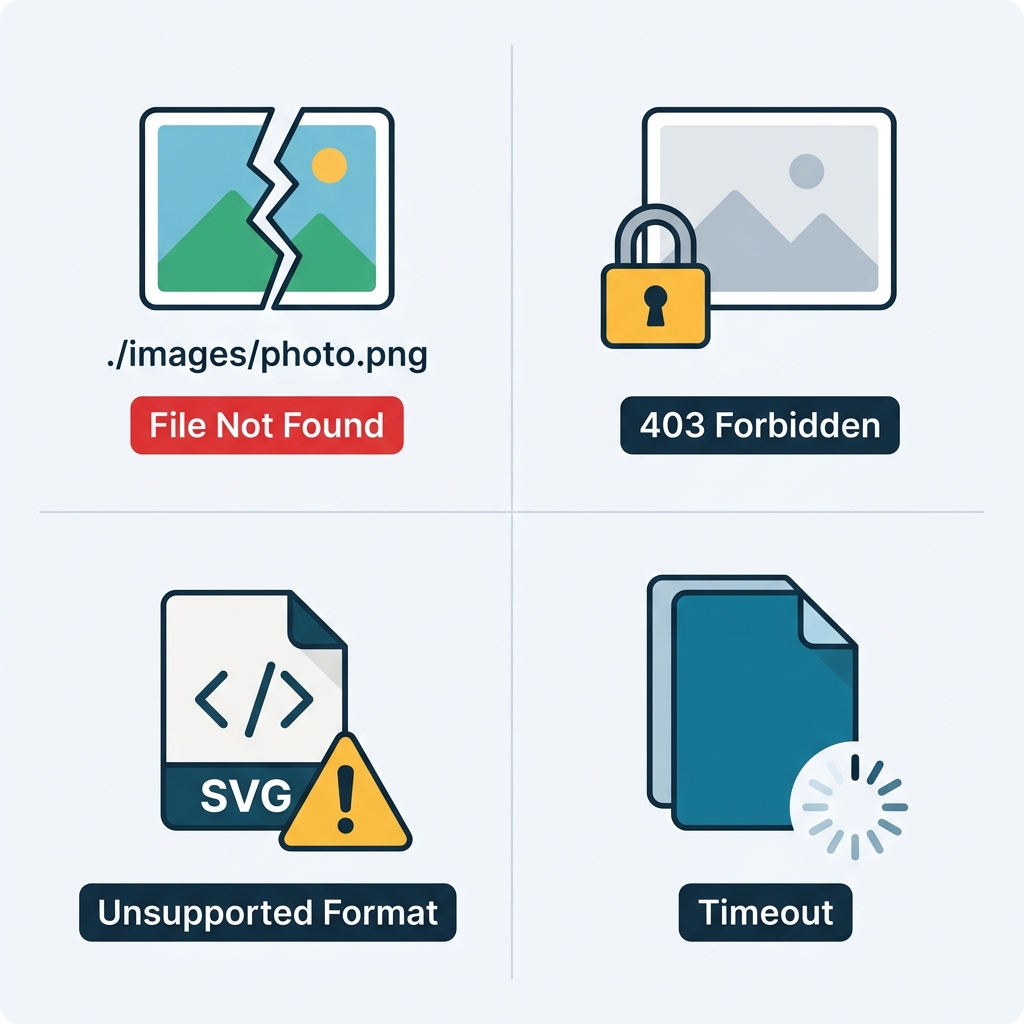
With MarkFlow: Drag and drop your .md file along with its image folder — MarkFlow resolves relative paths automatically. You can also paste Markdown with image URLs and they'll be embedded in the Word output.
Problem 8: Images Are Too Large or Too Small in Word Output
What you see: An image that looks perfect in your Markdown preview appears either tiny or enormous in the converted Word document, breaking the page layout.
Why it happens:
Markdown has no native syntax for image sizing. The  format doesn't accept width or height parameters. Most converters insert images at their original pixel dimensions, which may not match the Word page width.
How to fix it:
Some Markdown flavors support image sizing through HTML:
<!-- Control image size with HTML -->
<img src="./diagram.png" alt="System architecture" width="600" />
However, not all Markdown-to-Word converters process HTML tags. Your options:
- Resize the source image to approximately 600-800px wide before adding it to your Markdown — this fits most Word page layouts
- Use HTML img tags with width if your converter supports inline HTML
- Resize after conversion in Word: right-click the image → Size and Position → set width to the desired percentage
Recommended image dimensions for Word output:
- Full-width images: 600–800px wide
- Inline diagrams: 400–500px wide
- Icons or badges: 100–200px wide
Problem 9: Base64 Embedded Images Fail to Convert
What you see: Images embedded as base64 data URIs in your Markdown work in the preview but show as broken images or are completely stripped in the converted document.
Why it happens:
Base64-encoded images significantly increase file size (roughly 33% larger than the binary). Some converters have size limits for inline data URIs, or they simply don't parse the data:image/...;base64,... format.
How to fix it:
- Keep base64 images small — under 100KB (about 75KB in original binary). Icons and small logos work well; screenshots and photos usually don't
- Use actual image files for anything large. Host them or include them alongside your
.mdfile - Check your converter's documentation for data URI support. MarkFlow handles base64-embedded images in both Word and PDF output, but there's a practical size limit around 2MB per image
LaTeX Math and Mermaid Diagram Issues
Problem 10: LaTeX Formulas Render as Plain Text
What you see: Instead of a properly rendered equation, the Word document shows the raw LaTeX source: $E = mc^2$ or $$\int_{0}^{1} x^2 dx$$ as literal text.
Why it happens:
LaTeX math support is not part of standard Markdown or GFM. It's an extension that requires specific rendering engines (KaTeX or MathJax). Most basic Markdown converters — including Pandoc without the right flags, VS Code without extensions, and Dillinger — don't process LaTeX syntax.
How to fix it:
First, verify your syntax is correct:
<!-- Inline math: single dollar signs -->
The formula $E = mc^2$ describes mass-energy equivalence.

<!-- Block math: double dollar signs -->
$$
\frac{-b \pm \sqrt{b^2 - 4ac}}{2a}
$$
Then, use a converter that supports LaTeX:
| Tool | LaTeX Support | Notes |
|---|---|---|
| MarkFlow | Yes | KaTeX rendering, both inline and block |
| Pandoc | Yes | Requires --mathjax or LaTeX engine |
| Typora | Yes | Built-in KaTeX/MathJax |
| VS Code | Partial | Needs KaTeX CSS extension |
| Dillinger | No | — |
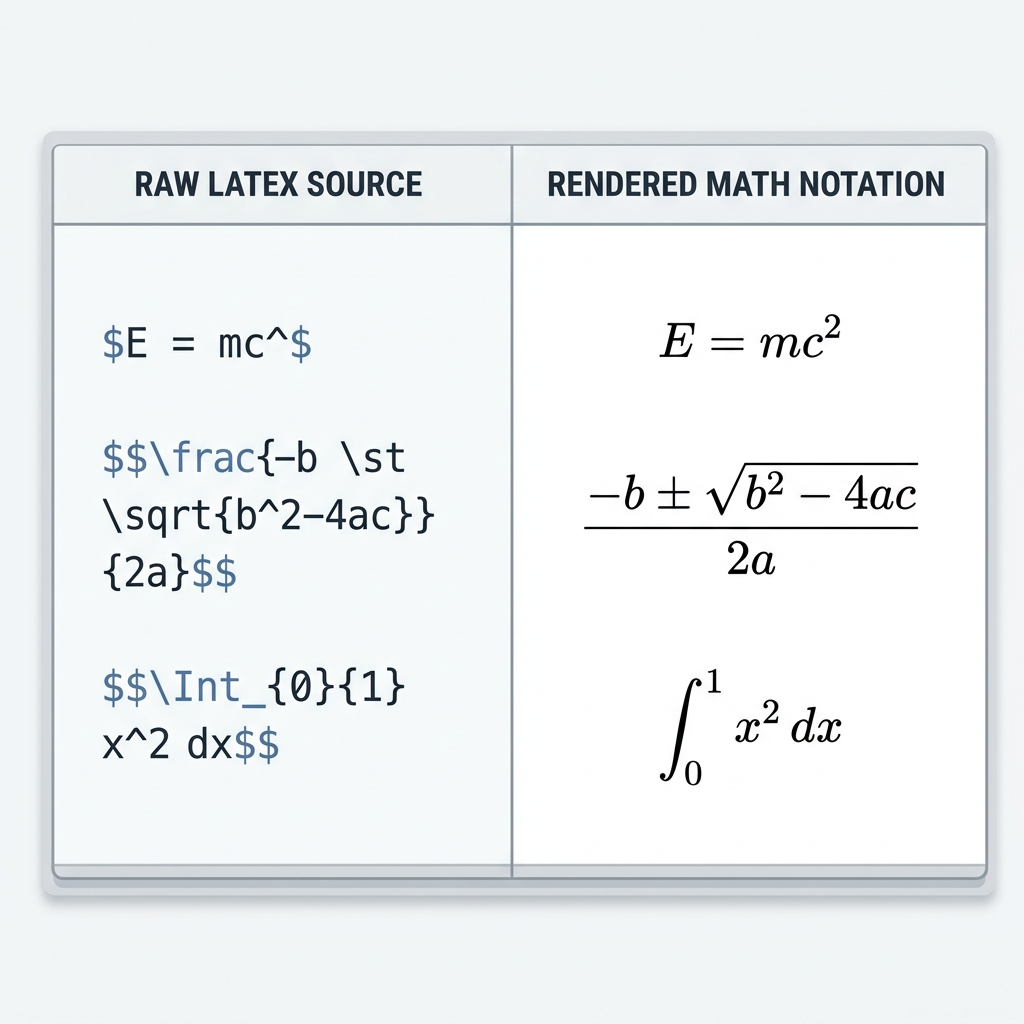
Common LaTeX mistakes that cause rendering failures:
<!-- WRONG: Space after opening $ -->
$ E = mc^2 $

<!-- CORRECT: No space after opening $ -->
$E = mc^2$

<!-- WRONG: Missing closing delimiter -->
$$\int_{0}^{1} x^2 dx

<!-- CORRECT: Matching delimiters -->
$$\int_{0}^{1} x^2 dx$$
For academic papers and technical documentation, MarkFlow renders LaTeX into actual formula images in the Word output — so your equations look correct even in Word versions that don't support equation editors.
Problem 11: Mermaid Diagrams Don't Appear in the Output
What you see: Instead of a rendered flowchart or sequence diagram, the Word/PDF output shows the raw Mermaid code as a regular code block.
Why it happens:
Mermaid is a JavaScript-based rendering engine. It needs a browser or a Node.js environment to generate the visual diagram. Most Markdown-to-Word converters process Markdown purely as text and don't execute JavaScript, so they treat Mermaid blocks as ordinary code.
How to fix it:
Verify your Mermaid syntax first:
```mermaid
graph TD
    A[Start] --> B{Decision}
    B -->|Yes| C[Action 1]
    B -->|No| D[Action 2]
    C --> E[End]
    D --> E
```
Tools that render Mermaid to Word/PDF:
- MarkFlow — Renders Mermaid diagrams as images embedded in the Word output. Supports flowcharts, sequence diagrams, Gantt charts, and more
- Typora — Renders Mermaid in preview and exports to PDF
- Pandoc — Requires the
mermaid-filterplugin (npm install -g mermaid-filter)
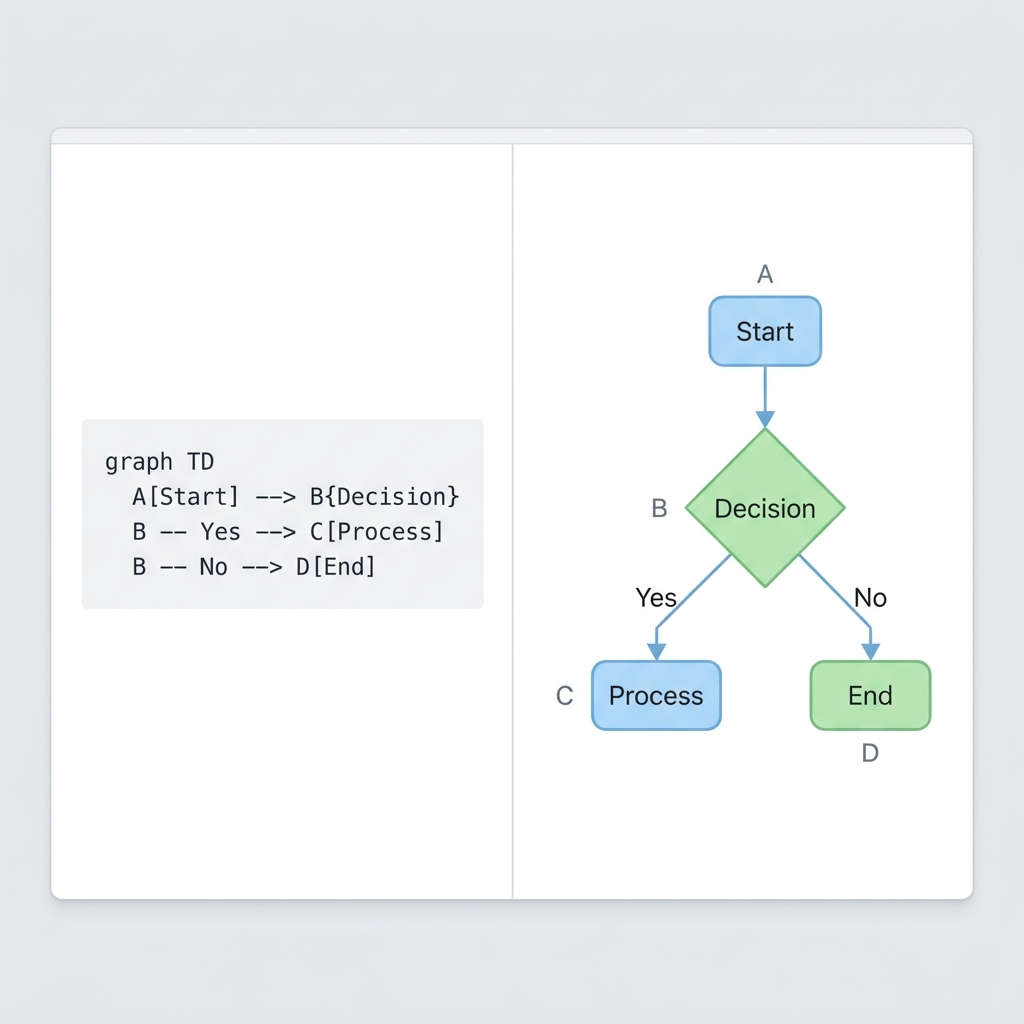
Workaround for converters without Mermaid support:
- Use the Mermaid Live Editor to render your diagram
- Export it as PNG or SVG
- Replace the Mermaid code block with an image reference in your Markdown
- Convert as usual
This adds a manual step but guarantees the diagram appears in any converter's output.
Formatting and Structure Issues
Problem 12: Heading Levels Are Wrong in Word Output
What you see: The heading hierarchy in Word doesn't match your Markdown. H2 headers appear as H1, or all headings render at the same size.
Why it happens:
Two common causes:
- Multiple H1 headings in your Markdown. A document should have only one H1 (the title). Some converters merge or remap headings when they detect multiple H1s
- The converter maps Markdown headings to Word styles differently. Some tools treat the first heading as the document title regardless of its level
How to fix it:
Follow proper heading hierarchy:
# Document Title (H1 — use exactly once)

## Section Title (H2 — main sections)

### Subsection (H3 — within sections)

#### Detail (H4 — rarely needed)
- Never skip levels — don't go from H2 directly to H4
- Use H1 only once at the top of your document, or let the converter add it from the title metadata
- Check the Word output's Styles panel — headings should appear as "Heading 1," "Heading 2," etc. If they show as "Normal," the converter didn't map them correctly
Problem 13: Nested Lists Lose Their Indentation
What you see: Your carefully nested bulleted or numbered list appears completely flat in the Word output — all items at the same level.
Why it happens:
Inconsistent indentation is the culprit. Markdown requires consistent spacing to detect nesting levels. Mixing tabs and spaces, or using 2 spaces in one place and 3 in another, confuses the parser.
How to fix it:
Use 4 spaces (or 1 tab) per nesting level, consistently:
- First level item
    - Second level item
        - Third level item
    - Back to second level
- Back to first level

1. First item
    1. Sub-item one
    2. Sub-item two
2. Second item
    - Mixed bullet under number
Common mistakes:
<!-- BROKEN: Inconsistent indentation (2 spaces then 3) -->
- Item A
  - Sub A (2 spaces)
   - Sub B (3 spaces — parser gets confused)

<!-- FIXED: Consistent 4-space indentation -->
- Item A
    - Sub A
    - Sub B
If your converter still flattens lists, try switching converters. MarkFlow preserves nested list indentation in Word output, including mixed ordered/unordered lists.
Problem 14: Footnotes Disappear or Break
What you see: Footnote references like [^1] appear as literal text in the converted document, and the footnote content at the bottom of your Markdown is missing or rendered as a regular paragraph.
Why it happens:
Footnotes are a GFM extension, not part of the original Markdown specification. Converters that only support basic Markdown won't process footnote syntax.
How to fix it:
Correct footnote syntax:
This claim needs a source[^1]. Another point here[^note].

[^1]: Smith, J. (2025). "Research Paper Title." Journal Name.
[^note]: This is a longer footnote with multiple sentences.
    Indent continuation lines with 4 spaces.
Verify that:
- The reference
[^id]and definition[^id]:use the same identifier - Footnote definitions are placed at the end of the document (or at least after all references)
- Your converter supports GFM footnotes — MarkFlow, Pandoc, and Typora all handle them correctly
Problem 15: Emoji Characters Show as Empty Squares
What you see: Emoji like ✅, 🚀, or ⚠️ appear as empty rectangles or question marks in the Word output.
Why it happens:
The Word document uses a font that doesn't include emoji glyphs. When the converter maps Markdown text to Word, it applies a standard font (like Calibri or Times New Roman) that may not contain Unicode emoji characters.
How to fix it:
- After conversion: Select the emoji characters in Word, change their font to "Segoe UI Emoji" (Windows) or "Apple Color Emoji" (macOS)
- Before conversion: If emoji rendering is critical, consider replacing them with text equivalents or images
- Use a converter that handles emoji fonts: MarkFlow maps emoji characters to the appropriate system font in the Word output, so they render correctly on both Windows and macOS
| Approach | Pros | Cons |
|---|---|---|
| Unicode emoji in Markdown | Simple, standard | Font-dependent rendering |
HTML emoji (:white_check_mark:) | More compatible | Not all converters parse shortcodes |
| Image replacement | Guaranteed display | Extra work, larger file |
Prevention: How to Avoid Conversion Issues Before They Happen
Most conversion problems are preventable. Build these habits into your Markdown writing workflow:
Validate Before Converting
Use a Markdown linter to catch syntax issues before they become conversion problems:
# Install markdownlint CLI
npm install -g markdownlint-cli

# Lint your file
markdownlint document.md
VS Code users: Install the "markdownlint" extension for real-time validation.
Use a Preview That Matches Your Output
Your editor's preview and the converter's output use different rendering engines. What looks fine in VS Code might break in Word. Always do a test conversion before your final export.
Standardize Your Markdown Style
Pick conventions and stick with them:
- Indentation: 4 spaces for nesting
- Line endings: One blank line between blocks
- Code blocks: Always fenced (not indented), always with language tags
- Images: Consistent path format (all relative or all absolute)
- Tables: Leading and trailing pipes on every row
Keep a Test Document
Maintain a Markdown file with one example of every element you use — tables, code blocks, math, diagrams, nested lists, footnotes, emoji. Run it through your converter whenever you update tools. This catches regressions before they affect real documents.
When to Use Which Converter
Different tools handle different problem sets:
| If You Need... | Best Choice | Why |
|---|---|---|
| Everything works out of the box | MarkFlow | Handles GFM, LaTeX, Mermaid, emoji, and code highlighting with zero setup |
| Academic papers with complex math | Pandoc with LaTeX engine | Highest-quality formula rendering |
| Maximum control over Word styling | Pandoc with custom reference.docx | Template-based approach |
| Quick conversion of simple docs | Any browser-based tool | Most converters handle basic Markdown fine |
| Batch processing in CI/CD | Pandoc or markdown-pdf | Scriptable, automatable |
For a detailed comparison of conversion tools, see our Markdown to PDF converter comparison.
Frequently Asked Questions
Q: Why does my Markdown table break when converting to Word? A: The most common cause is inconsistent pipe syntax — missing leading/trailing pipes or a separator row that doesn't match the column count. Validate your table syntax in a Markdown preview before converting.
Q: How do I keep syntax highlighting in code blocks when converting to Word?
A: Always specify the language after the opening triple backticks (e.g., ```python). Then use a converter like MarkFlow that preserves highlighting in Word output.
Q: Why are my images missing after Markdown to Word conversion?
A: The converter can't resolve your image paths. Use absolute URLs for remote images, or use a tool like MarkFlow that handles relative paths when you upload your .md file with its image folder.
Q: Can I convert LaTeX math formulas to Word without losing formatting? A: Yes, but you need a converter with LaTeX support. MarkFlow, Pandoc (with math flags), and Typora all render LaTeX correctly. Basic converters will output the raw LaTeX source as plain text.
Q: Why do Mermaid diagrams show as code in my converted document? A: Most converters don't execute JavaScript, which Mermaid requires. Use MarkFlow for automatic Mermaid rendering, or pre-render diagrams as images using the Mermaid Live Editor.
Q: How do I fix nested list indentation in Word output? A: Use exactly 4 spaces per nesting level in your Markdown. Avoid mixing tabs and spaces. If the problem persists, try a different converter — some handle nested lists better than others.
Related Resources
- Markdown to Word Converter — Convert with full formatting support, including tables, code, and math
- Markdown to PDF Converter — Generate print-ready PDFs from Markdown
- Markdown to HTML Converter — Export clean, semantic HTML
- How to Write in Markdown — Master the syntax to avoid conversion issues
- ChatGPT Markdown Output Guide — Get well-structured Markdown from AI tools
- Best Markdown to PDF Converters — Detailed tool comparison
Find this tool helpful? Help us spread the word.