Obsidian to Word: The Complete Export Guide for 2026
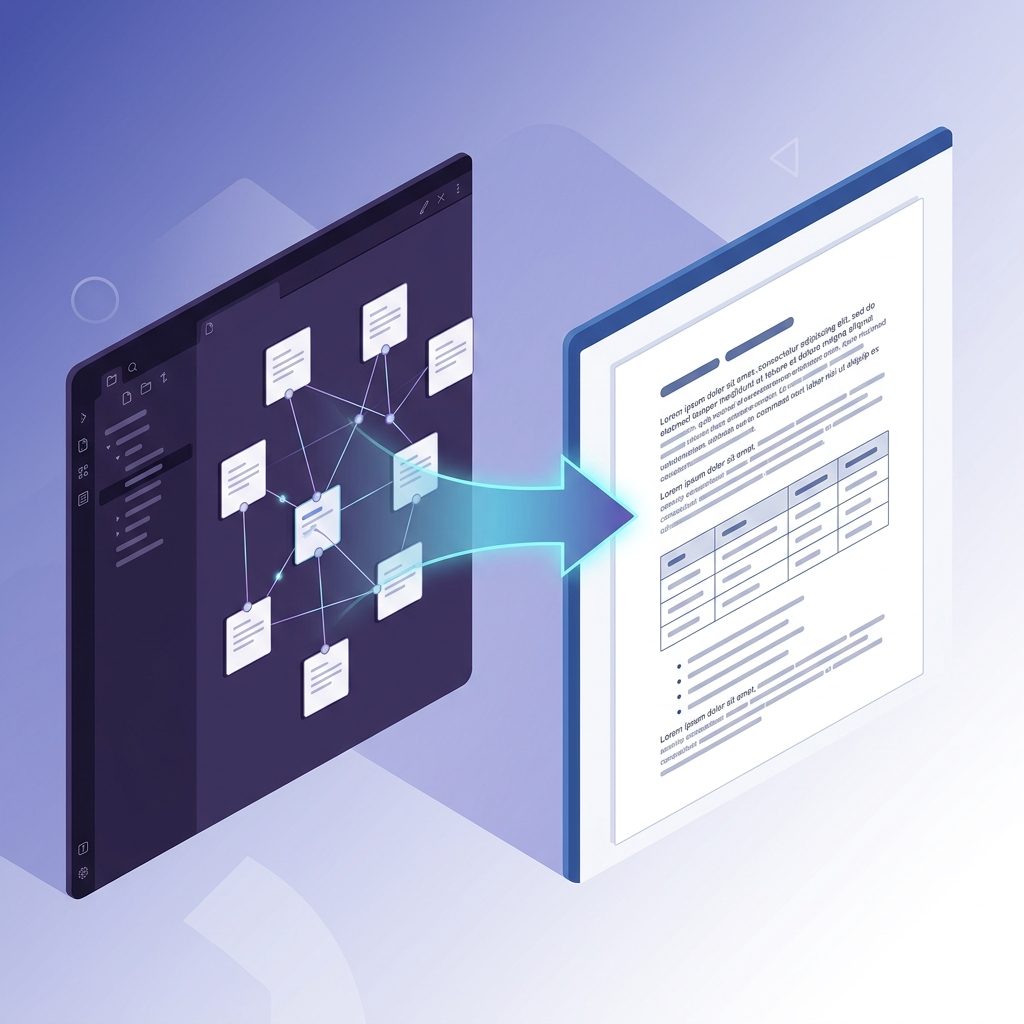
If you live in Obsidian, you already know the problem. You spent three months building a research note full of Obsidian-specific syntax — things like:
[[Project Plan]]        → link to another note
![[diagram.png]]        → embedded image
> [!note] Key insight   → callout block
Then a colleague asks for the Word version — and every one of those non-standard elements breaks.
I ran into this the first time I had to hand off a 40-page technical investigation to a stakeholder who wouldn't touch Obsidian. What looked polished in the vault came out as a mess of literal brackets and orphaned image placeholders in Word. After working through that conversion and several more since, I've settled on a workflow that holds up. This guide documents it — the preprocessing step most people skip, the three Obsidian-specific quirks that actually matter, and what to do when images or callouts refuse to cooperate.
How to Export Obsidian to Word: Quick Answer
To convert an Obsidian note into a Word document, clean up the Obsidian-specific syntax first, then run the standard Markdown through a GFM-aware converter:
- Convert wikilinks and embeds — replace
[[note]]and![[image.png]]with standard Markdown links and image paths so a converter can resolve them. - Flatten attachment paths — move referenced images next to the note and use simple filenames like
. - Run a free converter — upload the cleaned
.mdfile to MarkFlow's Markdown to Word converter; it preserves tables, code blocks, and headings in the final.docx. - Refine in Word — fix any callouts or Dataview blocks that still need manual attention.
The preprocessing in steps 1–2 is what separates a clean export from a page of literal brackets. The rest of this guide explains each step — and the Obsidian-specific edge cases — in detail.
Why Obsidian's Markdown Isn't Portable (and What Breaks)
Obsidian stores notes as plain .md files, which is why people assume exporting to Word is trivial. It isn't — because Obsidian extends standard Markdown with features that no generic converter understands.
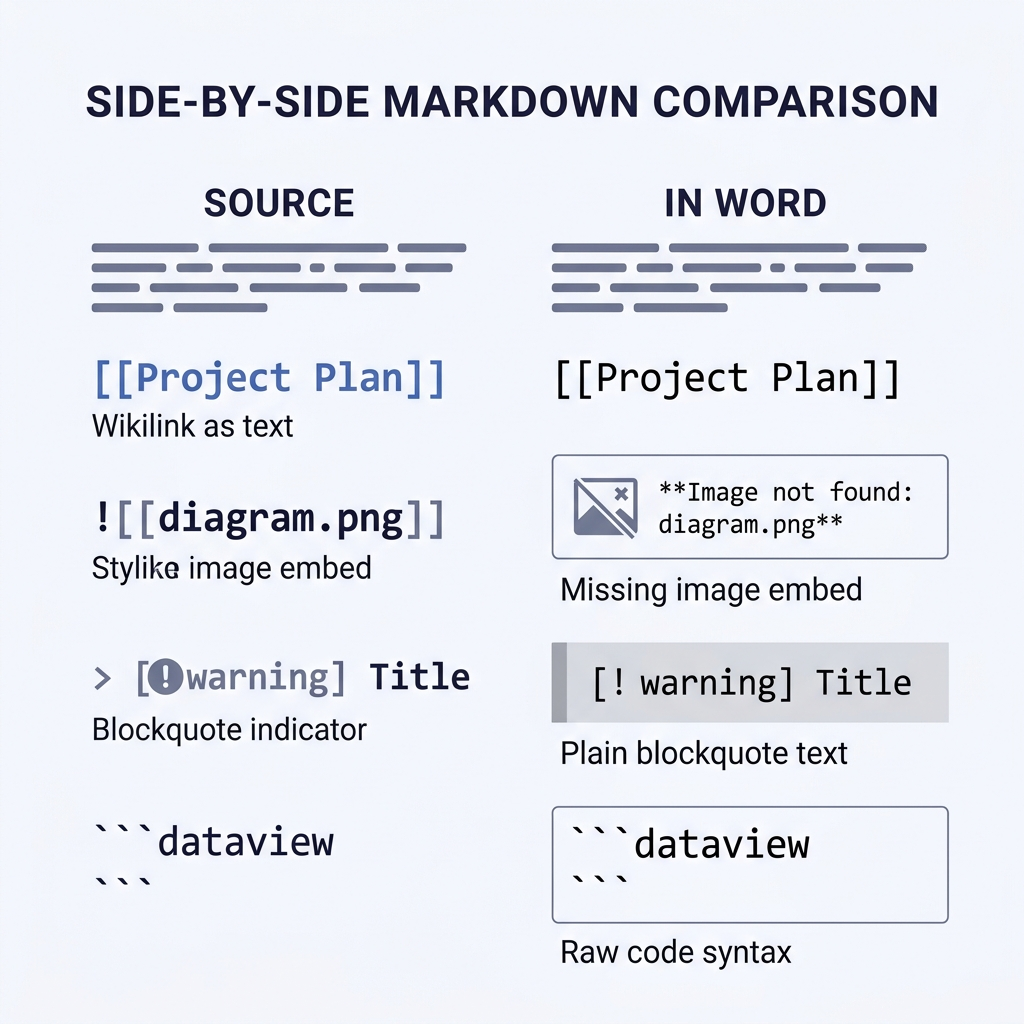
Here are the four extensions that cause almost every failed export:
| Obsidian Syntax | What It Means | What Happens in Word |
|---|---|---|
[[Project Plan]] | Wikilink to another note | Shows as literal [[Project Plan]] text |
![[diagram.png]] | Embedded attachment | Shows as literal text, image is lost |
> [!warning] Title | Callout block | Renders as a plain blockquote, header lost |
dataview code blocks | Dynamic query result | Exports as the raw query, not the rendered table |
Standard Markdown converters — Pandoc, most online tools — treat [[...]] as literal text and ![[...]] as an unrecognized token. The rendered Obsidian view you see in the app is a preview, not the source. That distinction is the root cause of most "why did my export break" frustration.
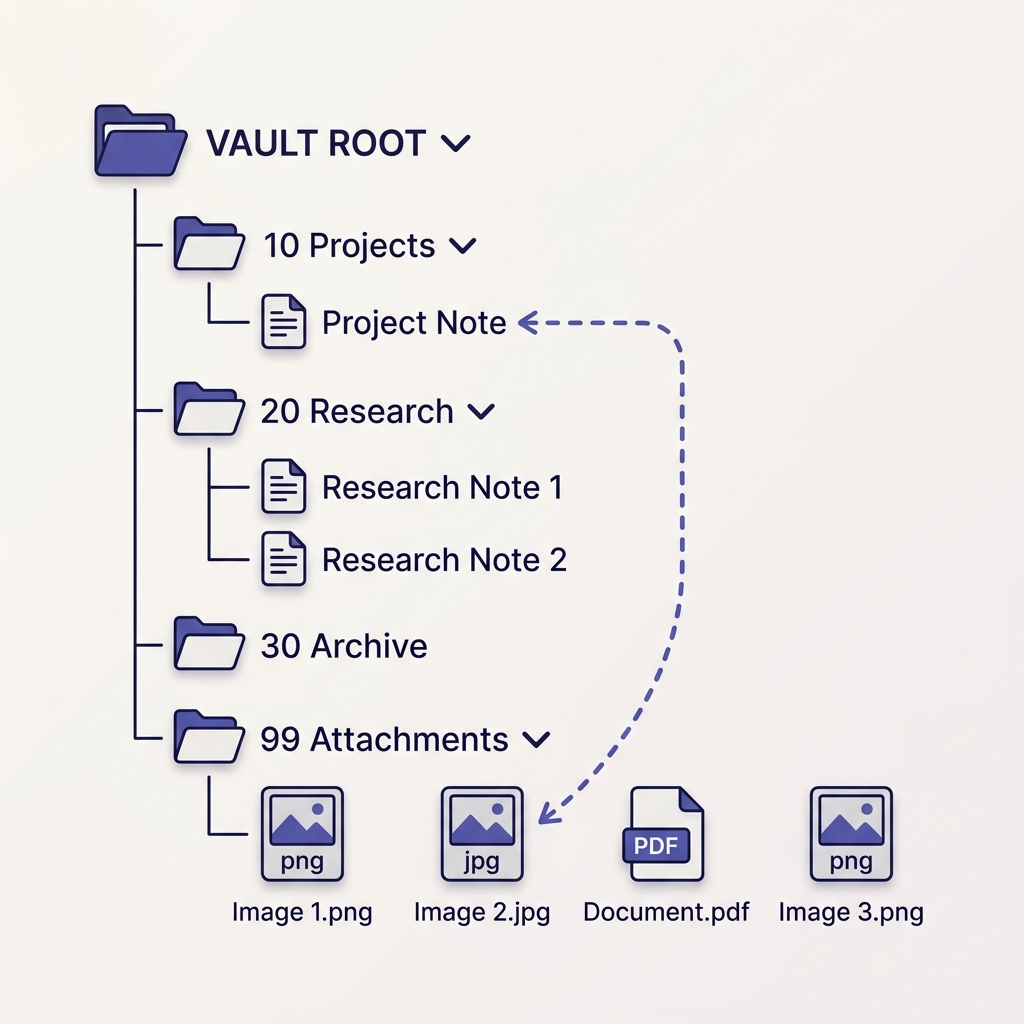
There's also a subtler issue: attachment paths. Obsidian resolves ![[image.png]] by searching your vault for a matching file, regardless of folder. Standard Markdown needs an explicit relative path. If your vault stores attachments in 99 Attachments/ and your note lives in 10 Projects/, the image link needs rewriting before any converter can find it.
Before You Export: The Preprocessing Step That Saves You
The single biggest reliability improvement in my workflow came from doing a 5-minute preprocessing pass before running any converter. Skip this and you'll spend 30 minutes cleaning up the Word file afterward.
Step 1: Check your attachment settings
Open Settings → Files and links. Note two values:
- Default location for new attachments — where new images/PDFs land
- New link format — how Obsidian writes paths (
Shortest path when possible,Relative path to file, orAbsolute path in vault)
If this is set to Shortest path when possible (Obsidian's default), your export will break for any note whose attachments aren't in the same folder. Before exporting, switch to Relative path to file. This setting only applies going forward — existing links keep their old format until rewritten. Step 2 below handles that rewrite.
Step 2: Convert wikilinks to standard Markdown links
Obsidian has a built-in toggle for this: Settings → Files and links → Use [[Wikilinks]] → OFF. When off, new links get written as [Note Name](Note-Name.md). But this only affects new links.
To convert existing [[wikilinks]] in a note, you have two options:
- Manual for small exports — Cmd/Ctrl+F in the note, find each
[[, rewrite it. Fine for a 5-page note. - Community plugin for larger vaults — open
Settings → Community pluginsand search for terms like "link converter" or "markdown links". Several plugins in the ecosystem convert wikilinks (and embedded![[...]]attachments) to standard Markdown syntax in bulk, either on the current file or a whole folder. Pick one with recent updates and a usage count that gives you confidence.
After the rewrite, your embedded attachments will look like . Check the output — if your attachment folder uses spaces, URL-encode them (My%20Vault/attachment.png) or the converter will silently drop the image.
Step 3: Decide what to do with callouts
Obsidian callouts (> [!note], > [!warning], etc.) are valuable in the vault but have no equivalent in Word. You have three options, ranked by effort:
- Accept the downgrade — they'll render as plain blockquotes. The callout type (note/warning/tip) is lost, but the content survives. Acceptable for most handoffs.
- Rewrite the important ones — replace
> [!warning] Criticalwith> **⚠️ Critical:**before exporting. Readable in both places. - Post-process in Word — convert blockquotes to styled boxes using Word's Quick Styles. Worth it only for polished deliverables.
I use option 2 for anything under 20 pages and option 1 for everything else.
Step 4: Export Dataview blocks as static content
If your note contains Dataview queries, they export as the query code, not the result table. Before exporting, run the query in Obsidian, copy the rendered output, and paste it as a static Markdown table replacing the code block. Yes, this is manual. No, there isn't a clean way around it — Dataview renders client-side, so the source file genuinely doesn't contain the data.
The Four-Step Export Workflow
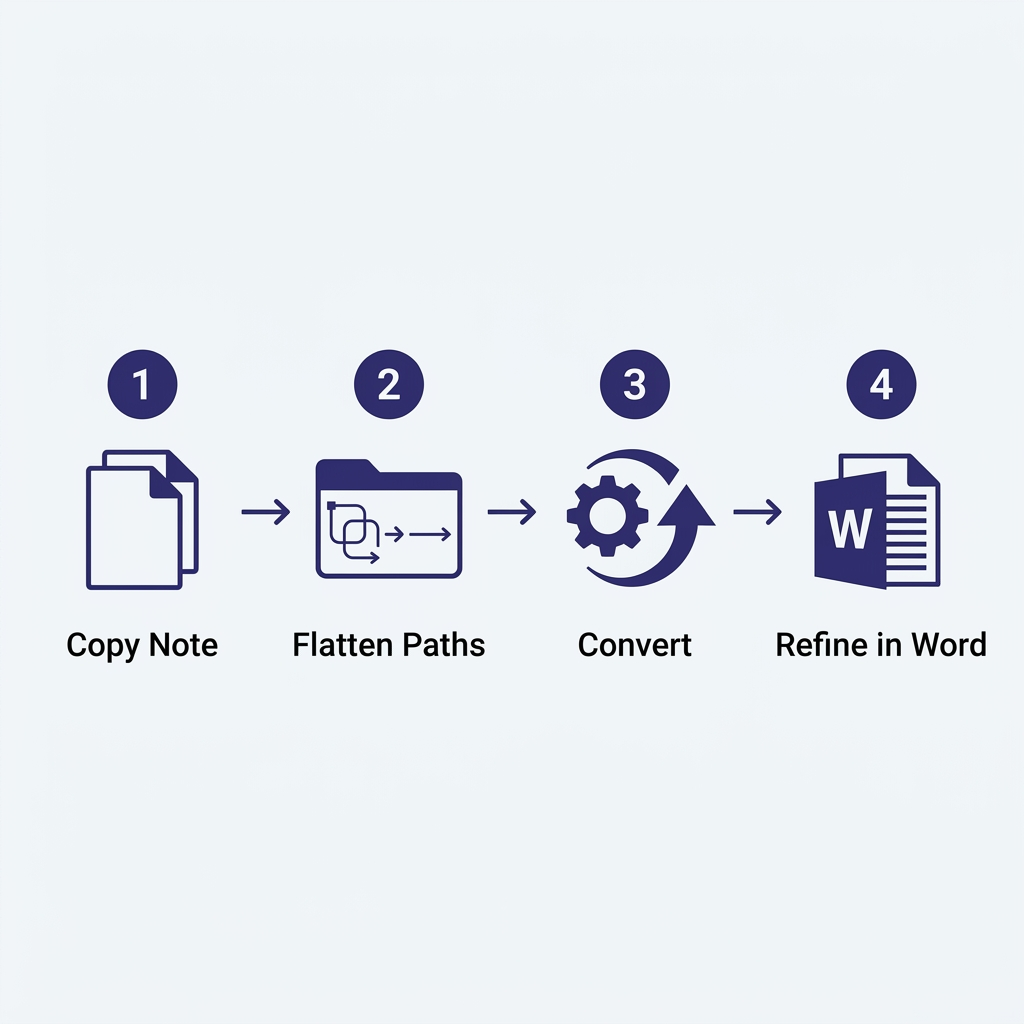
Once preprocessing is done, the actual conversion is straightforward.
1. Copy the note (don't export in place)
Duplicate your target note and its attachments into a temporary folder outside the vault. You don't want preprocessing edits (link rewrites, callout substitutions) polluting your main vault. I keep a folder called _export-staging/ on my desktop for this.
2. Flatten attachment paths
Move all referenced images into the same folder as the .md file and update the links to be simple filenames:  instead of . Most converters struggle with paths that traverse up folders.
3. Run the converter
Upload the preprocessed .md file to MarkFlow's Markdown to Word converter. It handles GitHub Flavored Markdown (GFM) — including tables, task lists, and footnotes — which covers every standard feature Obsidian produces after preprocessing. Images get embedded inline, code blocks keep their syntax highlighting, and headings map to Word's Heading styles so your Navigation Pane works in the output DOCX.
If the note has LaTeX math ($E=mc^2$ or $$...$$), confirm the converter you pick preserves it as Word equations rather than flattening to plain text. For notes heavy with formulas — research logs, academic drafts — this is the make-or-break feature. If Word isn't the final target and you just need a shareable file, converting Markdown to PDF sidesteps Word's equation rendering quirks entirely.
4. Refine in Word
Open the DOCX and apply a Word template if you have one. The Heading styles from Markdown map cleanly onto Word's built-in Heading 1/2/3, so restyling the whole document is a one-click operation via Design → Document Formatting. Check three things before sending it off:
- Table of contents — insert one via
References → Table of Contentsto verify all headings picked up correctly - Image sizing — Obsidian displays images at natural size, Word may inflate them. Select-all-and-resize if needed
- Hyperlinks — any external links should be live; internal
[[wikilinks]]should either be resolved or removed
Obsidian-Specific Edge Cases
A few scenarios come up often enough to call out individually.
Daily notes and templates
If you're exporting a daily note that uses {{date}} or templater variables, the export happens after Obsidian has substituted them — so the exported .md contains the real date, not the placeholder. No special handling needed. The exception is if you exported from the filesystem directly without opening the note in Obsidian; unresolved templates will leak through. Open the note first, let Obsidian render it, then export.
Canvas files
Obsidian canvas (.canvas) files are JSON, not Markdown, and no Markdown converter will touch them. For canvases, the working option is to take a screenshot of the canvas at the zoom level you want, save it as a PNG, then embed that image in a wrapper Markdown note that you export. Some community plugins also offer direct "export canvas as image" functionality if you need to do this often enough to justify installing one.
Mermaid diagrams
Fenced code blocks tagged with mermaid render as diagrams inside Obsidian. Most online Markdown-to-Word converters either render them as images (good) or leave them as raw code (bad). MarkFlow renders Mermaid to inline SVG before conversion, which Word displays as an editable image. If your target converter doesn't support Mermaid, the fallback is to export the diagram as PNG from Obsidian's view and replace the code block with a standard image embed.
Footnotes
Good news — Obsidian's footnote syntax ([^1] and the definition [^1]: text) is standard GFM and converts cleanly to Word's built-in footnote feature. No preprocessing needed.
Tags and frontmatter
YAML frontmatter (--- blocks at the top of the note) typically gets stripped by converters. If the frontmatter contains information your reader needs (author, date, status), move it into the body as a standard paragraph before exporting. Inline tags like #project/research usually survive as plain text — which is fine in most cases, awkward in others. Find-and-replace to remove them if the Word document will be read by non-Obsidian users.
When Manual Conversion Beats Automation
I'll be honest: for a single 2-3 page note with minimal formatting, the fastest workflow is copy from Obsidian's reading view and paste into Word. Obsidian's reading mode renders HTML, and Word pastes HTML as formatted content with surprising fidelity. Tables come through, bold/italic survives, headings map to Word heading styles.
This paste-from-reading-view approach fails at three things:
- Images — they paste as linked references to files in your vault, which break the moment the file leaves your machine
- Code blocks — syntax highlighting gets lost, monospace font is inconsistent
- Callouts and Mermaid — same breakage as a standard export
So: short notes with no code or images → paste. Anything longer or technical → the 4-step workflow above.
Troubleshooting: What To Do When Things Break
These are the failure modes I see most often. For a broader reference, the Markdown conversion troubleshooting guide covers 15 common conversion problems in detail.
Images are missing in the Word file. Ninety percent of the time this is a path problem. Check the .md source — are attachment paths simple filenames (image.png) or complex paths (../../99 Attachments/My Folder/image.png)? Flatten them.
Tables render as a single-line mess. Your source is using Obsidian's legacy table format or has inconsistent pipe characters. Open the .md in a plain text editor and ensure every row has the same number of pipes. The header separator needs to match: | --- | --- |.
Code blocks lose their language coloring. Check that your fences include a language tag (e.g. python, js, bash) right after the opening triple backticks. Converters use that tag to apply syntax highlighting; unlabeled fences default to plain text.
Wikilinks still show as [[Note Name]] after export. Preprocessing didn't run, or it didn't cover this file. Confirm Use [[Wikilinks]] is toggled off in settings, then re-run whichever conversion plugin you installed in Step 2 against the specific file — most of them support scoping to a single note rather than the whole vault.
Math formulas appear as raw LaTeX. The converter doesn't support math rendering. Either switch converters, or screenshot the rendered equation in Obsidian and embed as an image — ugly but reliable.
A Realistic Workflow for Teams
If you're the only Obsidian user on a team that needs Word files, build a repeatable process rather than a one-off export script. The version I use on collaborative projects:
- Keep a dedicated
Exports/folder in the vault for notes destined for Word - In that folder, use standard Markdown links from the start (
[text](note.md)) instead of wikilinks — saves preprocessing - Run a weekly batch conversion for whichever notes changed
- Store the DOCX outputs in a shared drive, not in the vault
The goal is to separate your thinking space (the main vault with all its Obsidian-specific power) from your delivery space (the Exports/ folder that speaks standard Markdown). Refactoring to this split took me an hour the first time and has saved hours every month since.
If you're coming to this from the opposite direction — writing in Markdown and curious about getting the basics right — the how to write in Markdown guide covers the fundamentals that make any export smoother. And for a closer look at the conversion side of the pipeline, the complete Markdown to Word guide walks through the converter features that matter for complex documents.
Final Thoughts
Obsidian's real strength is its non-standard features — the wikilinks, the callouts, the dynamic queries that make a vault feel alive. Exporting to Word means giving up most of that. The trick is to stop fighting it: accept that the Word version will be a flattened representation, preprocess accordingly, and use Word's styling tools to rebuild polish where it matters.
Once the preprocessing habit clicks, the whole pipeline takes about five minutes per note. That's the difference between "I'll do it later" and actually sending the document today.
Find this tool helpful? Help us spread the word.