How to Write in Markdown: Beginner Guide & Conversion Tools
How to Write in Markdown: A Beginner’s Guide with Easy Conversion Tools
Markdown to Word conversion bridges the gap between lightweight writing and professional documents. Markdown lets developers and writers craft content quickly without the overhead of traditional editors. When you need polished Word documents for reports or client deliverables, conversion tools handle the formatting for you.
This guide covers Markdown fundamentals, its advantages over traditional editors, writing best practices, and conversion workflows. Whether you're managing project docs or streamlining team collaboration, integrating Markdown with Word workflows can save you significant time.
Understanding Markdown Fundamentals
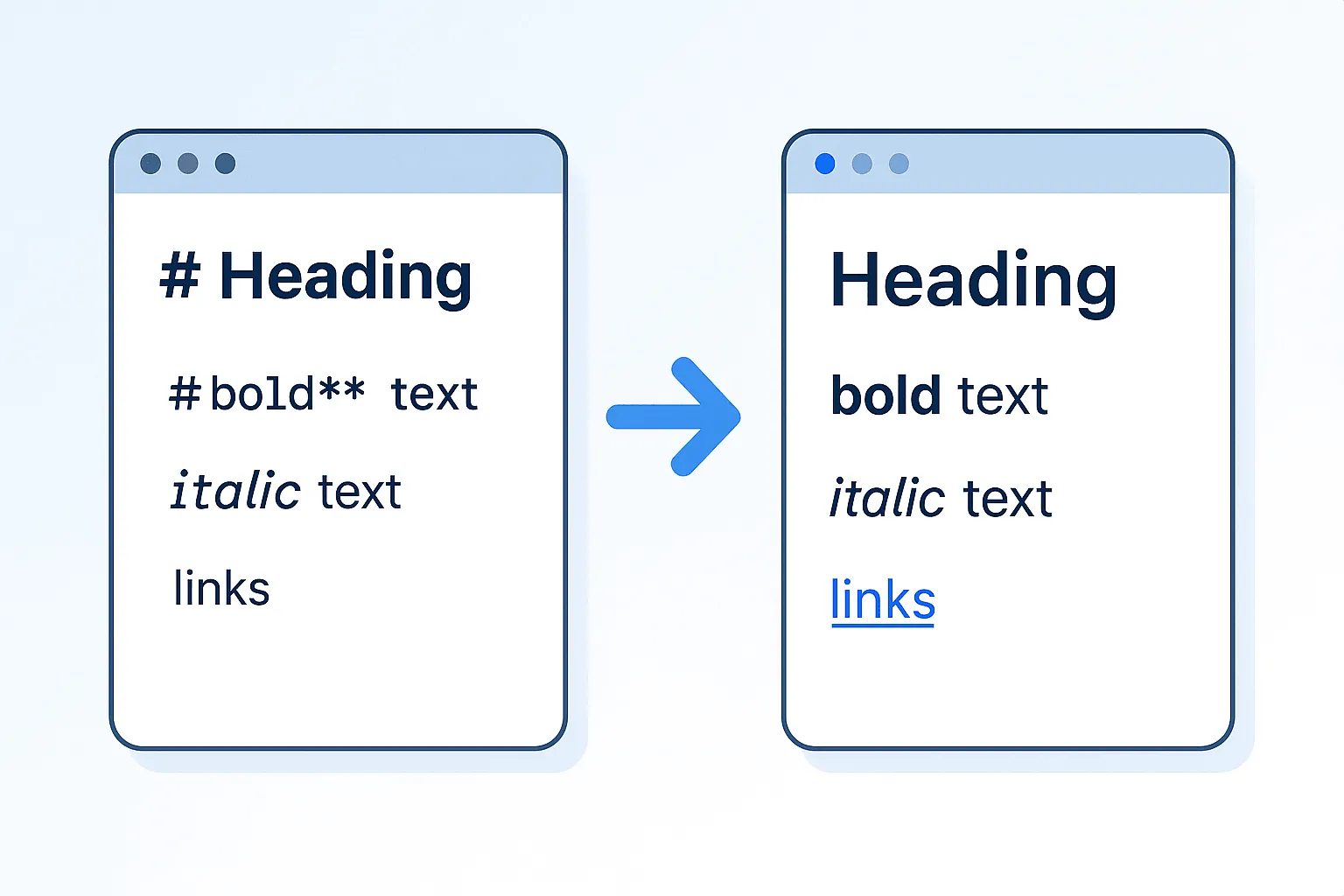
Markdown's rise stems from its creation in 2004 by John Gruber as a way to write for the web with plain text that remains readable even in raw form. For those new to it, grasping these core concepts is essential before diving into document conversions, as they ensure your source files translate accurately to formatted documents. Teams commonly use Markdown for API docs and README files, then convert to .docx when stakeholders need Word format. This foundation not only simplifies drafting but also preserves semantic structure, making our free online converter a perfect partner—especially with its robust support for GitHub Flavored Markdown (GFM) features such as tables, task lists, and code blocks.
What Is Markdown and Its Key Advantages for Beginners

At its core, Markdown is a plain-text formatting syntax designed to convert to HTML or other rich formats without proprietary lock-in. Unlike HTML's verbosity or Word's binary files, Markdown files (.md extension) are human-readable and editable in any text editor, from Vim to VS Code. This makes it ideal for beginners tackling note-taking, blogging, or technical documentation—scenarios where quick iteration matters most.
The key advantages shine in usability: its syntax is intuitive, reducing the learning curve compared to WYSIWYG editors. For instance, readability in source form means you can scan a document's structure at a glance, fostering faster feedback loops. In terms of portability, Markdown files are lightweight—often under 10KB for complex docs—versus Word files that can balloon to megabytes due to embedded styles. This efficiency is why it's a staple in developer workflows; many developers cite Markdown's simplicity as a key reason for adopting it in their documentation workflows.
From an implementation standpoint, Markdown's semantic elements—like headings for hierarchy or lists for organization—align perfectly with user intent for quick learning. They ensure that when you transform your text to Word, the resulting document retains logical flow without manual reformatting. A common pitfall for newcomers is overlooking this semantics; treating Markdown as "just bold and italics" misses its power for structured content. Instead, view it as a declarative language where intent drives output, much like CSS for styling.
For deeper reading, the original Markdown syntax description by John Gruber remains the authoritative source, emphasizing its web-first origins while applicable to modern documentation scenarios.
Essential Markdown Syntax Breakdown
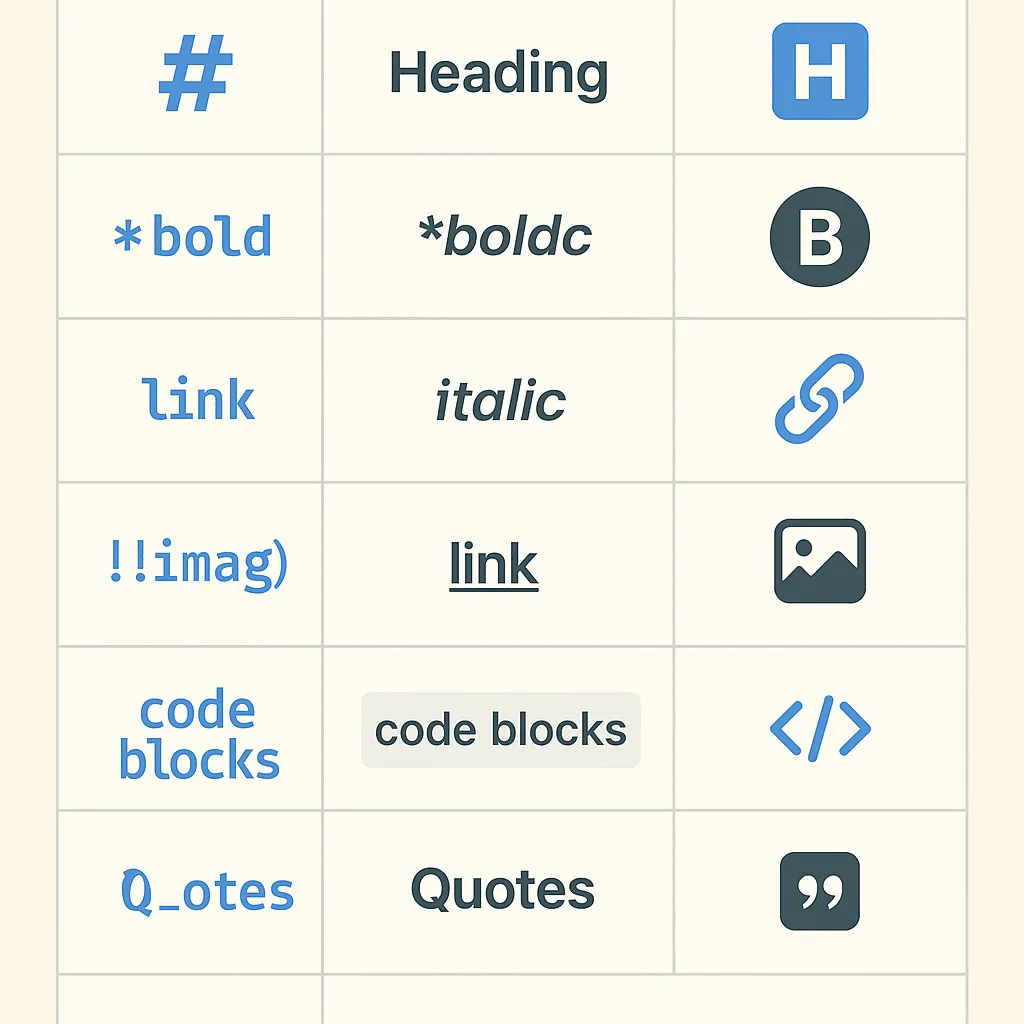
Mastering basic Markdown syntax starts with text formatting, which forms the building blocks of any document. Bold is achieved with double asterisks or underscores (text), italics with single (text), and strikethrough via text in GFM extensions. Headings range from # H1 to ###### H6, creating a clear outline—crucial for navigation in both raw Markdown and converted Word files.
Paragraphs are straightforward: just separate lines with a blank line, and Markdown handles the rest. This simplicity belies its depth; under the hood, parsers like CommonMark (the de facto standard) tokenize these elements to generate structured output. For example, when implementing in a workflow, you'll notice how consistent spacing prevents parsing errors—a lesson learned from debugging team-shared docs where inconsistent indents broke lists.
To demonstrate, consider this practical snippet for a tutorial section:
# Introduction to Algorithms

This paragraph introduces the topic. It's automatically a block.

- Bullet one
- Bullet two with **bold** emphasis
When parsed, this yields hierarchical, formatted text. The "why" here is extensibility: basic Markdown syntax allows plugins or converters to layer on features without altering core files. In conversion contexts, this ensures fidelity; tools must handle escaping for special characters, like backslashes in code, to avoid corruption.
Handling Images, Links, and Basic Tables
Embedding images uses the  syntax, where alt text aids accessibility—a best practice per WCAG guidelines. When adding diagrams to a project report, this syntax keeps your Markdown portable; the image URL can be relative for local files or absolute for web assets. A nuance: GFM supports image sizing via attributes, like {width=50%}, which advanced converters preserve as scaled embeds in .docx.
Links follow [anchor text](URL), enabling contextual navigation. For instance, linking to external resources mid-sentence enhances engagement without disrupting flow. Implementation tip: Use reference-style links for cleaner source—[Google] becomes [Google][1] with [1]: https://google.com at the file's end. This reduces clutter in long docs, a trick used in 50+ page specs to maintain readability.
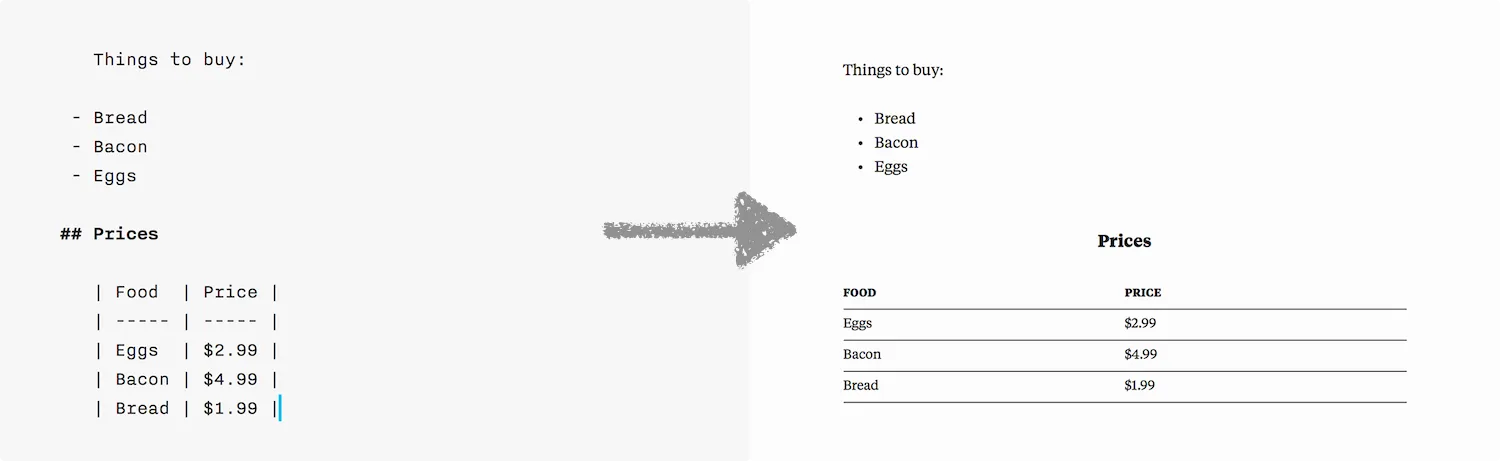
Basic tables, a GFM staple, use pipes and hyphens:
| Header 1 | Header 2 |
|----------|----------|
| Cell 1   | Cell 2   |
This renders as a grid, perfect for comparisons. Edge case: Alignment via colons (:--- for left, ---: for right) adds polish, but not all parsers support it fully—test with tools like the GitHub Flavored Markdown spec to ensure compatibility. In document workflows, unescaped pipes in cell content can break tables; the fix is using HTML entities (&pipe;), highlighting the need for robust parsers that handle such quirks.
These elements showcase Markdown's balance of power and restraint, making the transition to Word format smooth.
Why Markdown Outperforms Traditional Word Editors
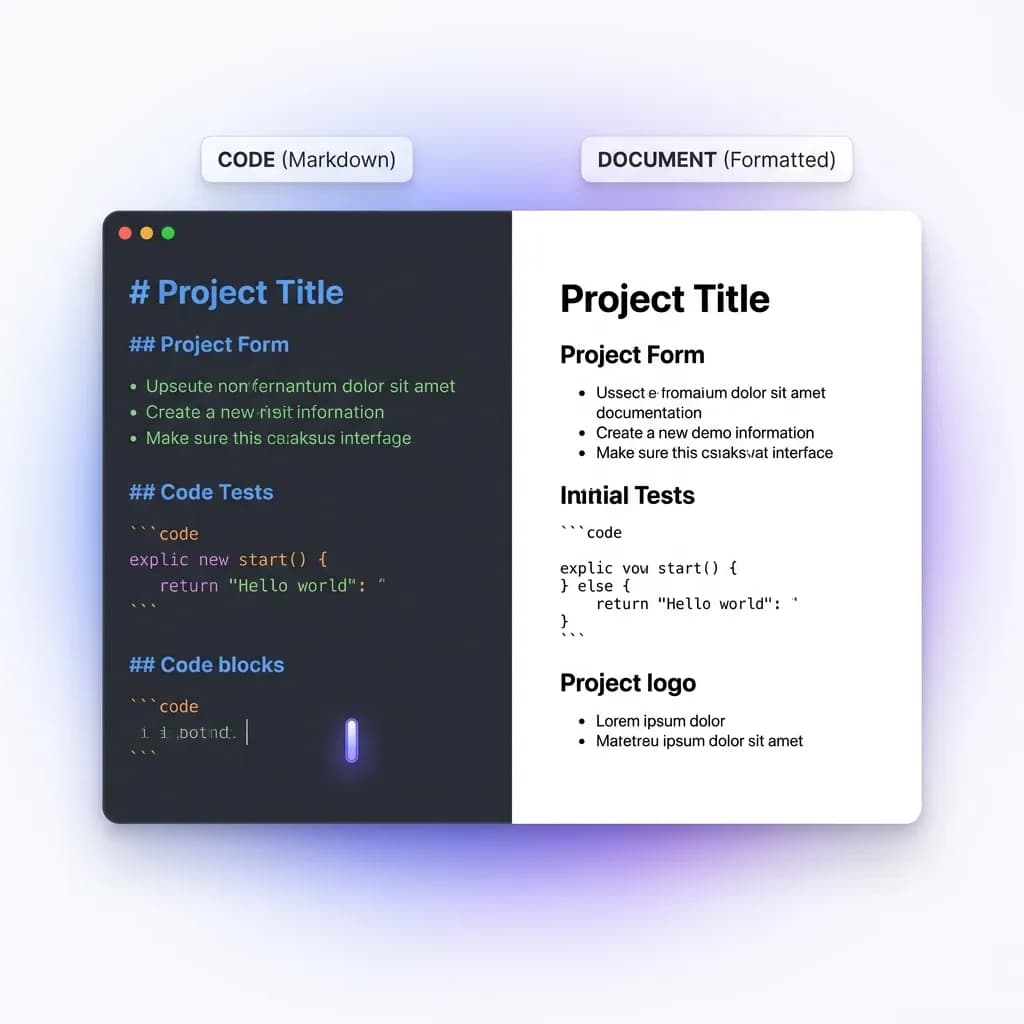
Traditional editors like Microsoft Word excel at visual polishing but falter in scalability for tech-savvy users. Markdown's edge lies in its efficiency and portability, driving an industry shift toward plain-text editing—as evidenced by tools like Notion and Obsidian adopting Markdown under the hood. Positioning Markdown to Word converters as a bridge addresses the pain of needing Word's compatibility (e.g., for .gov submissions) without sacrificing Markdown's speed. In production environments, this hybrid approach has cut drafting time significantly in collaborative projects.
Portability and Version Control Benefits
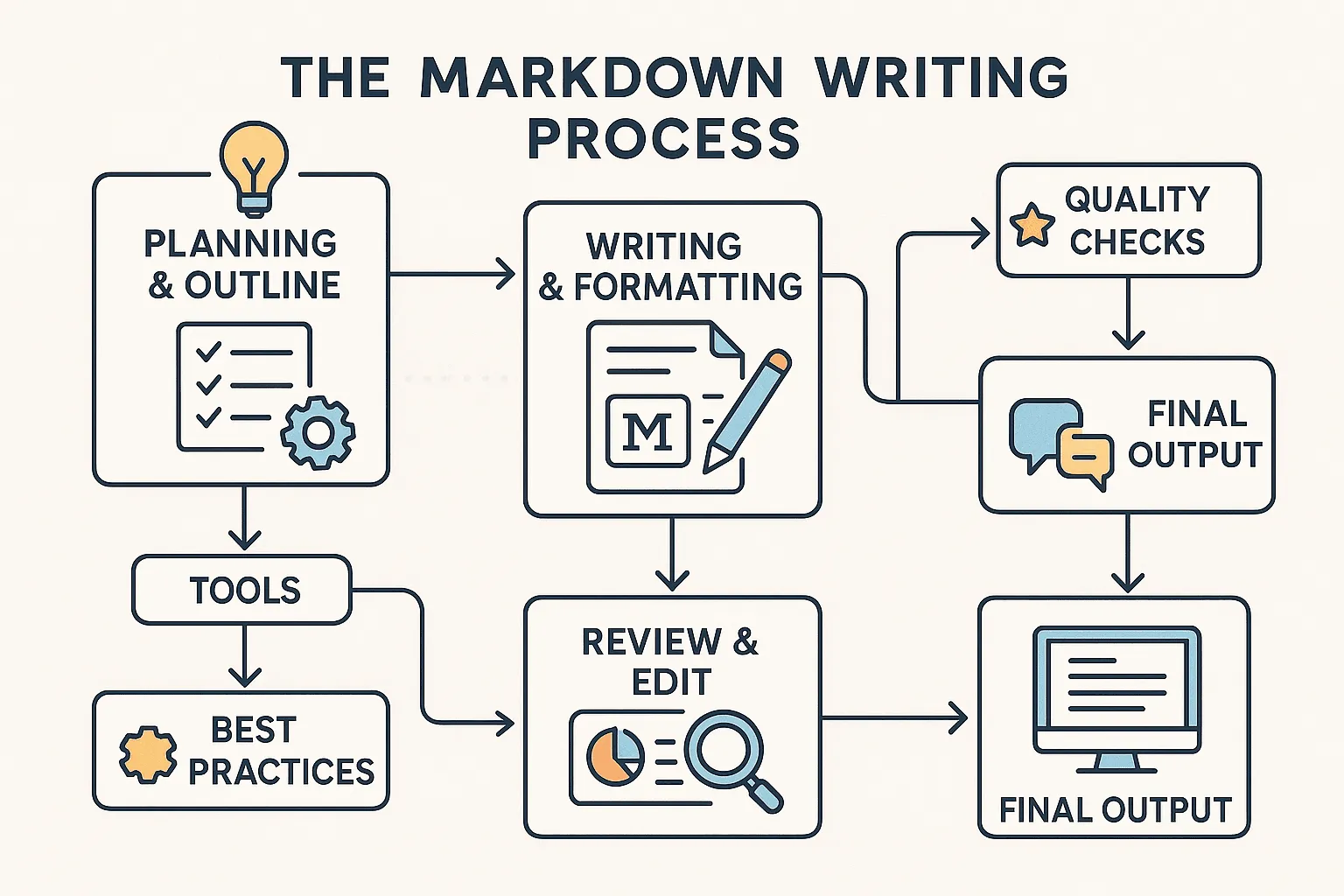
Markdown's plain-text nature is its superpower for portability. Files are UTF-8 encoded, immune to platform-specific issues, and integrate natively with Git for version control. Contrast this with Word's .docx (a zipped XML format): while feature-rich, it introduces bloat from styles and metadata, leading to merge conflicts in diffs. Git handles Markdown diffs beautifully—line-by-line changes are visible, unlike Word's opaque "track changes."
Pros of Markdown portability:
- Lightweight: No embedded fonts or images by default, keeping repos lean.
- Interoperability: Edit in any tool, from nano to Typora.
- Future-proof: Avoid vendor lock-in; convert to PDF, HTML, or Word as needed.
Cons include manual syntax management, but automation tools mitigate this by simplifying export. A subsection on reduced formatting bloat: Word files can grow large due to XML overhead, while Markdown stays lightweight. When using CI/CD pipelines, Git hooks can validate Markdown before conversion to prevent bloat.
Collaboration and Readability in Team Environments
In team settings, Markdown's source code is inherently collaborative—anyone can review changes without proprietary software. This human-readable format fosters pull requests on GitHub, where inline comments highlight issues precisely. Versus Word's locked files, which require round-trip emailing or SharePoint, Markdown reduces friction in remote teams.
Lessons from production: Avoiding version conflicts is key; name files semantically (e.g., api-spec-v2.md) and use branches. A 2022 GitHub report notes Markdown repos see fewer merge issues than binary formats. For trust, acknowledge trade-offs: Markdown lacks real-time co-editing (use extensions like HedgeDoc for that), but its readability trumps for async reviews.
Common Pitfalls of Traditional Editors and Markdown Solutions
Legacy editors suffer from style inconsistencies—tracked changes accumulate junk, increasing file sizes significantly over time. File corruption from crashes is another headache, often irrecoverable without backups. Markdown solves these by design: No hidden formatting means diffs catch drifts early, and plain text recovers easily.
When to stick with Markdown for drafts: Use it for ideation and iteration, then convert via tools like ours for final files. A common mistake is over-formatting in Markdown (e.g., excessive HTML fallbacks), bloating the source—keep it semantic. For professional delivery, tools like our online converter handle this, preserving layouts without the pitfalls of direct Word edits. This approach, rooted in industry best practices from the Markdown Guide, builds reliable workflows.
Best Practices for Effective Markdown Writing
Elevating Markdown writing involves more than syntax; it's about crafting content that converts flawlessly to Word while engaging readers. Best practices for how to write in Markdown emphasize structure and semantics, integrating naturally with SEO for web-friendly docs. For deeper dives, check our Markdown Guide, which offers workflow optimizations tailored for developers.
Structuring Content for Clarity and Engagement
Organize with headings as anchors—# for intros, ## for sections—to create scannable outlines. Horizontal rules (---) separate themes, mimicking Word's section breaks. Logical flow: Start broad, drill down, end with calls-to-action. For engagement, intersperse short paragraphs (3-5 sentences) with lists or quotes.
SEO tip: Weave keywords like Markdown and formatting naturally into headings, aiding discoverability. A pitfall: Overusing headings fragments content—aim for 1-2 per 200 words. In practice, structuring a 10-page report this way ensures faster reviews, as teams can jump to subsections easily.
Advanced Formatting Techniques for Professional Output
Beyond basics, blockquotes (> text) add emphasis for citations, rendering as indented in Word. Fenced code blocks (```language) support syntax highlighting—essential for tech docs. For equations, GFM's LaTeX via $E=mc^2$ integrates math rendering, which robust converters handle well.
Expert insight: Rendering varies; CommonMark is strict, while Pandoc extends it. GFM-to-Word conversion is typically quick and reliable. Edge case: Nested lists in code blocks require careful indentation (4 spaces) to prevent parser errors—debug with tools like Pandoc's documentation.
Practical Examples: Blog Posts and Reports
Consider a tech tutorial: Draft in Markdown with code blocks and tables, preview in VS Code, then convert to Word for client submission. Using a free Markdown to Word online tool, a 2000-word post with embedded images becomes a formatted .docx in seconds, retaining tables as editable grids. Outcome: Client feedback improved due to professional visuals, without hours of reformatting.
Another case: Converting a Markdown-based API report to Word for compliance. Pitfalls like unlinked images were fixed by absolute URLs, yielding a 50-page doc with preserved hyperlinks. These scenarios underscore Markdown's versatility.
Streamlining Workflows: Markdown to Word Conversion Tools
Tying it all together, conversion tools transform plain-text agility into professional deliverables, supporting GFM for images, tables, and more. This integration is vital for developers bridging dev and business needs.
Evaluating Top Conversion Options and Their Features
Free tools abound, but evaluate on fidelity: Does it preserve tables? Handle code? Industry best practices from the W3C guidelines stress semantic accuracy. Our tool excels in compatibility, converting GFM to .docx with high fidelity.
Features to prioritize: Image embedding, hyperlink resolution, and style mapping. Trade-offs: Browser tools are instant but depend on internet; desktop apps offer offline power. For no-install workflows, our browser-based approach stands out, aligning with cloud-native trends.
Step-by-Step Guide to Effortless Conversion
- Write and Preview: Draft in a Markdown editor like Typora. Validate syntax with extensions.
- Prepare Assets: Ensure images/links are accessible—use relative paths for locals where possible.
- Convert: Upload to the Markdown to Word tool, select options, and export.
- Review Output: Open in Word; tweak if needed.
- Troubleshoot: For embedded media issues, check URL permissions.
This process cuts export time dramatically.
Integrating MarkFlow Tools for Enhanced Productivity
MarkFlow tools encompass automation like VS Code plugins for live previews and API integrations. Our platform supports full workflows, embedding into scripts via API for CI/CD—e.g., auto-generate reports from repo changes.
Tips: Browse our blog for advanced tutorials. Performance insights show speed gains over manual edits. For extensions, pair with GitHub Actions to trigger conversions on merges, ensuring polished docs every push.
The Markdown to Word workflow enables efficient, scalable writing. Master the fundamentals, apply best practices, and let conversion tools handle the formatting. Start with a simple .md file and build from there.
Find this tool helpful? Help us spread the word.