7 Best Free Markdown to PDF Converters in 2026
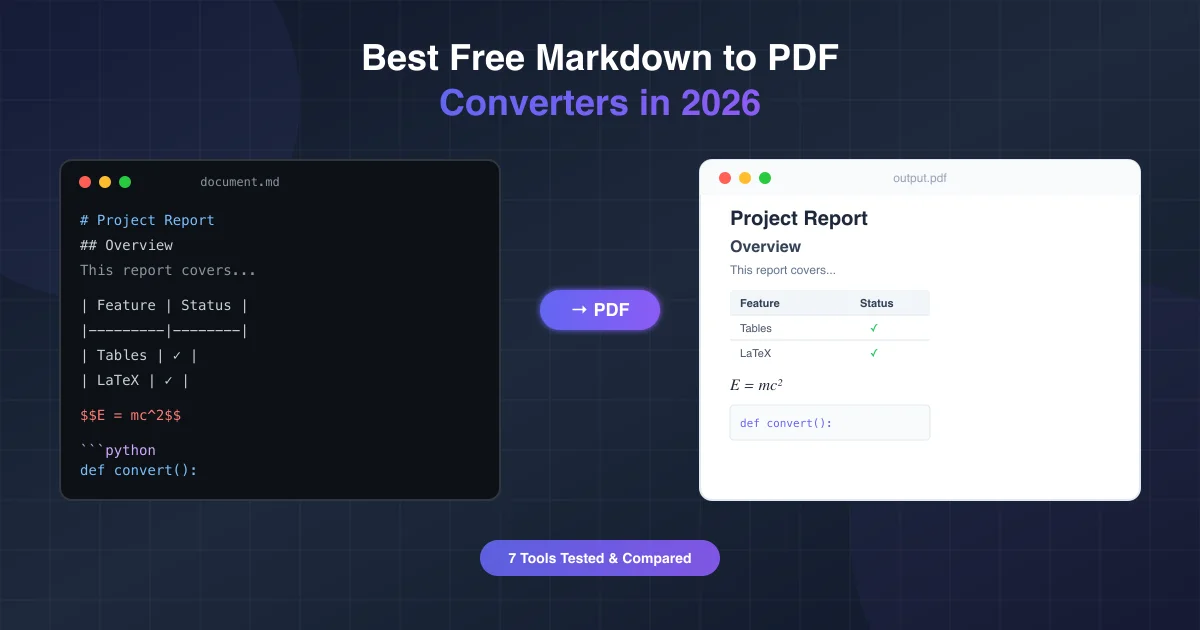
You've written clean Markdown — headers, tables, code blocks, maybe even some LaTeX math. Now you need a PDF. Sounds simple, right?
Not quite. Most "Markdown to PDF" tools either strip your formatting, break your tables, or choke on anything beyond basic syntax. We tested the most popular free converters so you don't have to waste time finding out the hard way.
What We Tested (and Why It Matters)
Not all Markdown is created equal. If you're working with technical documentation, academic papers, or AI-generated content, you need a converter that handles GitHub Flavored Markdown (GFM), code syntax highlighting, mathematical formulas, and even Mermaid diagrams.
We evaluated each tool across six criteria:
- GFM support — tables, task lists, strikethrough
- Code blocks — syntax highlighting, proper formatting
- LaTeX math — inline and block formulas
- Mermaid diagrams — flowcharts, sequence diagrams
- Output quality — typography, spacing, print-readiness
- Privacy — where your data goes during conversion
Quick Comparison Table
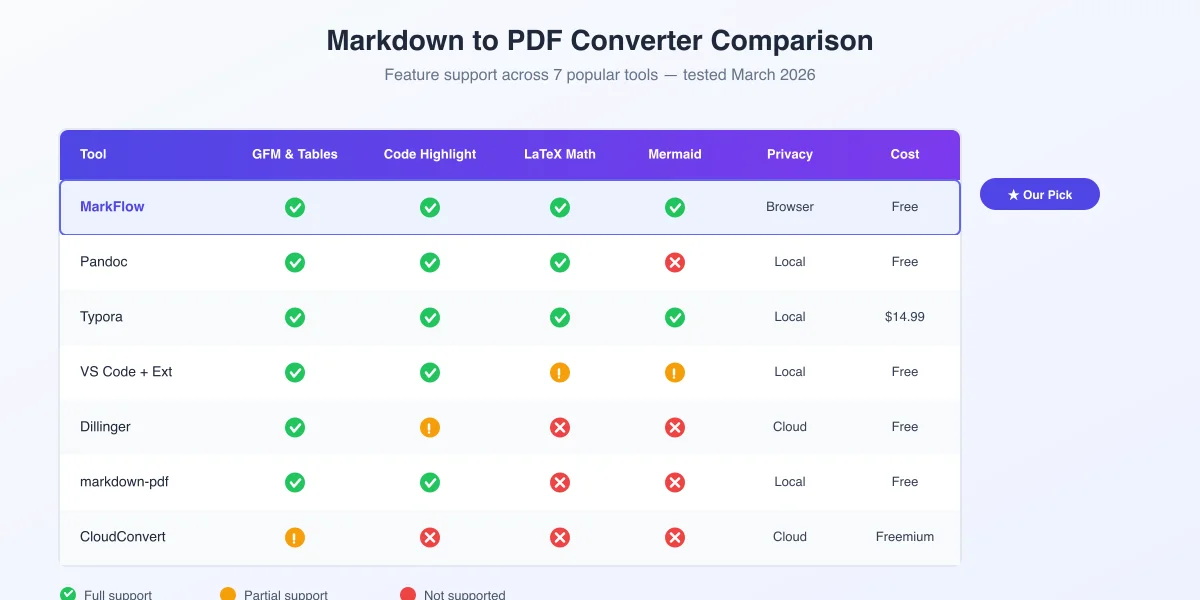
| Tool | GFM & Tables | Code Highlighting | LaTeX Math | Mermaid | Privacy | Cost |
|---|---|---|---|---|---|---|
| MarkFlow | ✅ | ✅ | ✅ | ✅ | Browser-based | Free |
| Pandoc | ✅ | ✅ | ✅ | ❌ | Local | Free |
| Typora | ✅ | ✅ | ✅ | ✅ | Local | $14.99 |
| VS Code + Extension | ✅ | ✅ | ⚠️ | ⚠️ | Local | Free |
| Dillinger | ✅ | ⚠️ | ❌ | ❌ | Cloud | Free |
| Markdown PDF (npm) | ✅ | ✅ | ❌ | ❌ | Local | Free |
| CloudConvert | ⚠️ | ❌ | ❌ | ❌ | Cloud | Free tier |
✅ = Full support | ⚠️ = Partial/limited | ❌ = Not supported
Detailed Reviews
MarkFlow — Best Free Online Converter for Complex Markdown
Best for: Technical writers, students, and anyone who needs a quick, no-install solution with full formatting support.
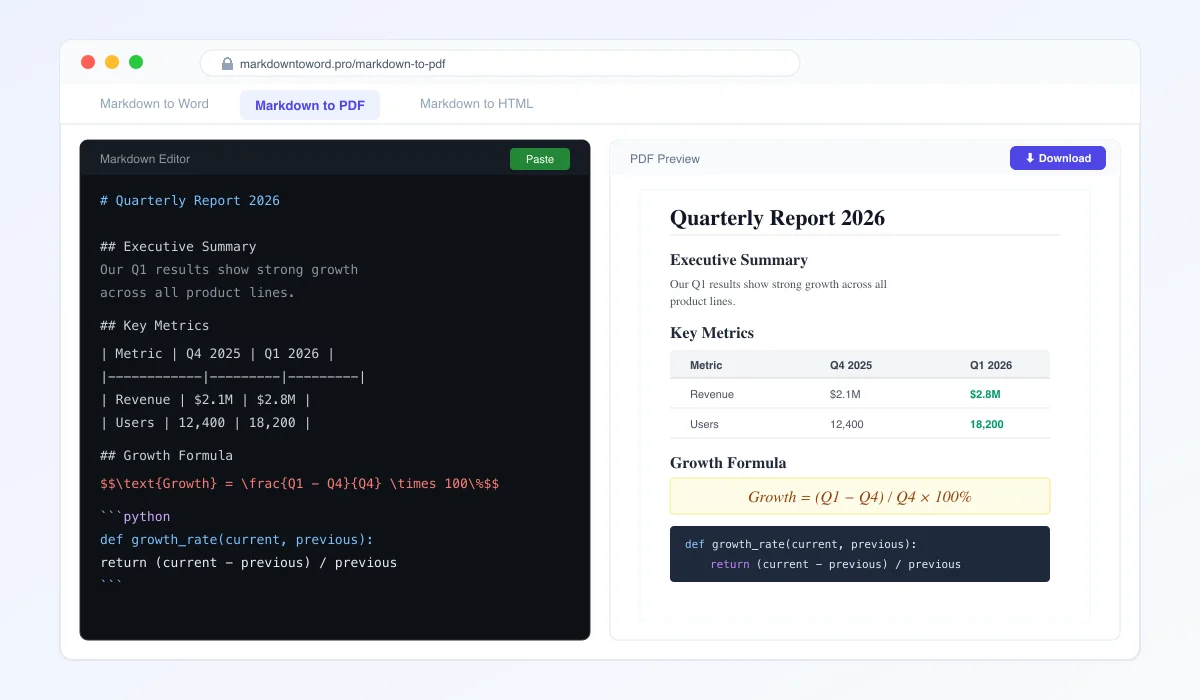
MarkFlow stands out because it handles the formats that trip up most converters: LaTeX equations render correctly, Mermaid diagrams convert to crisp visuals, and GFM tables come through with proper borders and alignment.
What sets it apart:
- Full GFM support — tables, task lists, footnotes, alerts
- LaTeX math rendering — both inline (
$...$) and block ($$...$$) formulas - Mermaid diagram support — flowcharts, sequence diagrams, Gantt charts
- 100% browser-based — your Markdown never leaves your device
- No signup, no limits — just paste and convert
- Multiple output formats — also supports Word and HTML export
How to use it:
- Go to markdowntoword.pro/markdown-to-pdf
- Paste your Markdown or drag and drop a
.mdfile - Preview the result in real time
- Click "Download PDF"
The result: A clean, print-ready PDF with professional typography. Tables are properly bordered, code blocks have syntax highlighting, and math formulas render as expected.
Our pick for most users. If you want a converter that "just works" for modern Markdown — including AI-generated content from ChatGPT, Claude, or Gemini — MarkFlow handles it all without any setup.
Pandoc — Best for Power Users and Automation
Best for: Developers and researchers who need command-line automation and custom templates.
Pandoc is the Swiss Army knife of document conversion. It supports an enormous range of input and output formats, and its Markdown-to-PDF pipeline (via LaTeX) produces publication-quality results.
Strengths:
- Unmatched format flexibility (Markdown, LaTeX, HTML, DOCX, EPUB, and more)
- Custom LaTeX templates for precise PDF styling
- Scriptable — integrates into CI/CD pipelines
- Citation and bibliography support via
citeproc
Limitations:
- Requires installation (plus a LaTeX distribution like TexLive for PDF)
- No Mermaid support without additional filters
- Steep learning curve for beginners
- No real-time preview
Quick start:
# Install pandoc
brew install pandoc       # macOS
sudo apt install pandoc   # Ubuntu

# Basic conversion
pandoc input.md -o output.pdf

# With table of contents and custom margins
pandoc input.md -o output.pdf --toc -V geometry:margin=1in
Verdict: The most powerful option if you're comfortable with the command line. Overkill for casual use, indispensable for automated workflows.
Typora — Best Desktop Editor with Built-in Export
Best for: Writers who want a polished editing experience with export capabilities.
Typora is a WYSIWYG Markdown editor that doubles as a converter. Its live preview is seamless — what you see is genuinely what you get.
Strengths:
- Beautiful live preview with real-time rendering
- Built-in export to PDF, HTML, Word, and more
- Full LaTeX and Mermaid support
- Custom themes and CSS styling
- Focus mode and typewriter mode for distraction-free writing
Limitations:
- Not free — $14.99 one-time purchase (with free trial)
- Export quality depends on theme selection
- Less flexible than Pandoc for custom PDF layouts
- Desktop only — no web version
Verdict: The best option if you want an all-in-one writing and exporting experience. The price is fair for what you get, but it's not ideal if you just need a quick conversion.
VS Code + Markdown PDF Extension — Best for Developers Already in VS Code
Best for: Developers who live in VS Code and want PDF export without leaving their editor.
If VS Code is already your daily driver, the "Markdown PDF" extension by yzane adds one-click PDF export directly from the editor.
Strengths:
- Seamless integration with your existing workflow
- Uses Chromium under the hood — good HTML/CSS rendering
- Configurable via VS Code settings
- Free and open source
Limitations:
- LaTeX support requires additional setup (KaTeX CSS injection)
- Mermaid support is inconsistent across extensions
- Output styling is basic without custom CSS
- Requires VS Code (not a standalone tool)
Quick start:
- Install the "Markdown PDF" extension in VS Code
- Open any
.mdfile - Press
Ctrl+Shift+P→ "Markdown PDF: Export (pdf)" - Your PDF appears in the same directory
Verdict: Convenient if you're already in VS Code, but the output quality doesn't match dedicated converters for complex Markdown.
Dillinger — Best for Simple Markdown (No Install)
Best for: Quick notes or basic Markdown without complex formatting needs.
Dillinger is a clean, browser-based Markdown editor with export options. It's been around for years and does the basics well.
Strengths:
- Clean, distraction-free interface
- Cloud sync with Dropbox, GitHub, Google Drive
- Live side-by-side preview
- No installation required
Limitations:
- No LaTeX math support
- No Mermaid diagram rendering
- Code highlighting is limited
- PDF export quality is basic
- Your data is processed on their servers
Verdict: Good for simple documents. If your Markdown includes tables, code, or formulas, you'll need something more capable.
markdown-pdf (npm package) — Best for Node.js Projects
Best for: Developers who need programmatic PDF generation in their Node.js applications.
This npm package converts Markdown files to PDF using a headless Chromium instance. It's practical for build scripts and automated documentation pipelines.
Strengths:
- Programmable — integrate into your build process
- Uses Chromium rendering — handles most HTML/CSS
- Configurable page size, margins, headers, footers
- Useful for generating PDF documentation from README files
Limitations:
- No LaTeX or Mermaid support out of the box
- Depends on Chromium — large install footprint
- Limited styling options without custom CSS
- Not actively maintained (check npm for last update)
Quick start:
npm install -g markdown-pdf
markdown-pdf README.md
Verdict: Handy for automating documentation in JS projects, but not suitable for complex Markdown with math or diagrams.
CloudConvert — Best for Batch File Conversion
Best for: Users who need to convert multiple Markdown files at once through a web interface.
CloudConvert is a general-purpose file converter that supports Markdown to PDF among hundreds of other format pairs.
Strengths:
- Supports 200+ file formats
- Batch conversion capability
- API available for automation
- No installation needed
Limitations:
- Limited free tier (25 conversions/day)
- Basic Markdown rendering — no GFM extensions
- No code highlighting, LaTeX, or Mermaid
- Files are uploaded to their servers
- Generic output — not optimized for Markdown
Verdict: If you need to convert a batch of simple .md files quickly, it works. For anything requiring proper Markdown rendering, look elsewhere.
How to Choose the Right Tool
The "best" converter depends on your specific workflow:
| Your Situation | Recommended Tool |
|---|---|
| Need a quick online converter that handles everything | MarkFlow |
| Building automated documentation pipelines | Pandoc |
| Want a beautiful desktop writing + export experience | Typora |
| Already working in VS Code full-time | VS Code + Extension |
| Simple notes, no complex formatting | Dillinger |
| Programmatic conversion in Node.js projects | markdown-pdf |
| Batch converting many simple files | CloudConvert |
Tips for Better Markdown-to-PDF Results
Regardless of which tool you choose, these practices will improve your output:
Use Proper Heading Hierarchy
# Document Title (H1 — use only once)
## Section (H2)
### (H3)
A clean heading structure translates to proper PDF bookmarks and table of contents.
Specify Language in Code Blocks
```python
def hello():
    print("Hello, World!")
```
This ensures syntax highlighting in your PDF, making code blocks readable and professional.
Use Standard Table Syntax
| Feature | Status |
|:--------|:------:|
| Tables  |   ✅   |
| Lists   |   ✅   |
Consistent pipe alignment helps converters render clean tables.
Test Your LaTeX Before Converting
Inline math: $E = mc^2$

Block math:
$$\int_{0}^{\infty} e^{-x^2} dx = \frac{\sqrt{\pi}}{2}$$
Not all converters handle LaTeX — verify your formulas render correctly before sharing.
Keep Images Accessible
Use descriptive alt text and ensure image paths are valid:

Converting AI-Generated Content to PDF
A growing use case: converting content from ChatGPT, Claude, or Gemini into polished PDFs. AI tools naturally output Markdown, which makes this workflow seamless:
- Prompt your AI to output in Markdown format
- Copy the response (use the "Copy code" button if available)
- Paste into a converter like MarkFlow
- Download your PDF
This is particularly useful for:
- Technical reports with code examples and data tables
- Academic papers with mathematical formulas
- Project documentation with flowcharts (via Mermaid)
- Meeting notes and summaries for distribution
Pro tip: For ChatGPT specifically, check out our guide on optimizing ChatGPT Markdown output for even better results.
Frequently Asked Questions
Q: What is the best free online Markdown to PDF converter in 2026? A: Based on our testing, MarkFlow offers the best combination of features for free: full GFM support, LaTeX math, Mermaid diagrams, and browser-based privacy. For command-line users, Pandoc is an equally powerful free option.
Q: Can I convert Markdown to PDF without installing anything? A: Yes. Browser-based tools like MarkFlow and Dillinger let you convert Markdown to PDF directly in your browser with no installation required.
Q: Which converter handles LaTeX math formulas best? A: Pandoc (via its LaTeX engine) produces the highest-quality math output. For a browser-based option, MarkFlow renders LaTeX formulas accurately without any setup.
Q: Is it safe to convert sensitive documents online? A: It depends on the tool. Browser-based converters like MarkFlow process everything locally — your data never leaves your device. Cloud-based tools like CloudConvert upload your files to their servers, so avoid them for confidential content.
Q: How do I convert Markdown with Mermaid diagrams to PDF? A: Among free online tools, MarkFlow supports Mermaid diagrams natively. For desktop, Typora also handles Mermaid. Pandoc requires a separate Mermaid filter.
Q: Can I batch convert multiple Markdown files to PDF? A: CloudConvert supports batch conversion through its web interface. For automation, Pandoc can be scripted to process multiple files. MarkFlow currently supports one-at-a-time conversion through its web interface.
Related Resources
Explore more Markdown conversion guides and tools:
- Markdown to PDF Converter — Try our free converter right now
- Markdown to Word Converter — Need a DOCX instead? Convert with full formatting
- ChatGPT to Word Guide — Export AI content to Word documents
- ChatGPT Markdown Output Prompts — Get better Markdown from AI tools
- How to Write in Markdown — Master Markdown syntax from scratch
Conclusion
The right Markdown to PDF converter saves you from formatting headaches and produces professional documents every time. Here's our bottom line:
- For most users: MarkFlow handles modern Markdown — including LaTeX, Mermaid, and AI-generated content — entirely in your browser, for free.
- For power users: Pandoc gives you maximum control and automation at the cost of a steeper learning curve.
- For writers: Typora offers the smoothest editing-to-export experience.
Whatever your workflow, stop compromising on PDF quality. Your Markdown deserves a converter that respects every table, formula, and diagram you've written.
Find this tool helpful? Help us spread the word.