How to Convert Markdown to Word: 2026 Ultimate Guide
In a hurry? Go straight to our Markdown to Word Converter. A reliable Markdown to Word converter bridges the gap between lightweight markup and professional document formats. Markdown's simple syntax has made it a staple for developers, bloggers, and writers who want quick, readable drafts. But when it's time to share polished reports, proposals, or submissions that need Microsoft Word's full formatting, converting Markdown to Word becomes necessary.
This guide covers the process from Markdown fundamentals to advanced conversion techniques, so you can handle complex documents with confidence. Whether you automate documentation workflows or just want to stop reformatting by hand, understanding how the conversion works will save time. You can try it directly with our free online Markdown to Word converter.
Understanding Markdown and Its Role in Document Creation
Markdown was created in 2004 by John Gruber as a way to write for the web without HTML tags. At its core it's a plain-text formatting syntax that stays readable in raw form while converting cleanly to HTML or other structured formats. Developers use it for GitHub README files, Jupyter notebooks, and static site generators; writers use it for distraction-free drafting in apps like Typora or Obsidian.
The syntax is simple but capable. Headings use hash symbols (# for H1, ## for H2), lists use asterisks or numbers, and links wrap text in brackets followed by a URL in parentheses. Bold and italics come from asterisks or underscores, and code blocks are fenced with triple backticks. Extensions like GitHub Flavored Markdown (GFM) add tables, task lists, and emoji.
Why does Markdown matter for document creation? Because it's plain text, it diffs and merges cleanly in version control, which makes collaborative editing far less painful than juggling binary files. A common misconception is that Markdown handles complex page layout natively — it doesn't. That's exactly where a Markdown to Word converter comes in: it maps the semantic markup onto Word's richer feature set, like tracked changes and detailed table formatting.
The core specification is standardized by CommonMark, and sticking to it avoids vendor-specific quirks. Real-world documents, though, often still need Word's accessibility features — alt text for images, a proper heading hierarchy for screen readers — which is one more reason the final deliverable often has to be a .docx.
How Markdown to Word Conversion Works
Converting Markdown to Word is more than swapping syntax — it involves parsing the Markdown, building a structured representation, and mapping it onto Word's XML-based DOCX format.
It starts with parsing: tools like Pandoc or marked.js break Markdown into an abstract syntax tree (AST), where each element is a node — a heading node carries its level and text, a table parses into rows and cells. Fidelity is the hard part: Markdown tables don't support cell spanning while Word does, so a converter has to decide how to handle the gap.
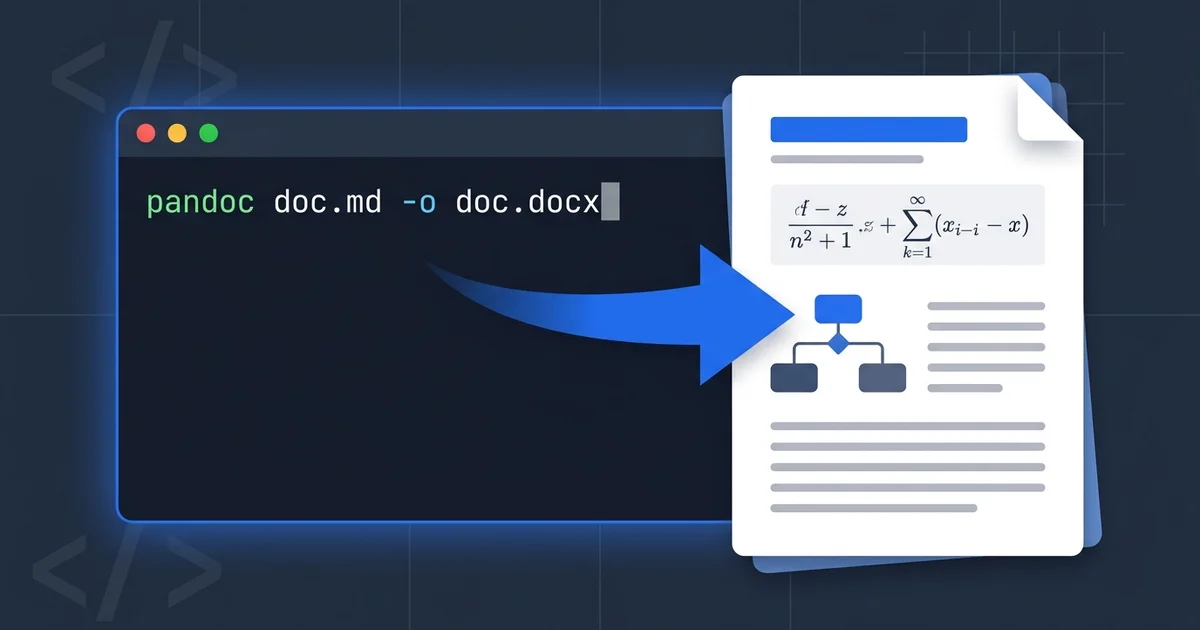
Pandoc, a Haskell-based universal converter, is a strong example. Its pipeline reads Markdown, optionally applies filters, and outputs DOCX. A basic command:
pandoc input.md -o output.docx --from=markdown+footnotes --to=docx
The +footnotes extension maps Markdown footnotes to Word's built-in feature. Pandoc supports over 100 formats and handles citations, which makes it popular for technical and academic writing — and it's well suited to automated pipelines, where Markdown wikis are converted to DOCX as part of a build.
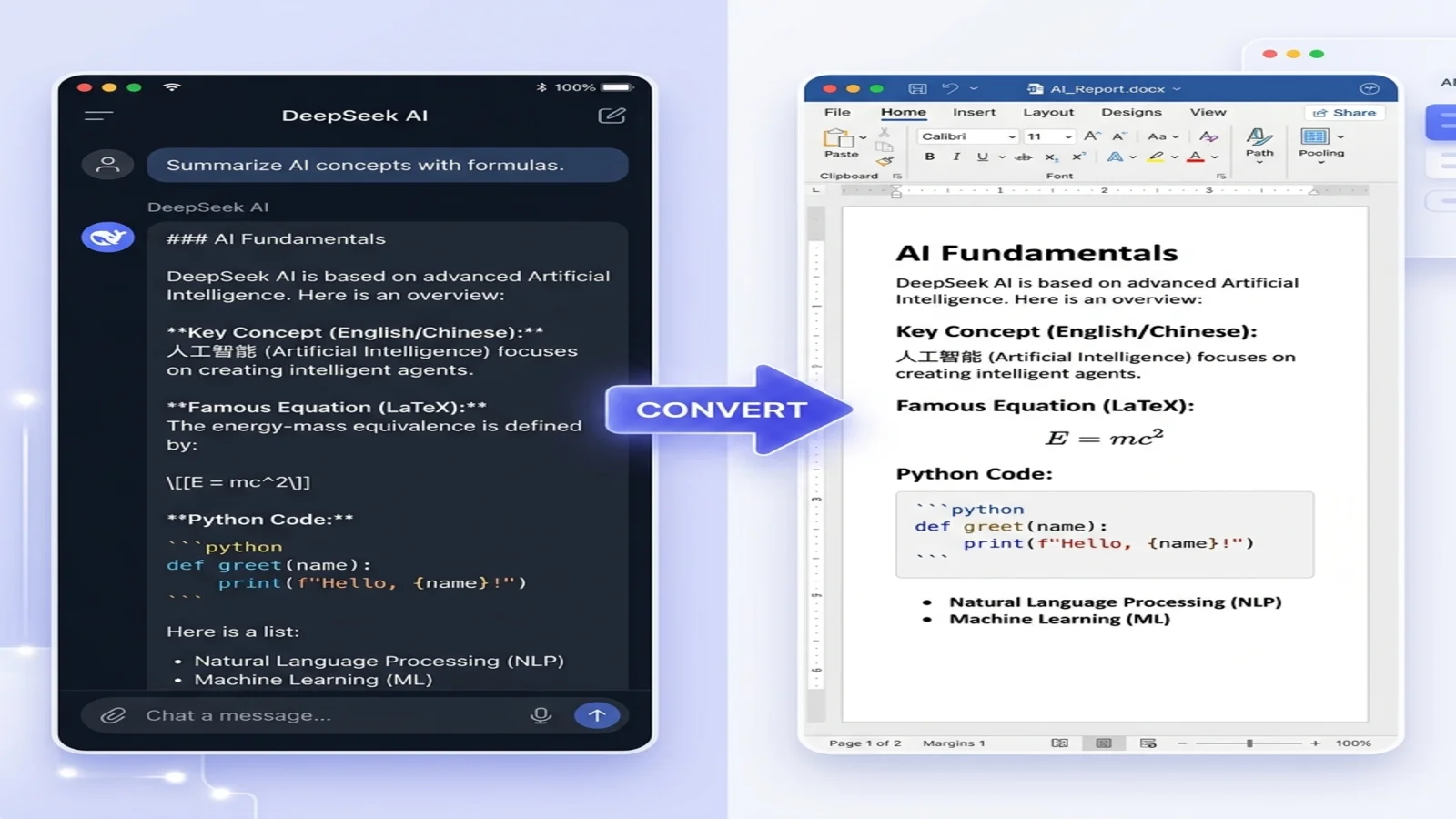
Styling is another consideration. Word uses named styles (Heading 1, Normal, and so on), so converters either apply those styles or reference a template. Images are a known edge case: Markdown links them with , but a DOCX needs the image embedded inside the file. A robust converter resolves these so links and images keep working in the output.
Pandoc handles large documents efficiently, as documented in the Pandoc repository. Its math support is better than older tutorials suggest: standard LaTeX converts to native, editable Word equations in current versions. The real gap is Mermaid diagrams, which arrive as plain code — we tested both behaviors in detail in our command line conversion guide.
Markdown to Word Tools and Techniques
Different tools suit different needs. Pandoc leads for command-line users who want filters and automation. Typora offers a simple one-click export with a live preview of how the document will look.
Online converters provide a web interface, which is convenient for quick jobs and for people who don't want to install anything. MarkFlow is browser-based in that sense — there's nothing to install; you paste or upload your Markdown and download a .docx. On data handling, its commitment is specific: your file is sent over an encrypted connection, used only to perform the conversion, and deleted immediately afterward — never stored, read, or shared. The live preview while you edit is rendered in your browser.
For programmatic use, Node.js libraries like markdown-it together with docx.js let you build a custom converter. A simplified sketch:
const markdownIt = require('markdown-it');
const { Packer, Document, Paragraph, TextRun } = require('docx');

const md = markdownIt();
const tokens = md.parse(inputMarkdown, {});

const doc = new Document({
  sections: [{
    children: tokens.map(token => {
      if (token.type === 'heading_open') {
        // Map to Word heading style
        return new Paragraph({
          children: [new TextRun({ text: 'Heading Content', bold: true })],
          heading: token.tag === 'h1' ? 'Heading1' : 'Heading2'
        });
      }
      // Handle other tokens similarly
    })
  }]
});

Packer.toBuffer(doc).then(buffer => {
  // Save as .docx
});
This gives full control over the mapping, at the cost of having to handle edge cases like nested lists yourself.
Calibre is another option — built for e-books, but its ebook-convert utility also handles DOCX, and it's free and open-source with good metadata support. For enterprise-scale needs, the Microsoft Graph API supports server-side conversion that scales to very large documents where lighter tools may struggle with memory.
A common pitfall across tools is inconsistent rendering of things like emoji or strikethrough — always test with a document that resembles your real use case, such as a code-heavy tutorial.
Customizing and Automating Conversions
For more control, Pandoc's filter system lets you intercept the AST and modify elements. A Lua filter can, for example, give code blocks special treatment:
function CodeBlock (elem)
  if elem.classes[1] == 'python' then
    -- Inject highlighting logic
    return pandoc.Para({pandoc.RawBlock('docx', '<w:r><w:rPr><w:color w:val="008000"/></w:rPr><w:t>Code here</w:t></w:r>')})
  end
end
Run it with pandoc --lua-filter=highlight.lua.
Automation is the bigger win. Calling Pandoc from a script in a Git hook can convert Markdown to DOCX automatically on each commit — useful for compliance archives that need a Word copy of documentation, with footnotes and cross-references preserved per standards like those from IEEE.
A few edge cases deserve attention: right-to-left languages need bidirectional-text support in the output; very large files convert more reliably if you process them in sections; and if your Markdown allows embedded HTML, validate the input so it can't carry malicious scripts into the pipeline.
Challenges, Best Practices, and What's Next
No converter is perfect. Conversions can be lossy — Markdown's simplicity can't express Word macros or form fields. A practical approach is to use the converter for structure, then make final adjustments in Word. The trade-offs between tools are real too: Pandoc is powerful but command-line heavy, while GUI tools are friendlier but less extensible.
A few best practices:
- Follow a consistent syntax reference, such as the Markdown Guide.
- Keep your Markdown sources in version control.
- Use a template for consistent Word styling, and YAML frontmatter for metadata like title and author when batch-processing.
- Don't over-rely on extensions without a fallback — test in plain Markdown too.
- Keep headings in a logical order so the output is accessible to screen readers.
Looking ahead, AI-assisted converters are starting to appear — tools that infer styling from context or auto-generate a table of contents. VS Code's Markdown tooling, documented by Microsoft, hints at where editor integrations are going.
For historical context, Gruber's original Daring Fireball post is still the canonical reference on Markdown's design intent.
Conclusion
A good Markdown to Word workflow turns rough drafts into professional documents without hours of manual reformatting. From understanding Markdown's syntax to using tools like Pandoc — or a browser-based converter for quick jobs — the techniques here cover most conversion scenarios. Start simple, automate where it pays off, and reach for filters or custom code only when you actually need them.
If you need formats beyond Word, our Markdown to PDF and Markdown to HTML tools round out the toolkit.
Find this tool helpful? Help us spread the word.