Complete Guide: How to Convert PDF to Markdown
Why some PDFs convert perfectly and others need OCR — and how to get the cleanest result either way.
Digital PDFs vs. Scanned PDFs
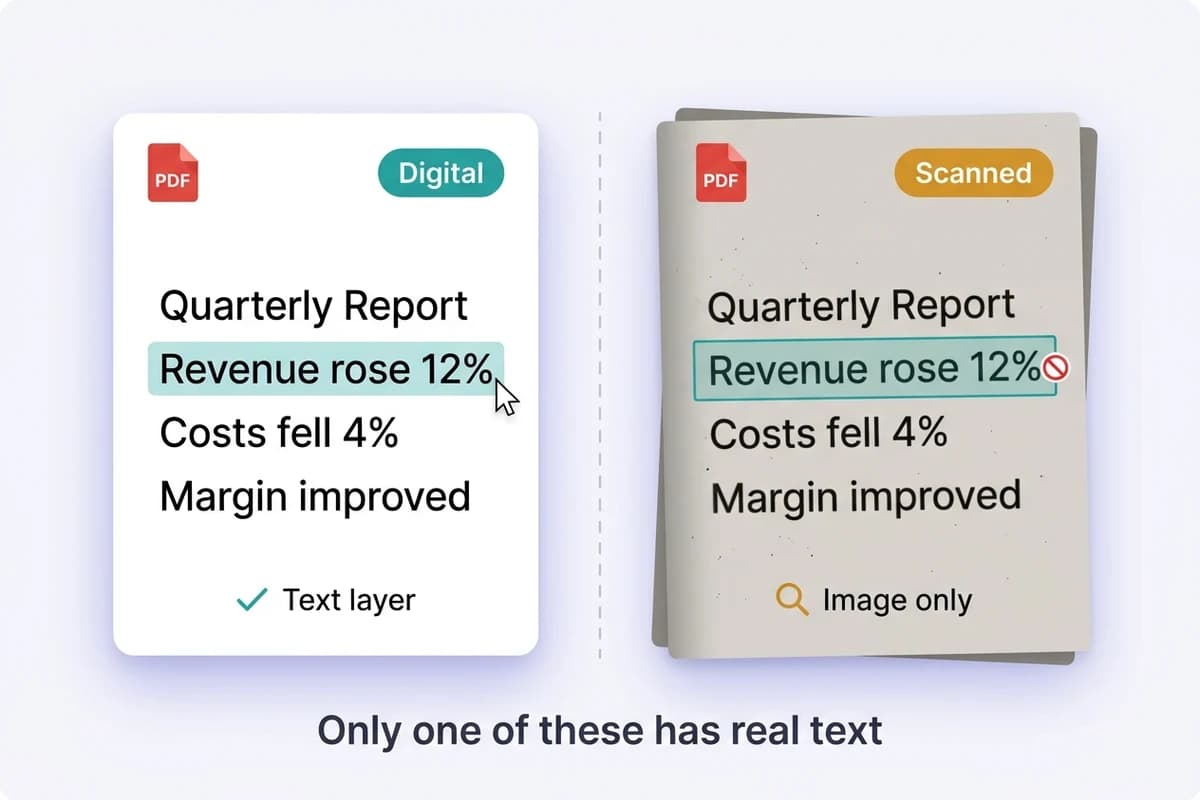
Digital PDF — has a text layer
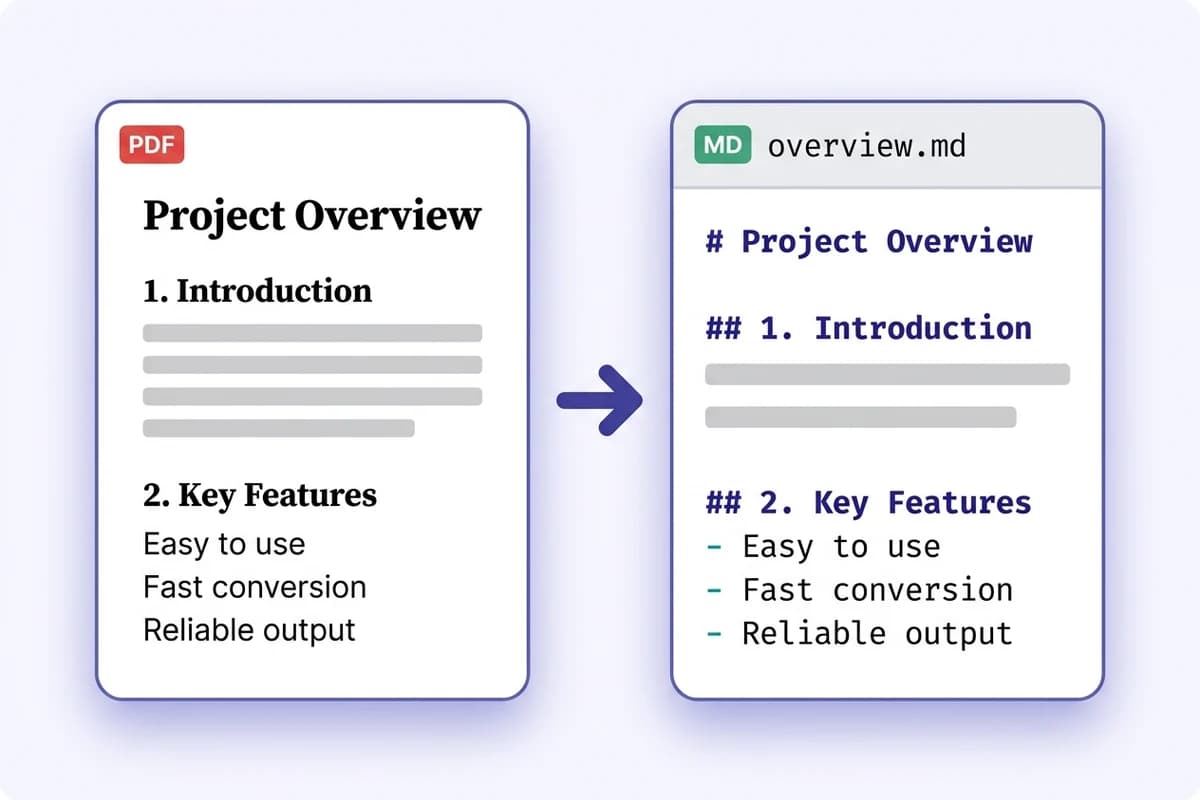
Generated by software (Word, LaTeX, a browser's print dialog). The characters are really in the file, so extraction is fast and near-lossless. This is roughly 97% of everyday documents, and it converts in seconds.
Scanned PDF — just pictures of pages
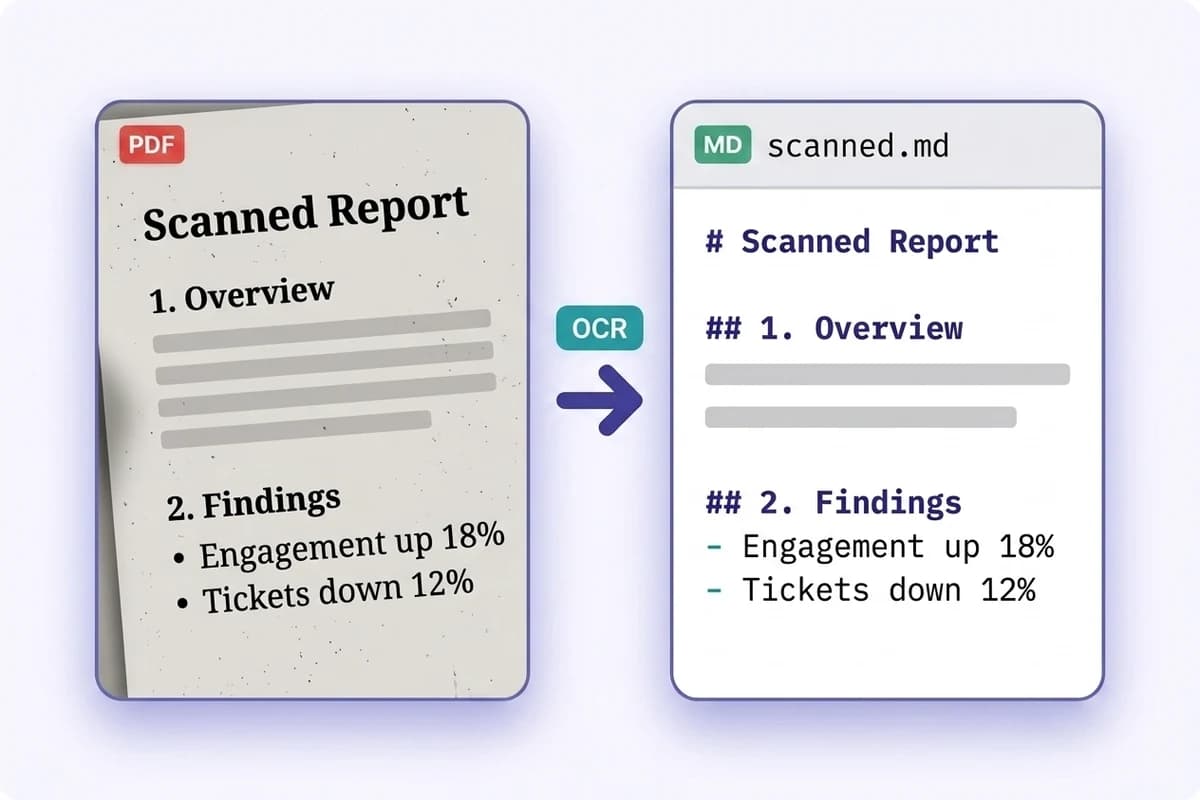
A photocopier, phone camera or fax produced it. There is no text to extract — select-and-copy returns nothing. Only OCR can read these, which is why most free converters silently hand back an empty file.
What Converts Well
Single-column documents
Reports, documentation, papers and contracts convert cleanly — headings keep their levels and lists stay nested.
Bordered tables
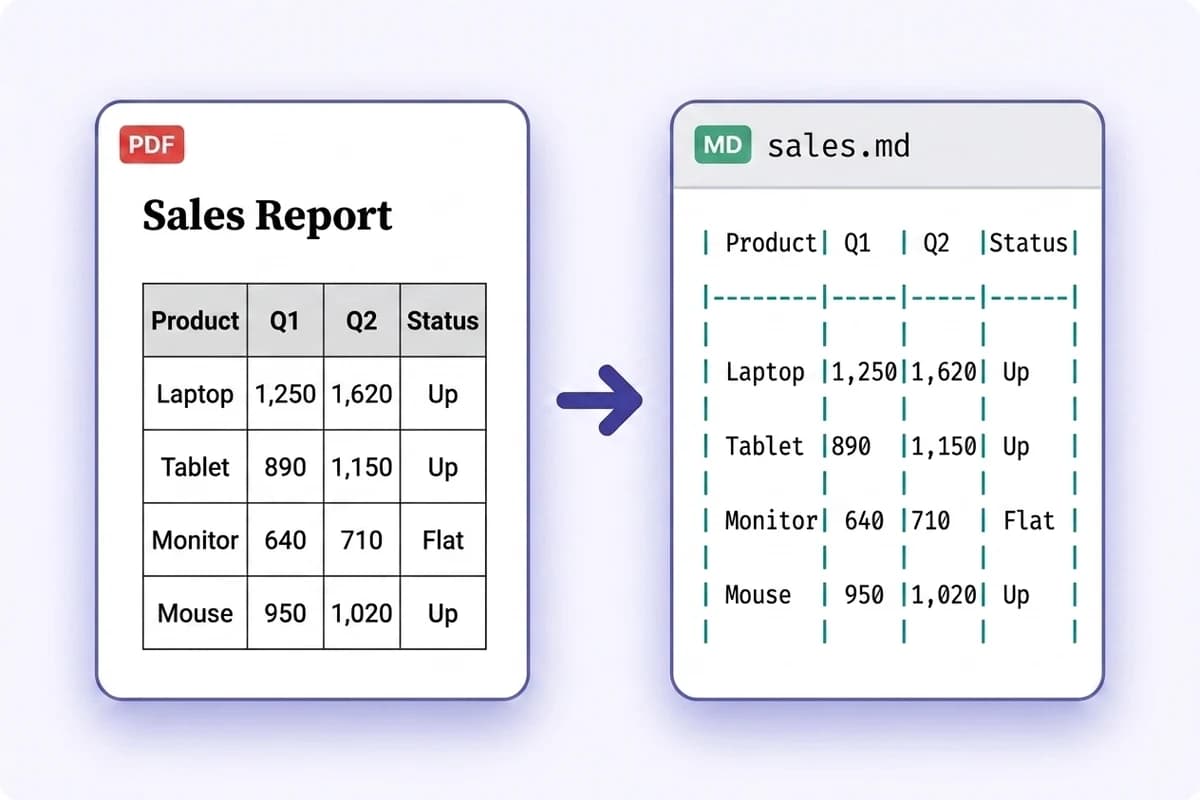
Tables with visible rules are rebuilt as Markdown pipe tables that render correctly anywhere.
Embedded images
Pictures inside the PDF are extracted and referenced inline, so nothing goes missing from the document.
Scans and forms
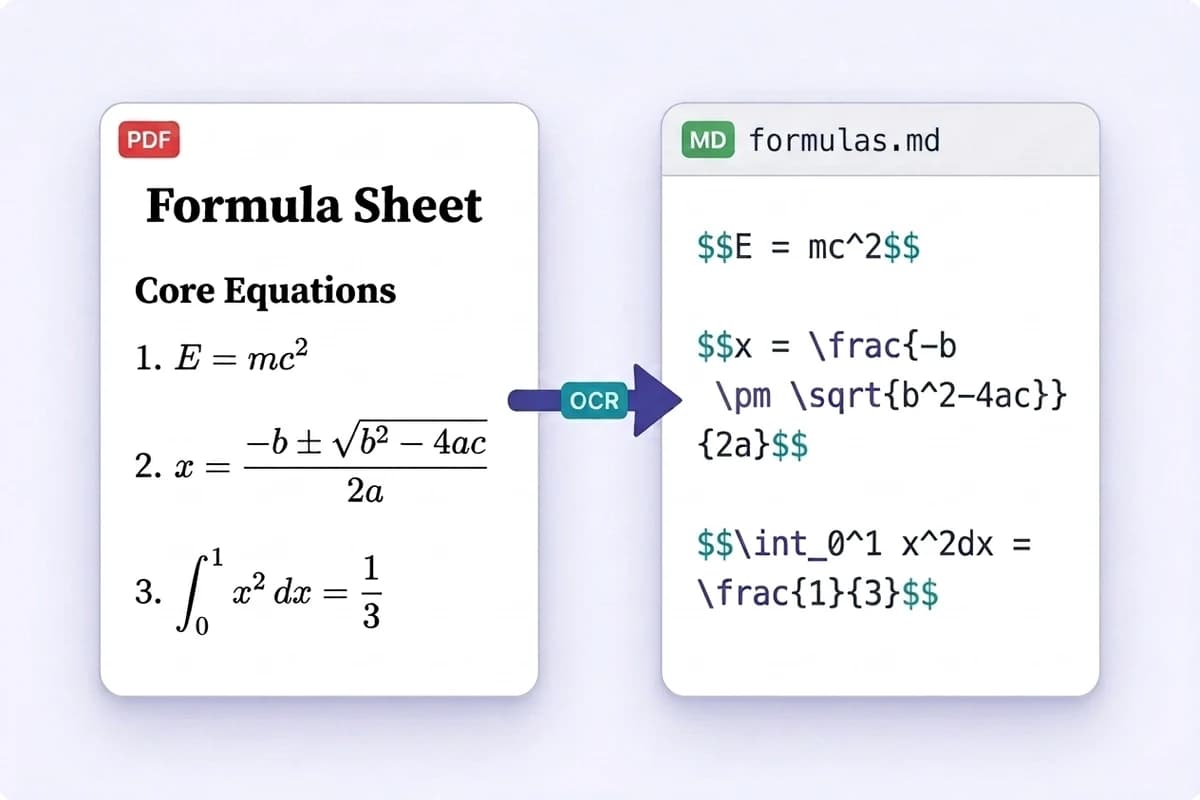
Pages with no text layer are recognised with OCR, including multilingual and handwritten-form layouts.
Getting the Cleanest Result
- 1.
Let the detector decide first
Upload as-is. The converter checks for a text layer and only offers OCR when the file genuinely needs it, so you never pay for OCR you did not need.
- 2.
Force OCR when the output looks like gibberish
Old scans sometimes carry a bad OCR layer from years ago. That fools any detector, so the result page keeps a 'run OCR instead' button — use it when the text comes out garbled.
- 3.
Review multi-column pages
Sidebars, footnotes and two-column academic layouts are read in the order the PDF stores them, which is not always reading order. Skim those sections before you rely on them.
- 4.
Split very long documents
Page limits exist because conversion time scales with length. For books or case files, split into chapters — you will also get a cleaner result to review.