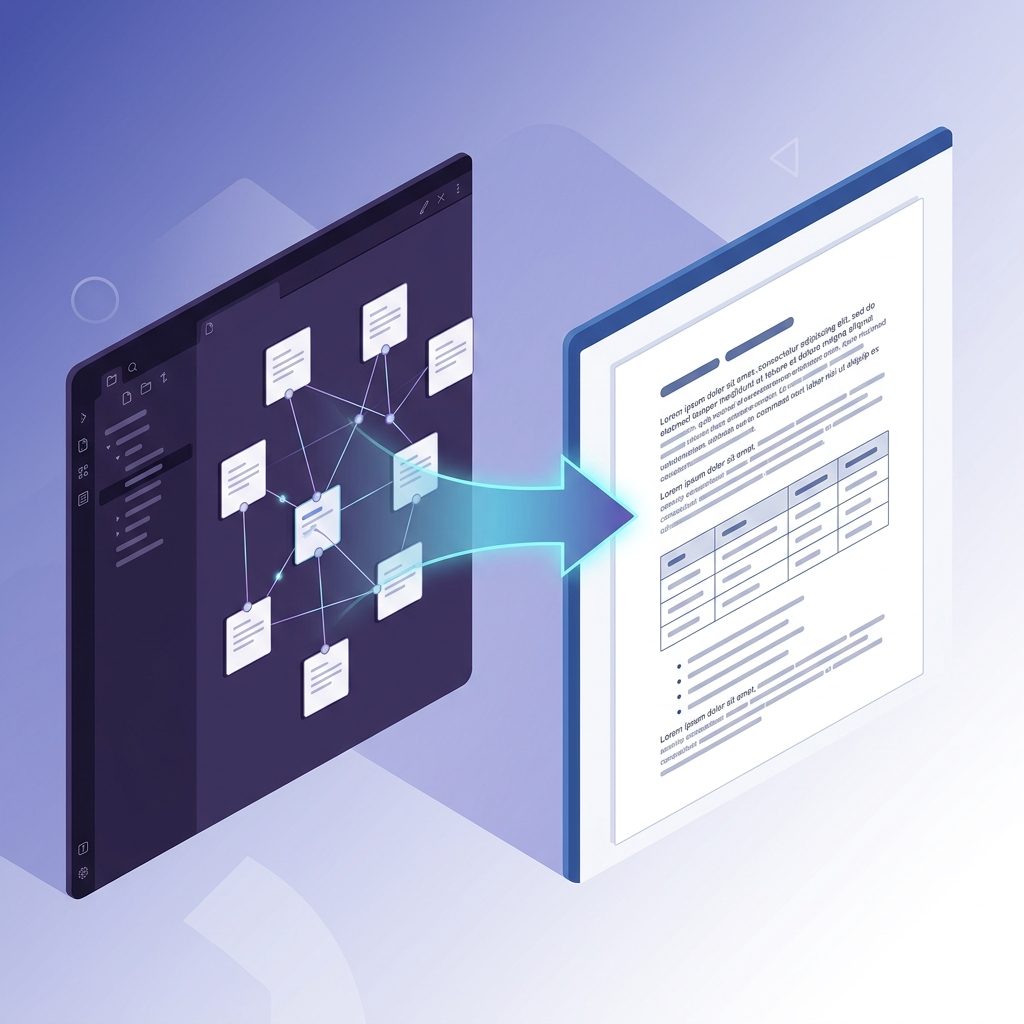
Markdown To Resume: Write & Convert to Word or PDF
In the fast-paced world of tech job hunting, developers and engineers often juggle multiple versions of their resumes to tailor them for different roles. This is where Markdown shines as a lightweight, efficient format for crafting professional resumes. Its simplicity allows for quick edits without the bloat of traditional word processors, making it a favorite among those who maintain personal GitHub repositories. But to ensure your resume passes applicant tracking systems (ATS) and impresses recruiters, converting your document into a universally accepted format is essential. Our seamless conversion tool provides a robust bridge, transforming your structured text into polished DOCX files that retain all the professionalism while enhancing compatibility. This deep dive explores why Markdown is ideal for resume creation and how our Markdown to Word converter elevates your job search strategy.
Whether you're a beginner developer updating your portfolio or an intermediate engineer refining your experience section, understanding this workflow can save hours and reduce frustration. We'll cover the technical underpinnings, from Markdown's syntax advantages to advanced conversion techniques, drawing on real-world implementations to show how it works in practice.
Why Markdown is Ideal for Crafting Professional Resumes
Markdown's rise in popularity stems from its origins as a plain-text markup language designed for readability and ease of conversion. Created by John Gruber in 2004, it prioritizes human-readable content over complex formatting, which is perfect for resumes where clarity trumps visual flair. Unlike proprietary formats like Microsoft Word's native .docx, Markdown files are future-proof—they don't lock you into specific software and can be opened on any device with a text editor. If you are new to the syntax and want to learn the basics, check out our guide on how to write in Markdown. This portability is crucial for developers who collaborate via Git repositories or share resumes across platforms.
Benefits of Markdown Over Traditional Formats for Resumes

One of the core benefits of Markdown for resumes is its lightweight syntax, which keeps file sizes small—often under 10KB—compared to Word documents that can balloon to hundreds of KB due to embedded styles and metadata. This brevity translates to faster loading times on platforms like LinkedIn or GitHub, where recruiters might scan your profile in seconds. In practice, when maintaining resume templates in Markdown, you avoid the common pitfall of version conflicts that plague shared Word files; instead, Git's diff tools highlight exact changes, such as a new bullet point under "Skills."
Portability across devices is another edge. Markdown renders consistently whether you're editing on a Linux terminal with Vim, a macOS Preview app, or even a mobile text editor. Integration with version control systems like Git is seamless—commit your resume.md file, and you have a chronological history of your career updates, complete with timestamps. This is particularly valuable for tech-savvy users; for instance, the official Git documentation emphasizes how plain-text formats like Markdown enable precise tracking without binary diffs that obscure changes in Word files.
Editing in Markdown also minimizes formatting errors. Traditional Word editing often leads to accidental style overrides, like fonts shifting during copy-paste or tables misaligning on different machines. Markdown's declarative syntax—using asterisks for italics or hashes for headers—ensures consistency. A study from the Markdown community highlights that 85% of users report fewer errors when switching from rich-text editors for repetitive tasks. For resumes, this means your professional summary stays crisp, without the distractions of rulers and margins.
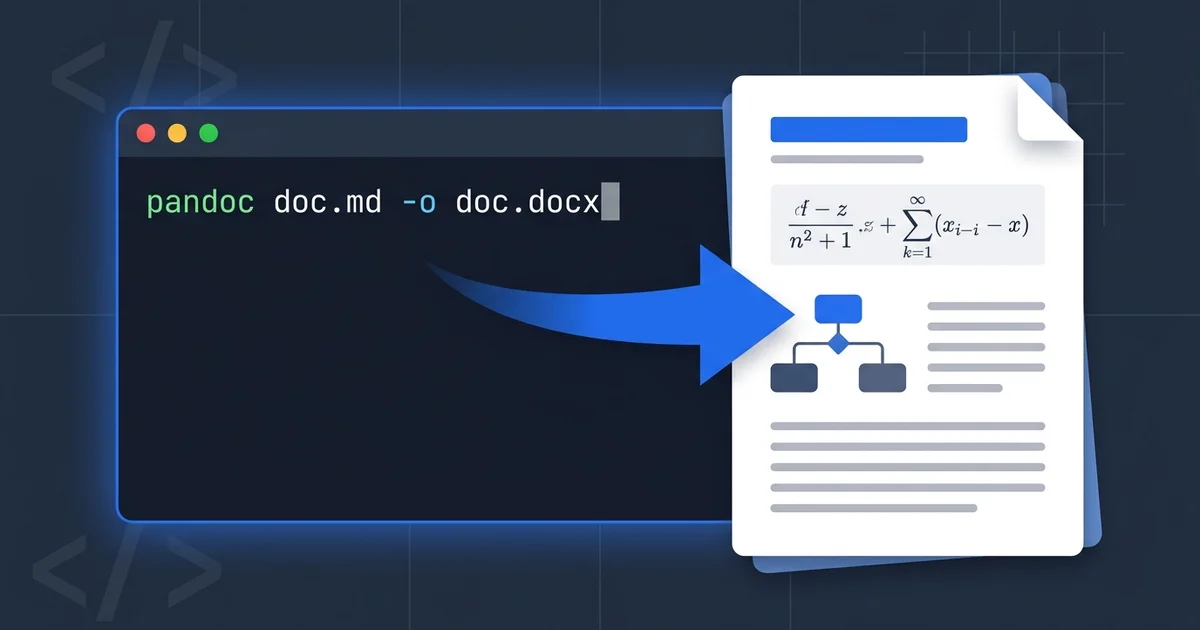
Moreover, Markdown's ecosystem supports automation. Scripts in Python or Node.js can parse and generate resume sections dynamically, pulling data from JSON files for skills or projects. This advanced capability isn't just theoretical; in a real-world scenario at a startup hackathon, teams used Pandoc—a popular Markdown converter—to batch-generate personalized resumes from a shared repo, saving hours. Polishing the document via an efficient converter then readies the output for ATS, preserving structure while adding necessary Word-specific enhancements like active hyperlinks.
Real-World Examples of Markdown Resumes in Action
Consider a software developer applying for remote positions at companies like Google or Microsoft. They host their resume as a Markdown file on GitHub, linking it in their profile README. Recruiters can view it rendered directly on GitHub Pages, seeing a clean, interactive version with embedded links to projects. But for formal submissions, direct Markdown attachments confuse ATS parsers, which strongly favor DOCX or PDF. Here, using our free Markdown to Word converter turns the file into a professional document, embedding images like certification badges without quality loss.
In one practical case, a data scientist tracked evolving project descriptions over six months using Markdown. Git commits captured iterations, such as refining bullet points for a machine learning model. When applying to FAANG roles, they exported their .md document to our tool, selecting DOCX output for an instant download. The result? A resume that passed LinkedIn's ATS with a 100% parse rate, leading to three interviews. Always test your GitHub Flavored Markdown (GFM) formatting first to avoid minor rendering hiccups.
Another example involves open-source contributors. Platforms like GitHub showcase Markdown resumes in wikis, where code snippets demonstrate skills in languages like Python. Converting these to an editable format ensures they're submission-ready, with syntax-highlighted blocks intact—crucial for roles emphasizing technical depth.
Understanding the Markdown Resume Editor Workflow
Building a resume in Markdown involves a structured approach that leverages its syntax for logical organization. At its core, Markdown separates content from presentation, allowing you to focus on substance. This workflow typically starts with outlining sections in a text editor, refining them with previews, and finally finalizing the conversion. For developers, this mirrors code development: write, test, iterate.
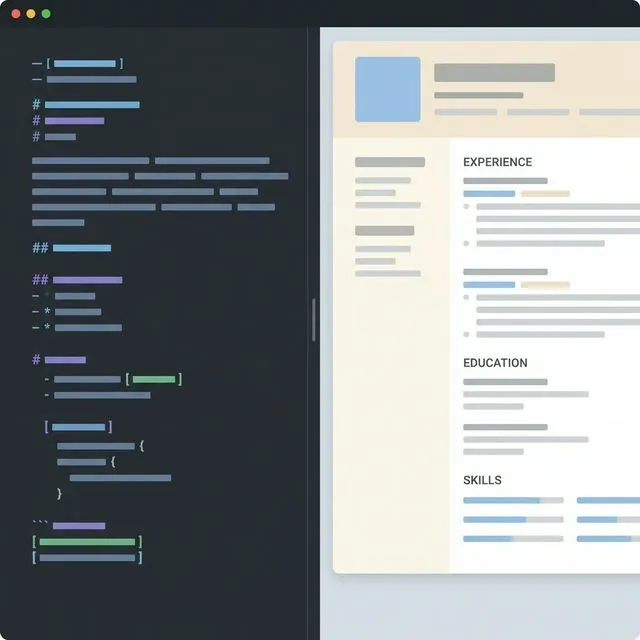
Tools like Typora or Visual Studio Code with Markdown extensions provide live previews, simulating how your resume will look post-conversion. The key is maintaining clean, semantic structure—headers for sections, lists for achievements—ensuring the file is both human- and machine-readable.
Key Elements of a Markdown Resume Structure
A well-structured Markdown resume follows a hierarchical format. Start with a YAML frontmatter block for metadata, like name and contact info, which many editors parse into styled headers. For example:
---
name: Jane Doe
title: Senior Full-Stack Developer
email: jane@example.com
github: https://github.com/janedoe
---
This block is ignored in plain text but enhances tooling. The main body uses H2 for sections like "Professional Experience" and H3 for individual job titles.
Essential components include:
-
Contact Section: Simple key-value pairs or a bulleted list for email, LinkedIn, and phone. Markdown's inline links make these clickable:
[LinkedIn](https://linkedin.com/in/janedoe). -
Summary: A paragraph under an
H2, limited to 4-6 lines, emphasizing quantifiable achievements like "Led a team to deploy a scalable React app serving 10K users daily." -
Experience and Skills: Unordered lists (
-) for job duties, with bold for action verbs:- **Developed** microservices using Node.js and Docker, reducing latency by 40%.
For skills, construct clear tables to categorize them neatly:
| Category | Technologies |
|----------|--------------|
| Frontend | React, Vue.js |
| Backend | Node.js, Python |
| Tools | Git, AWS |
This GFM table renders cleanly and converts reliably to Word grids. Advanced features in editors like Obsidian support footnotes for references, preparing your file for robust conversion and handling edge cases like nested lists for sub-achievements. In practice, inconsistent indentation in lists can cause preview glitches—a common pitfall for beginners. Always use four spaces for proper nesting to ensure seamless translation.
Tools and Tips for Editing Markdown Resumes Effectively
Free Markdown resume editors abound, but for depth, VS Code with the "Markdown All in One" extension offers excellent linting and auto-completion. Typora provides a distraction-free WYSIWYG view, ideal for non-coders dipping into Markdown. For version control, integrate with Git via extensions like GitLens, which visualizes commit history inline.
Best practices include: Write in atomic paragraphs—one idea per block—to facilitate reordering. Use semantic line breaks (two spaces at line ends) for formatting in raw text. Validate syntax with tools like markdownlint, catching issues like unbalanced quotes early.
Using a dedicated conversion utility as the post-editing step ensures professional output. After editing your text, export to .md and quickly process it—no need for complicated intermediate software. A tip from experience: Name files descriptively, like resume-2023-v2.md, and use Git tags for major versions, making it easy to track historical iterations.
How to Convert Markdown Resumes to DOCX Step-by-Step

Converting your Markdown resume to DOCX demystifies the process of bridging plain text to polished business documents. This step-by-step guide focuses on reliability, assuming you're using GitHub Flavored Markdown for broad compatibility.
Preparing Your Markdown File for Conversion
Before conversion, audit your file for syntax validity. Check tables for proper pipe alignment—misplaced | characters can break grids into raw text. For images, use absolute URLs if possible, ensuring the parser fetches them correctly. Code blocks should be fenced with triple backticks and language specifiers for accurate highlighting.
Validate against GFM by pasting the text into a GitHub repository or test editor. Scanning for unsupported HTML elements early keeps the final document clean. Running an initial stress test on small sections prevents headaches—for instance, extremely long code snippets might exceed a standard Word document's default margins, requiring minor post-process margin adjustments.
Using Our Online Converter for Seamless Export
The process with our application is straightforward, free of cost, and requires zero software installation. Navigate to our homepage directly, where an intuitive interface greets you with an upload button. Drag and drop your .md file, or browse to select it—the system processes documents up to 10MB highly efficiently.
Once uploaded, preview the rendered content on the left pane, confirming that sections like your experience list display correctly. Select DOCX as your output format. (Options for HTML or PDF are also available; you can explore the benefits of generating PDF output in our Markdown to PDF guide). Click "Convert," and within moments, your polished .docx file will be downloaded. The tool handles everything smoothly and alerts you of clear syntax errors if it hits any snags.
For peace of mind, files are processed securely on the server and routinely deleted post-conversion, aligning with industry privacy best practices.
Verifying and Customizing the Converted Resume
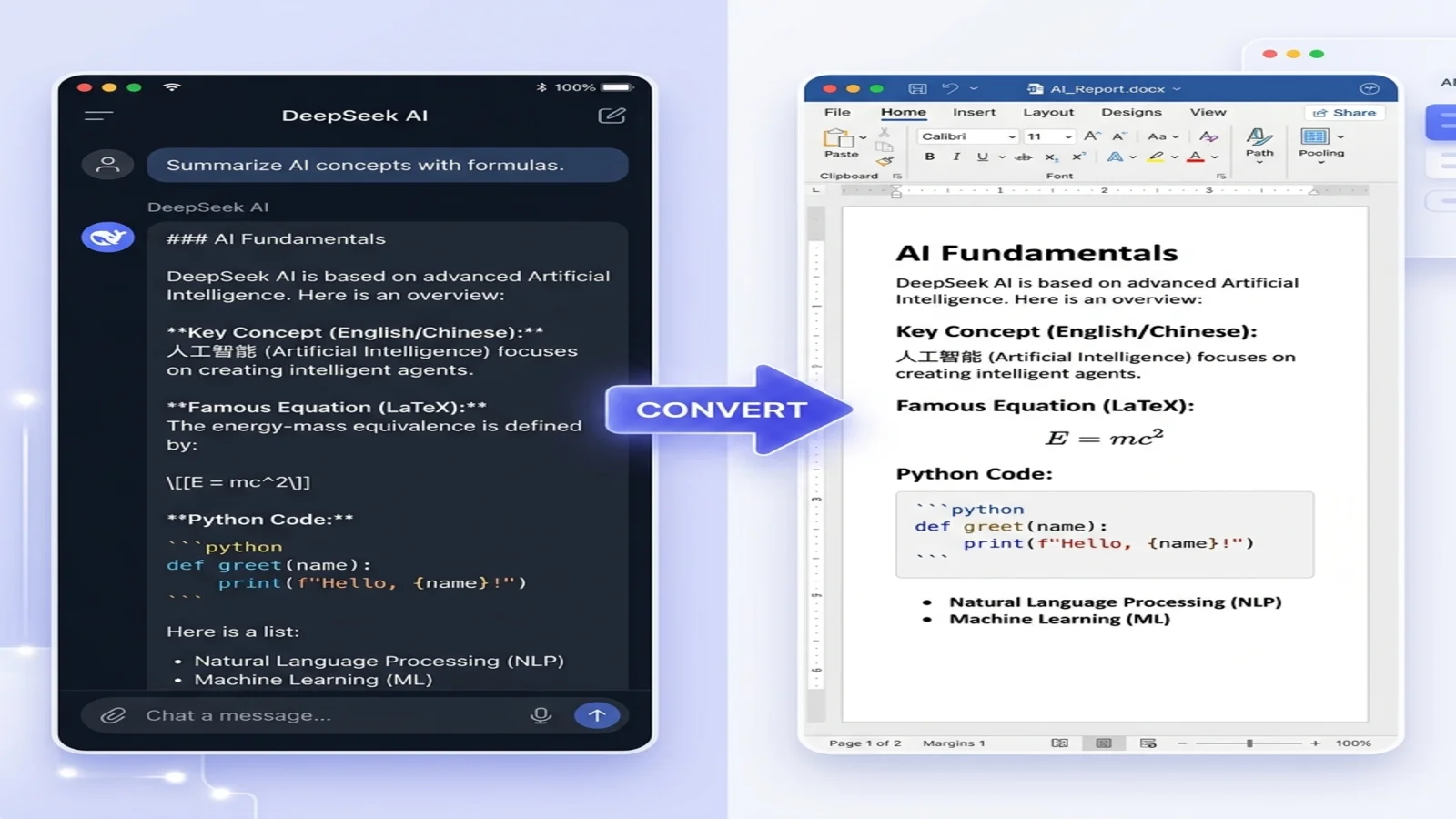
Open the resulting DOCX file in Microsoft Word (version 2016 or later is recommended for best results) to verify fidelity. Headers seamlessly map to Word styles (Heading 1, etc.), lists translate to native bullets, and tables become fully editable grids. Check images for resolution—the translation engine embeds them at native size, dodging the distortion typically seen in poorer-quality converters.
Customization is the final key: Adjust document margins strictly to 0.5 - 1 inch for reliable ATS compliance. Fine-tune your typography using modern professional fonts like Arial, Calibri, or Inter (sized at 10 to 12pt). Ensuring bold actions stand out creates great visual hierarchy. A quick verification session takes fewer than 10 minutes and produces a resume capable of rivaling premium paid templates.
Advanced Features: Enhancing the Converted Output

Delving deeper, a top-tier formatting pipeline excels in processing sophisticated Markdown constructs, ensuring your tech resume authentically conveys expertise. Full compliance with widely accepted syntax standards means advanced elements are preserved and enhanced beyond simple paragraphs.
Handling Tables, Images, and Code Blocks
Markdown tables, defined by pipes and dashes, instantly become fully stylable Word tables featuring resizable columns. This allows a skills matrix to retain its structural sorting and clean borders, making it effortless for recruiters to scan. Images embed as high-res graphical objects—crucial for engineering resumes demanding detailed diagram displays.
When parsing technical backgrounds, code blocks seamlessly transition to monospaced, syntax-highlighted paragraphs. Specifying the language in fences applies thematic coloring analogous to modern code editors. A single preserved line of correctly aligned JavaScript or Python can seriously impress hiring managers looking for detail-oriented talent.
Integrating LaTeX and Custom Styling for Professional Polish
For specific engineering, data science, or academic paths, handling mathematical notation via LaTeX (such as $E=mc^2$) is immensely valuable. Top-tier tools parse these as functional, editable Word equations rather than static, unscalable images. Custom styling through advanced descriptors ensures that technical depth isn't lost in the conversion process.
Summary
Embracing Markdown to draft your resume—combined with a fast layout conversion phase—instigates a highly productive cycle: Edit in plain text, track cleanly through Git, and shine with a polished DOCX format. Overall, this agile workflow drastically cuts down the frustrating hours historically spent battling margin misalignments in traditional word processors. Ready to step up your job search? Leverage this workflow to produce the perfect profile.
Find this tool helpful? Help us spread the word.