Notion to Word: Free Step-by-Step Export to DOCX
Why Convert Notion Pages to Word?
Notion is a popular tool for organizing projects and writing documentation. But when you need to share content outside Notion — for client reports, compliance documents, or team handovers — Word is often the required format. This guide walks through the full process: exporting from Notion, using Markdown as an intermediate format, and producing polished DOCX files.
Notion's flexibility is great for brainstorming and database-driven projects, but its proprietary format isn't ideal for external sharing. A Markdown export is a lightweight, portable bridge: you get a plain-text version you can edit anywhere, then refine it into Word's richer formatting. This guide covers the workflow from export basics through advanced troubleshooting.
Understanding Notion Exports and Markdown
Notion can export pages as HTML, PDF, or Markdown. For converting to Word, Markdown is usually the best starting point: it's simple, text-based, and widely supported. When you export a Notion page as Markdown, blocks like headings, paragraphs, and lists become standard syntax — # for an H1, - for a bullet point.
Markdown was created as a lightweight markup language optimized for plain-text readability, not for the pixel-perfect layouts of Word. Basic elements translate cleanly, but some Notion blocks — embedded videos, custom toggles, synced blocks — need manual attention. The official Notion export documentation lists which block types are included and which advanced features are not.
The appeal of Markdown is portability. Unlike a PDF, which locks content into a static view, Markdown can be edited without proprietary software. One thing to be aware of: Notion's Markdown isn't plain CommonMark — it's closer to GitHub Flavored Markdown (GFM), with extensions for tables and task lists. A Notion database, for example, exports as a pipe-separated table (| Column 1 | Column 2 |), and a converter that doesn't understand GFM may mangle it. Choosing a converter that handles GFM is the single biggest factor in avoiding reformatting work later.
It helps to think of Markdown as human-readable source code for a document, while Word uses XML-based DOCX for styles and layout. Bridging them means understanding how Notion serializes content: headings become semantic anchors and lists keep their indentation, but callouts, colored backgrounds, and inline comments may lose their styling on export. Reviewing your content before exporting is worthwhile.
What Notion's Markdown Export Includes — and What It Doesn't

A Notion Markdown export structures content hierarchically: the page title and basic metadata first, then the body. Supported syntax includes ATX-style headings (## Subsection), ordered and unordered lists, bold and italic via asterisks, and horizontal rules (---). Embeds are the main limitation — a YouTube video typically exports as a plain link, losing its interactivity.
Markdown's lightweight nature is excellent for version control — pairing it with Git works well for collaborative documentation — but it can't represent Word features like tracked changes or footnotes. Other common gaps: Notion's colored callout backgrounds don't carry over, and database formulas export only as their static computed values, not the formulas themselves. Code blocks may also lose syntax highlighting unless your converter restores it.
In practice, a Notion Markdown export is raw material for the conversion, not a finished document. A practical habit: test a small page first to see exactly which elements survive the export before committing to a large batch.
Preparing Your Notion Pages for Export
A little preparation reduces export artifacts. Organize content linearly, use toggles sparingly (they flatten to plain text), and consolidate databases into views that export cleanly. For an API-documentation board, for instance, grouping properties into inline tables reduces fragmentation in the exported Markdown.
Practical steps:
- Review linked pages for duplicates.
- Make sure images are uploaded to Notion, not linked from external URLs.
- Use Notion's "Duplicate" feature to create an export-only copy you can clean up freely.
Aim for semantic clarity: label databases explicitly, and avoid relying on decorative icons or dividers, since those disappear in Markdown. Clean hierarchies make the rest of the workflow far more predictable.
Why Word Is Worth the Extra Step
Converting to Word turns working notes into polished, shareable deliverables. Word's ubiquity in enterprise environments — and its integration with Microsoft 365 — ensures the document opens correctly for almost any recipient, and it unlocks features Notion exports lack natively, such as tracked changes and detailed revision history.
Collaboration is a clear benefit: convert a Notion draft to DOCX, then collect stakeholder feedback with Word's comment and track-changes tools. Word's revision history also gives more granular auditing than Notion's real-time edits — useful for documents like legal briefs, technical specs, and client proposals.
There is a trade-off: a Notion database loses its dynamic behavior in Word and becomes a static table. For deliverables, that fixed snapshot is usually a feature, not a bug — but if you need live data, keep the source in Notion and treat the Word file as a point-in-time export.
How Markdown Compares to PDF and HTML Exports
Notion can export directly to PDF or HTML, so why route through Markdown?
- PDF is excellent for a final, print-ready view, but it is hard to edit — reworking a long report in PDF form is painful.
- HTML preserves styling, but Notion's HTML export tends to carry a lot of inline CSS, producing large files that need a browser to view.
- Markdown keeps the document fully editable and maps cleanly onto Word's structure. Its simplicity is exactly why it converts to DOCX without the tag-soup problems that HTML importers often hit.
For a workflow whose end product is an editable Word file, Markdown is the most reliable intermediate format.
Real-World Use Cases

The Notion-to-Word path fits any team that ideates in Notion but delivers in Word:
- Compliance and audits: A DevOps team documents infrastructure in Notion, then converts to Word for a compliance submission that reviewers expect in DOCX.
- Legal work: Notion captures case notes fluidly, but contract redlining needs Word — converting preserves hyperlinks to precedents while letting you add watermarks and track changes.
- Technical reporting: Engineers document APIs in Notion and convert for stakeholder review, where Word's commenting beats PDF's limited annotation.
In each case, the conversion replaces manual reformatting with a repeatable process.
Step-by-Step: Notion Markdown to DOCX
Converting Notion content into Word is a methodical process. The steps below assume basic familiarity with files and folders, and use a free GFM-aware converter, Markdown to Word, for the conversion step.
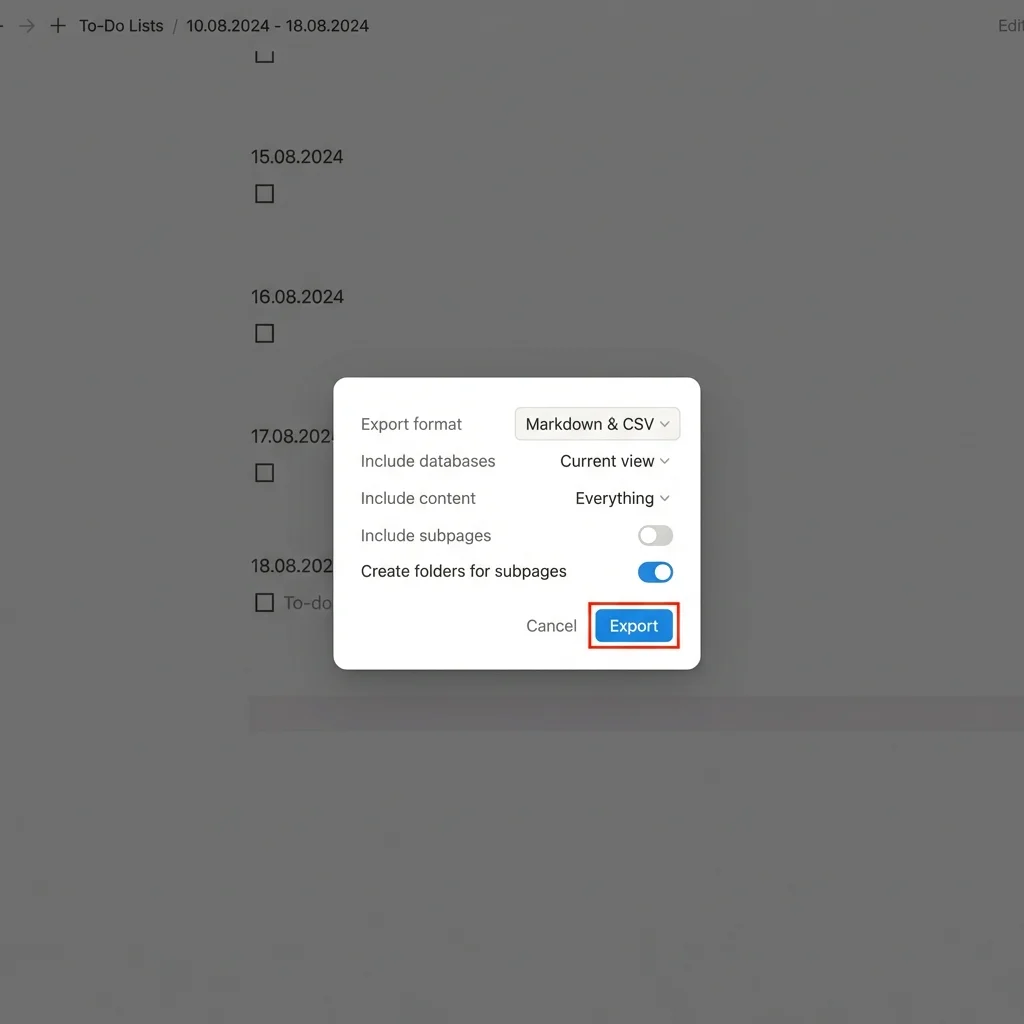
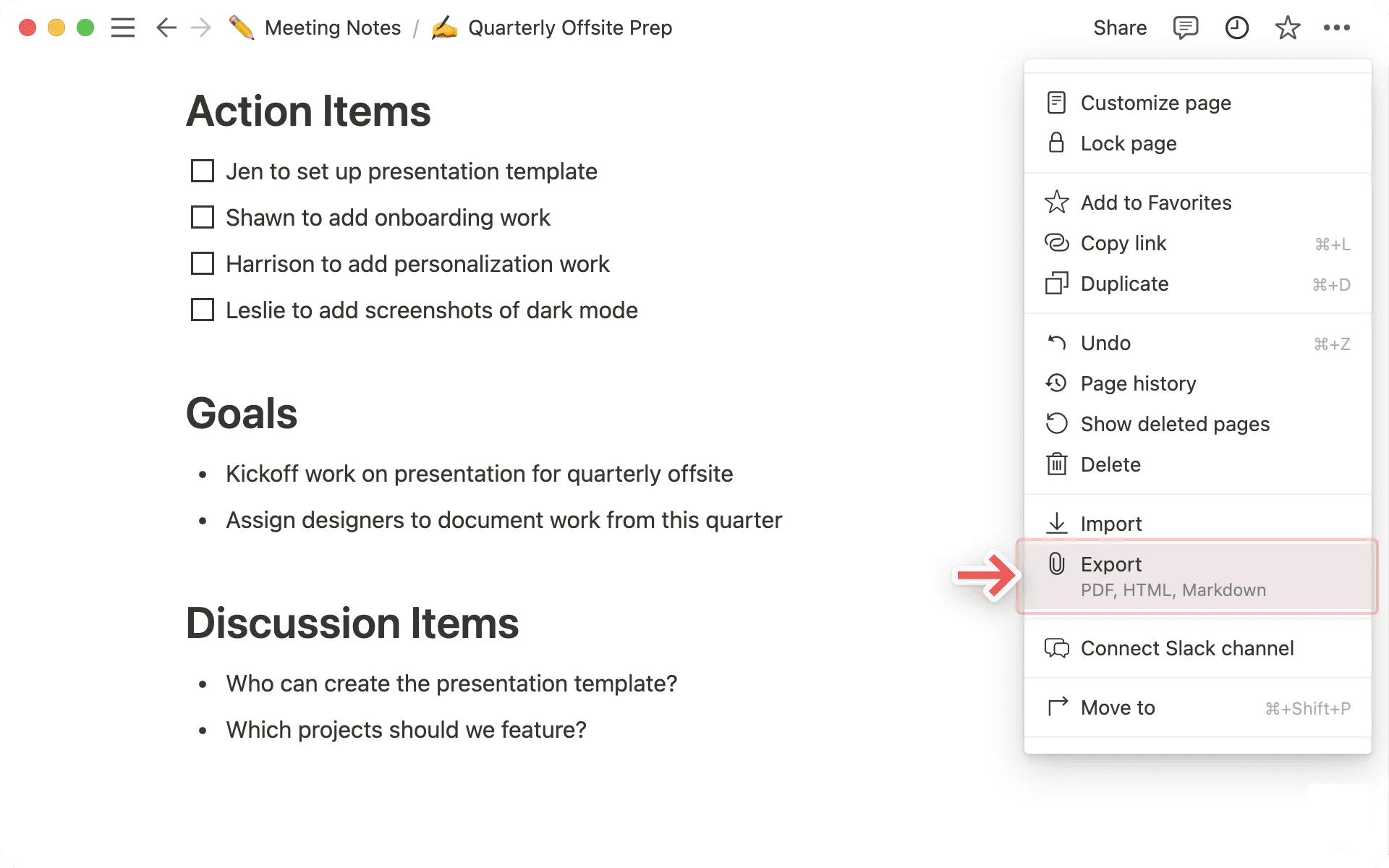
- Open export settings: In Notion, open the page or workspace menu (the three-dot icon) and select "Export." Choose Markdown & CSV for the most complete output, including attachments. Exporting an entire workspace produces a ZIP that preserves page relationships.
- Review the exported files: Unzip to find a
.mdfile per page plus a folder of images. Scan for completeness before going further. - Preprocess if needed: Open the Markdown in a text editor to fix any quirks — for example, manually adjusting how toggles were flattened. A formatter like Prettier can standardize the syntax.
- Convert: Upload the
.mdfile to Markdown to Word. It parses GFM, so tables become native Word grids and code blocks keep monospaced formatting. Preview the result before downloading. - Refine in Word: Open the DOCX in Microsoft Word (2016 or newer for full XML support). Apply styles via the Styles pane; for database data, paste the CSV into Excel and embed it as an object if you need a structured table.
- Validate and archive: Compare the DOCX against the original Notion page, then save a dated version to keep an audit trail.
This flow works for both single pages and full workspace exports.
Exporting from Notion: Best Practices
When exporting, choose page-level for granularity or workspace-level for scale. Enable "Include subpages" to nest the Markdown files hierarchically, mirroring Notion's page tree. After exporting, rename files with clear prefixes (e.g., project-api-docs.md) so a large batch stays organized.
If your pages rely on databases, use the full export option so properties are included rather than just a single view. Exporting during quiet hours also helps avoid sync conflicts on large workspaces.
Using the Online Converter
Markdown to Word handles Markdown files up to 10 MB with a real-time preview. It parses Notion's table syntax (| Header |) into editable Word tables, embeds referenced images, and formats code blocks with syntax coloring.
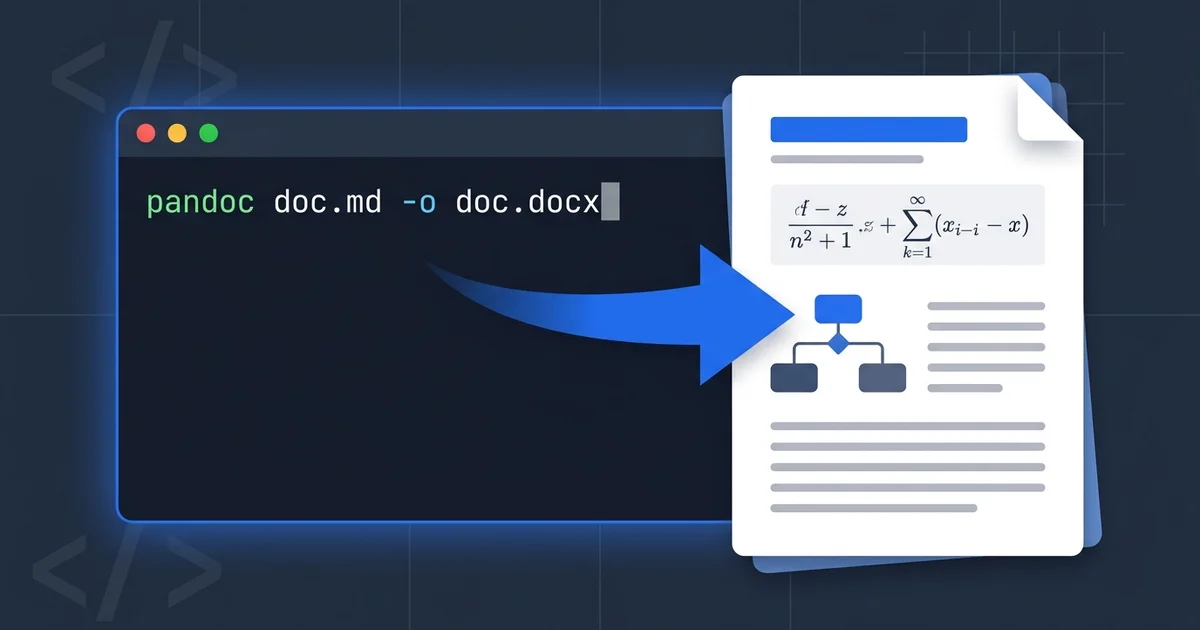
The process is simple: upload your .md file, check the preview, and download the DOCX. Compared with a command-line tool like Pandoc, the advantage is that there's nothing to install — useful for teams where not everyone is comfortable with a terminal.
Handling Complex Elements
Notion's advanced blocks need careful handling. Internally, a converter tokenizes the Markdown and maps it to Word's XML structure; tools like Markdown to Word use established parsing libraries to reconstruct the document hierarchy. Where things get tricky:
- Synced blocks duplicate their content in the export, so you may need to remove the copies.
- Unsupported elements are safest handled by a converter that flags them rather than dropping them silently.
Tables and Databases
Notion exports tables as GFM pipe syntax, e.g.:
| Name | Value |
|------|-------|
| API  | v2.0  |
A GFM-aware converter renders these as Word grids with sensible column widths. Databases export as separate files; bring them into Word with Insert > Object if you want them as a linked, editable table.
Merged cells are a known gap — Notion's Markdown export doesn't represent them, so complex tables may need manual adjustment in Word afterward. For data that changes often, keep the live version in your spreadsheet or database and treat the Word table as a snapshot.
Images, Embeds, and Code Blocks
Images in a Notion Markdown export are referenced relatively (e.g., ), so keep the export's image folder alongside the .md file. The converter downloads and embeds them, preserving alt text for accessibility. Embeds generally export as plain links.
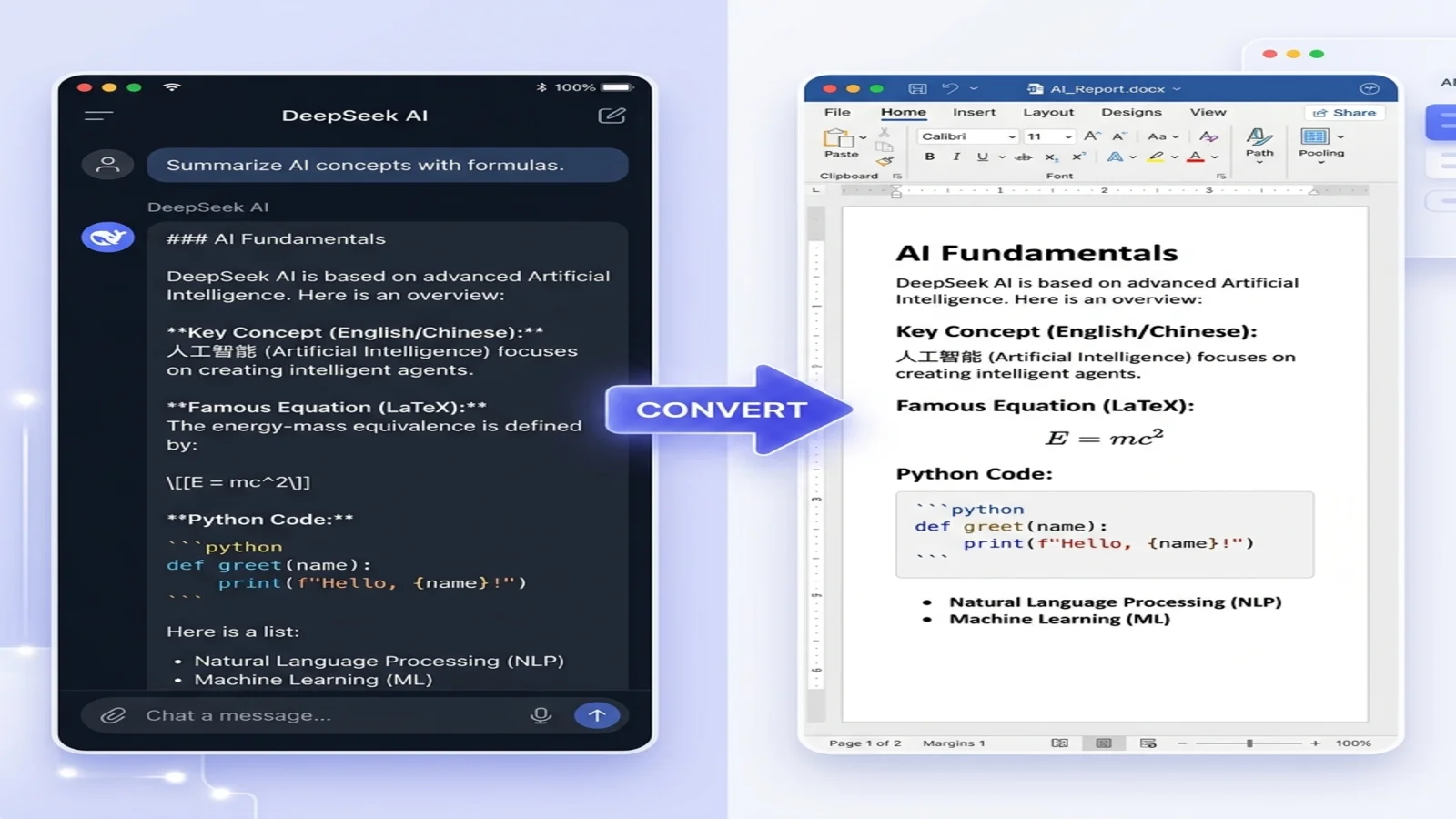
Code blocks (fenced with triple backticks) convert to monospaced, clearly delimited blocks; Markdown to Word also supports LaTeX math, which matters for technical and academic documents.
Links and Multimedia
Hyperlinks export as [text](url). Prefer absolute URLs over relative ones so links don't break once the content leaves Notion's structure. Audio and video embeds become plain hyperlinks — for a clean Word document, either remove unsupported media or replace it with a static thumbnail plus a link. After conversion, Word's link-checking tools are worth a quick pass.
Advanced Techniques and Troubleshooting
For repeated conversions, the workflow can be scripted. Node.js libraries such as mammoth.js support programmatic DOCX handling, which makes it possible to wire conversion into a CI/CD pipeline for automated document generation.
Customizing Output with Styles and Templates
After conversion, apply a Word template so the document matches your house style. Mapping Markdown headings to Word's built-in Heading styles also lets Word generate a table of contents automatically. Headers, footers, page numbers, and logos can be added through Word's Insert menu. For repeated report pipelines, VBA macros can apply consistent styling across many documents.
Common Pitfalls
- Broken formatting: Deeply nested lists can lose indentation in weaker converters — preview the output before relying on it.
- Unsupported syntax: Custom emojis or special blocks may render as plain text; replace them before converting if appearance matters.
- Very large files: Splitting a huge export into sections keeps each conversion fast and easy to review.
For unusually complex pages, a hybrid approach — automated conversion plus a short round of manual edits — is often more efficient than trying to automate every edge case.
Choosing a Converter
The most important quality in a converter is GFM support, since Notion's tables and task lists depend on it. Beyond that, look for a live preview (so you can catch issues before downloading), image embedding, and LaTeX support if you work with equations. A browser-based tool removes the install step; a command-line tool like Pandoc is better when you need batch processing or full typographic control.
Conclusion
With the right export settings and a GFM-aware converter, turning Notion pages into professional Word documents is straightforward. Export from Notion as Markdown, preprocess if needed, convert, and refine in Word. Use Markdown as the intermediate format, pick a reliable converter, and you'll have polished DOCX files ready for any audience.
Ready to try it? Convert your Notion Markdown to Word — it's free and takes only a few seconds.
Find this tool helpful? Help us spread the word.