Notion to Word: تصدير مجاني إلى DOCX خطوة بخطوة
لماذا تحويل صفحات Notion إلى Word؟
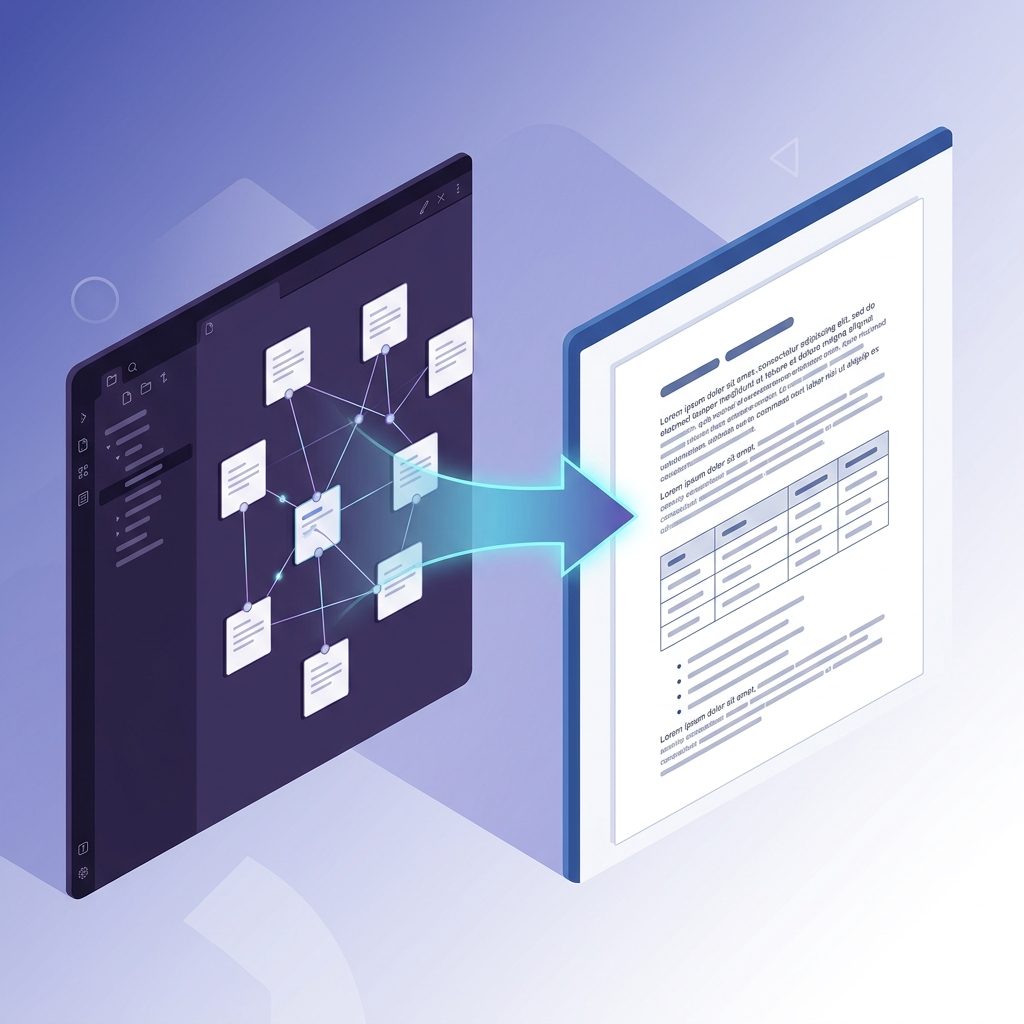
Notion أداة شائعة لتنظيم المشاريع وكتابة التوثيق. لكن عندما تحتاج إلى مشاركة المحتوى خارج Notion — لتقارير العملاء أو مستندات الامتثال أو تسليمات الفريق — غالبًا ما يكون Word هو التنسيق المطلوب. يستعرض هذا الدليل العملية الكاملة: التصدير من Notion، واستخدام Markdown كتنسيق وسيط، وإنتاج ملفات DOCX احترافية.
تتألق مرونة Notion في جلسات العصف الذهني والمشاريع القائمة على قواعد البيانات، لكن تنسيقه الخاص ليس مثاليًا للمشاركة الخارجية. يشكّل تصدير Markdown جسرًا خفيف الوزن وقابلًا للنقل: تحصل على نسخة نصية بسيطة يمكنك تحريرها في أي مكان، ثم تصقلها بتنسيق Word الأكثر ثراءً. يغطي هذا الدليل سير العمل من أساسيات التصدير وحتى استكشاف الأخطاء المتقدم.
فهم عمليات التصدير من Notion وأساسيات Markdown
يمكن لـ Notion تصدير الصفحات بصيغة HTML أو PDF أو Markdown. عند التحويل إلى Word، يكون Markdown عادةً نقطة البداية الأفضل: فهو بسيط وقائم على النص ومدعوم على نطاق واسع. عندما تصدّر صفحة Notion بصيغة Markdown، تتحول الكتل مثل العناوين والفقرات والقوائم إلى صيغة قياسية — # لعنوان H1، و- لنقطة القائمة.
أُنشئ Markdown كلغة ترميز خفيفة الوزن مُحسّنة لسهولة القراءة كنص عادي، وليس للتخطيطات المثالية بالبكسل في Word. تُترجَم العناصر الأساسية بشكل نظيف، لكن بعض كتل Notion — مقاطع الفيديو المضمّنة والتبديلات المخصصة والكتل المتزامنة — تحتاج إلى عناية يدوية. تسرد وثائق تصدير Notion الرسمية أنواع الكتل المضمّنة وأي الميزات المتقدمة غير مدعومة.
تكمن جاذبية Markdown في قابليته للنقل. على عكس PDF الذي يقفل المحتوى في عرض ثابت، يمكن تحرير Markdown دون برامج خاصة. شيء يجب الانتباه إليه: إن Markdown الخاص بـ Notion ليس CommonMark النقي — فهو أقرب إلى GitHub Flavored Markdown (GFM)، مع امتدادات للجداول وقوائم المهام. تُصدَّر قاعدة بيانات Notion، على سبيل المثال، كجدول مفصول بأنابيب (| Column 1 | Column 2 |)، وقد يفسد محوّل لا يفهم GFM هذا الجدول. يُعد اختيار محوّل يتعامل مع GFM أكبر عامل منفرد لتجنب أعمال إعادة التنسيق لاحقًا.
من المفيد التفكير في Markdown باعتباره كود مصدر قابلًا للقراءة بشريًا للمستند، بينما يستخدم Word تنسيق DOCX القائم على XML للأنماط والتخطيط. يعني الربط بينهما فهم كيفية تسلسل Notion للمحتوى: تصبح العناوين مثبتات دلالية وتحتفظ القوائم بمسافتها البادئة، لكن كتل التنبيه (callouts) والخلفيات الملونة والتعليقات المضمنة قد تفقد نمطها عند التصدير. مراجعة المحتوى قبل التصدير أمر يستحق العناء.
ماذا يتضمن تصدير Markdown من Notion — وماذا لا يتضمن

يهيكل تصدير Markdown من Notion المحتوى بشكل هرمي: عنوان الصفحة والبيانات الوصفية الأساسية أولًا، ثم نص المتن. تتضمن الصيغة المدعومة العناوين بنمط ATX (## Subsection)، والقوائم المرتبة وغير المرتبة، والخط العريض والمائل عبر العلامات النجمية، والقواعد الأفقية (---). تمثّل التضمينات القيد الرئيسي — يُصدَّر فيديو YouTube عادةً كرابط بسيط، فاقدًا تفاعليته.
تتميز طبيعة Markdown الخفيفة في التحكم في الإصدار — إقرانه بـ Git يعمل جيدًا للتوثيق التعاوني — لكنه لا يستطيع تمثيل ميزات Word مثل تتبع التغييرات أو الحواشي السفلية. ومن الفجوات الشائعة الأخرى: لا تُنقَل خلفيات Notion الملونة لكتل التنبيه (callouts)، وتُصدَّر صيغ قواعد البيانات بقيمها المحسوبة الثابتة فقط، لا الصيغ نفسها. قد تفقد كتل التعليمات البرمجية أيضًا تمييز الصيغة ما لم يستعده محوّلك.
عمليًا، يُعد تصدير Markdown من Notion مادة خامًا للتحويل، وليس مستندًا نهائيًا. عادة عملية مفيدة: اختبر صفحة صغيرة أولًا لترى بالضبط أي العناصر تنجو من التصدير قبل الالتزام بدفعة كبيرة.
تحضير صفحات Notion للتصدير
يقلّل قليل من التحضير عيوب التصدير. نظّم المحتوى خطيًا، واستخدم التبديلات باعتدال (فهي تتسطح إلى نص عادي)، وادمج قواعد البيانات في طرق عرض تُصدَّر بشكل نظيف. بالنسبة للوحة توثيق واجهة برمجة تطبيقات، على سبيل المثال، يقلّل تجميع الخصائص في جداول مضمنة من تجزئة Markdown المُصدَّر.
خطوات عملية:
- راجع الصفحات المرتبطة بحثًا عن التكرارات.
- تأكد من تحميل الصور إلى Notion، وليس ربطها من عناوين URL خارجية.
- استخدم ميزة "تكرار" في Notion لإنشاء نسخة مخصصة للتصدير فقط يمكنك تنظيفها بحرية.
اسعَ نحو الوضوح الدلالي: سمِّ قواعد البيانات بشكل صريح، وتجنب الاعتماد على الأيقونات أو الفواصل الزخرفية، لأنها تختفي في Markdown. تجعل التسلسلات الهرمية النظيفة بقية سير العمل أكثر قابلية للتنبؤ بكثير.
لماذا يستحق Word الخطوة الإضافية
يحوّل التحويل إلى Word ملاحظات العمل إلى مخرجات مصقولة قابلة للمشاركة. يضمن انتشار Word في بيئات الشركات — وتكامله مع Microsoft 365 — أن يُفتح المستند بشكل صحيح لأي متلقٍ تقريبًا، ويفتح ميزات تفتقر إليها ملفات تصدير Notion محليًا، مثل تتبع التغييرات وسجل المراجعات المفصل.
التعاون فائدة واضحة: حوّل مسودة Notion إلى DOCX، ثم اجمع تعليقات أصحاب المصلحة بأدوات التعليق وتتبع التغييرات في Word. يوفر سجل المراجعات في Word أيضًا تدقيقًا أكثر تفصيلًا من تعديلات Notion في الوقت الفعلي — وهو مفيد لمستندات مثل المذكرات القانونية والمواصفات الفنية ومقترحات العملاء.
توجد مقايضة: تفقد قاعدة بيانات Notion سلوكها الديناميكي في Word وتصبح جدولًا ثابتًا. بالنسبة للتسليمات، تكون تلك اللقطة الثابتة عادةً ميزة لا عيبًا — لكن إذا كنت تحتاج إلى بيانات حية، فاحتفظ بالمصدر في Notion وتعامل مع ملف Word كتصدير عند نقطة زمنية محددة.
كيف يقارن Markdown بملفات تصدير PDF وHTML
يمكن لـ Notion التصدير مباشرة إلى PDF أو HTML، فلماذا المرور عبر Markdown؟
- PDF ممتاز لعرض نهائي جاهز للطباعة، لكنه صعب التحرير — إعادة معالجة تقرير طويل بصيغة PDF أمر مؤلم.
- HTML يحافظ على التنسيق، لكن تصدير HTML من Notion يميل إلى حمل قدر كبير من CSS المضمّن، مما ينتج ملفات كبيرة تحتاج إلى متصفح لعرضها.
- Markdown يبقي المستند قابلًا للتحرير بالكامل ويتطابق بشكل نظيف مع بنية Word. بساطته هي بالضبط سبب تحويله إلى DOCX دون مشكلات حساء العلامات التي كثيرًا ما تواجهها مستوردات HTML.
بالنسبة لسير عمل منتجه النهائي ملف Word قابل للتحرير، يُعد Markdown أكثر تنسيق وسيط موثوقية.
حالات استخدام واقعية

يناسب مسار Notion إلى Word أي فريق يبتكر في Notion لكنه يسلّم بصيغة Word:
- الامتثال والتدقيق: يوثّق فريق DevOps البنية التحتية في Notion، ثم يحوّلها إلى Word لتقديم امتثال يتوقعه المراجعون بصيغة DOCX.
- العمل القانوني: يلتقط Notion ملاحظات القضايا بسلاسة، لكن مراجعة العقود تحتاج إلى Word — يحافظ التحويل على الروابط التشعبية للسوابق مع السماح لك بإضافة علامات مائية وتتبع التغييرات.
- التقارير الفنية: يوثّق المهندسون واجهات برمجة التطبيقات في Notion ويحوّلونها لمراجعة أصحاب المصلحة، حيث يتفوق التعليق في Word على التعليقات التوضيحية المحدودة في PDF.
في كل حالة، يستبدل التحويل إعادة التنسيق اليدوية بعملية قابلة للتكرار.
خطوة بخطوة: من Notion Markdown إلى DOCX
تحويل محتوى Notion إلى Word عملية منهجية. تفترض الخطوات أدناه إلمامًا أساسيًا بالملفات والمجلدات، وتستخدم محوّلًا مجانيًا يدعم GFM، وهو Markdown to Word، لخطوة التحويل.
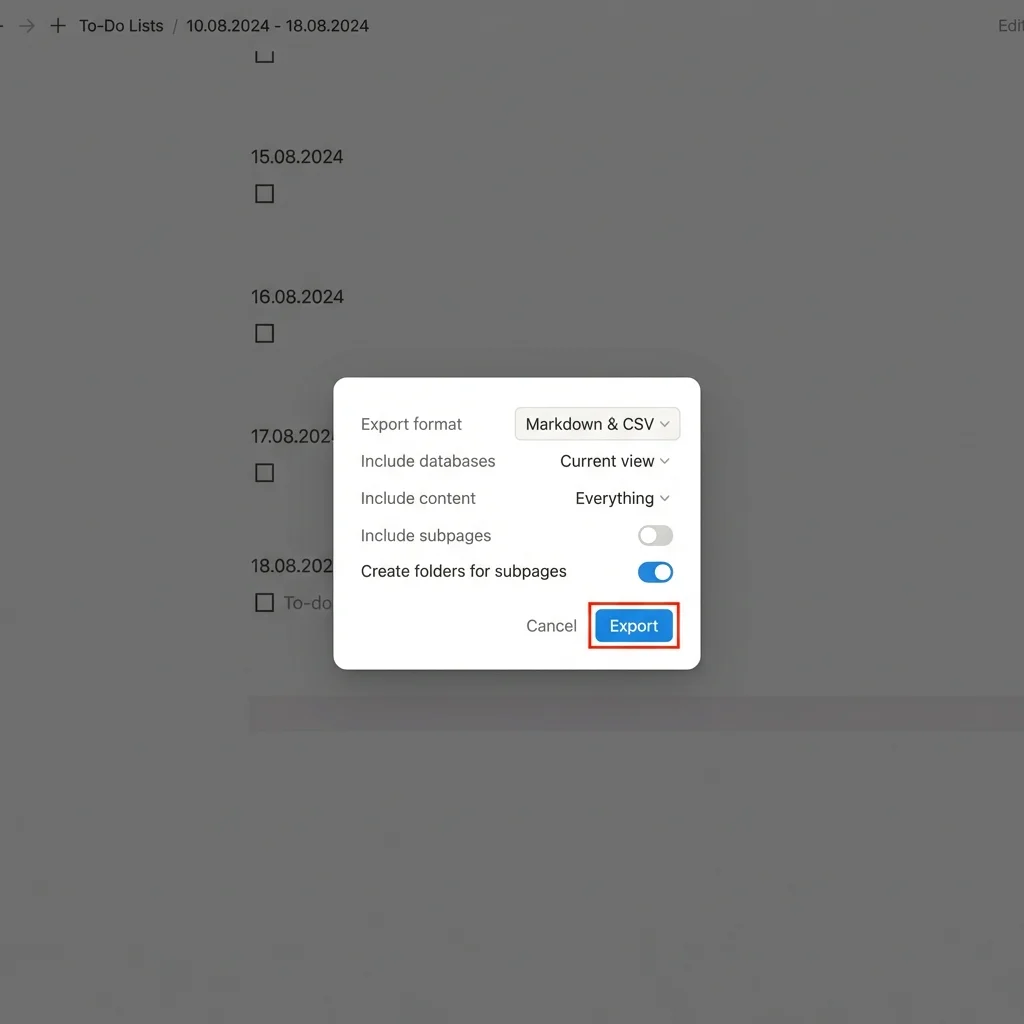
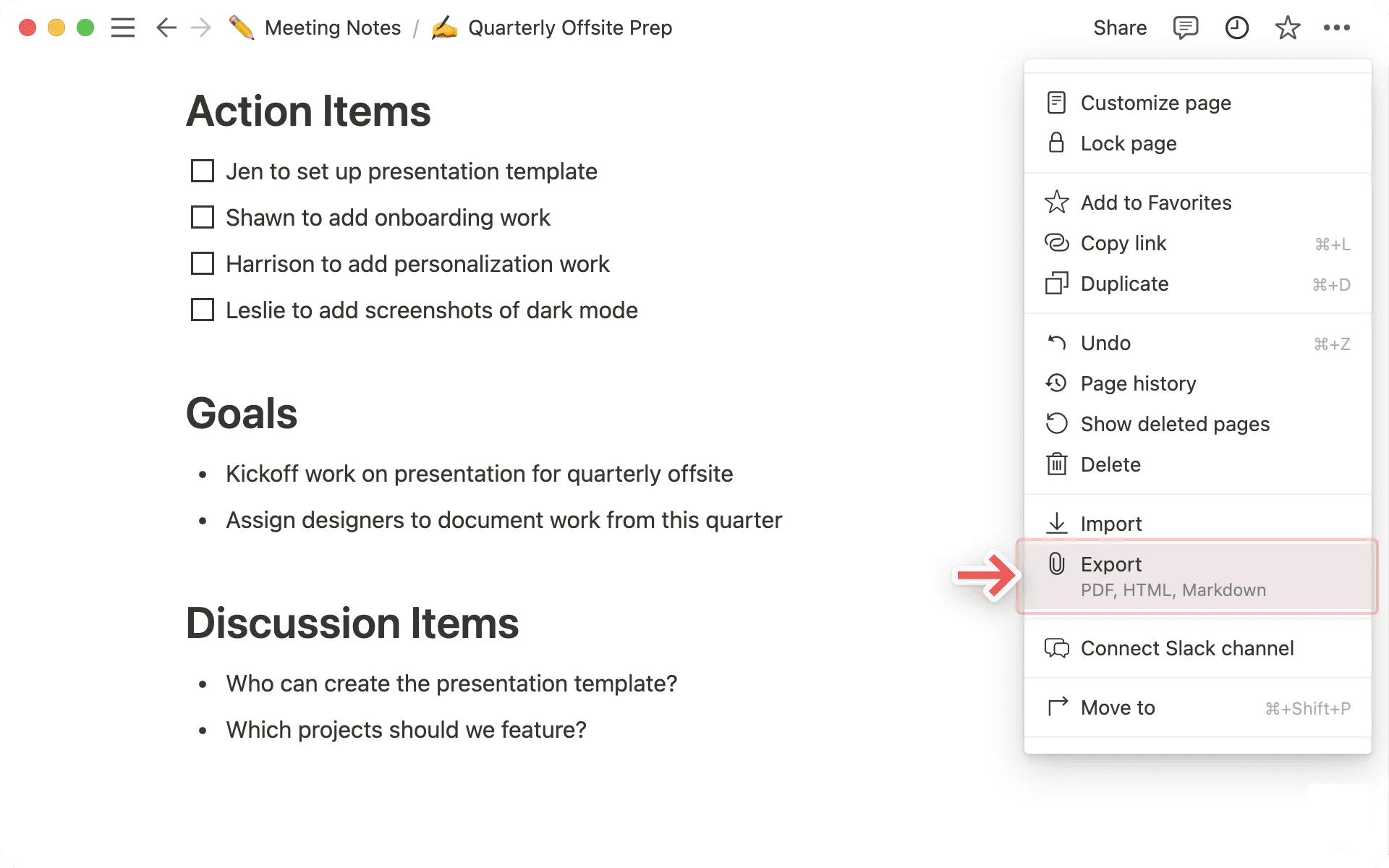
- افتح إعدادات التصدير: في Notion، افتح قائمة الصفحة أو مساحة العمل (أيقونة النقاط الثلاث) وحدد "Export". اختر Markdown & CSV للحصول على أكمل إخراج، بما في ذلك المرفقات. ينتج تصدير مساحة عمل كاملة ملف ZIP يحافظ على العلاقات بين الصفحات.
- راجع الملفات المصدَّرة: قم بفك الضغط لتجد ملف
.mdلكل صفحة بالإضافة إلى مجلد للصور. افحص الاكتمال قبل المضي قدمًا. - عالج مسبقًا إذا لزم الأمر: افتح Markdown في محرر نصوص لإصلاح أي مراوغات — مثل تعديل كيفية تسطيح التبديلات يدويًا. يمكن لأداة تنسيق مثل Prettier توحيد الصيغة.
- حوّل: حمّل ملف
.mdإلى Markdown to Word. يحلل GFM، لذا تصبح الجداول شبكات Word أصلية وتحتفظ كتل التعليمات البرمجية بالتنسيق أحادي المسافة. عاين النتيجة قبل التنزيل. - حسّن في Word: افتح DOCX في Microsoft Word (الإصدار 2016 أو أحدث لدعم XML الكامل). طبّق الأنماط عبر جزء الأنماط؛ بالنسبة لبيانات قواعد البيانات، ألصق ملف CSV في Excel وضمّنه ككائن إذا كنت تحتاج إلى جدول منظم.
- تحقق وأرشف: قارن DOCX بصفحة Notion الأصلية، ثم احفظ نسخة بتاريخ للحفاظ على مسار تدقيق.
يعمل هذا التدفق للصفحات الفردية ولعمليات تصدير مساحة العمل الكاملة على حد سواء.
التصدير من Notion: أفضل الممارسات
عند التصدير، اختر مستوى الصفحة للتفصيل الدقيق أو مستوى مساحة العمل للحجم الكبير. فعّل "Include subpages" لتداخل ملفات Markdown بشكل هرمي، محاكيًا شجرة صفحات Notion. بعد التصدير، أعد تسمية الملفات ببادئات واضحة (مثل project-api-docs.md) لتبقى الدفعة الكبيرة منظمة.
إذا كانت صفحاتك تعتمد على قواعد البيانات، فاستخدم خيار التصدير الكامل لتُضمَّن الخصائص بدلًا من عرض واحد فقط. يساعد التصدير خلال ساعات الهدوء أيضًا في تجنب تعارضات المزامنة في مساحات العمل الكبيرة.
استخدام المحوّل عبر الإنترنت
يتعامل Markdown to Word مع ملفات Markdown حتى 10 ميجابايت مع معاينة في الوقت الفعلي. يحلل صيغة جدول Notion (| Header |) إلى جداول Word قابلة للتحرير، ويضمّن الصور المُشار إليها، وينسّق كتل التعليمات البرمجية بتلوين الصيغة.
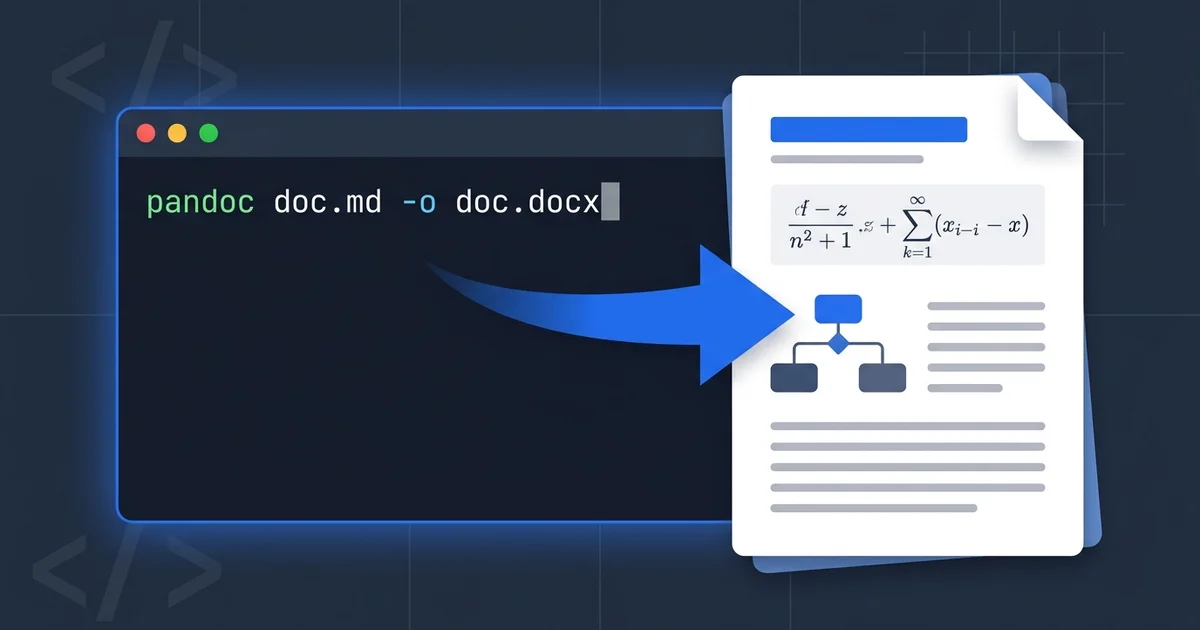
العملية بسيطة: حمّل ملف .md، وتحقق من المعاينة، ونزّل DOCX. مقارنةً بأداة سطر الأوامر مثل Pandoc، تكمن الميزة في عدم وجود شيء لتثبيته — وهو أمر مفيد للفرق التي لا يرتاح فيها الجميع للتعامل مع الطرفية.
التعامل مع العناصر المعقدة
تحتاج كتل Notion المتقدمة إلى معالجة دقيقة. داخليًا، يقوم المحوّل بترميز Markdown ويعيّنه إلى بنية XML الخاصة بـ Word؛ تستخدم أدوات مثل Markdown to Word مكتبات تحليل راسخة لإعادة بناء التسلسل الهرمي للمستند. حيث تصبح الأمور صعبة:
- الكتل المتزامنة تكرّر محتواها في التصدير، لذا قد تحتاج إلى إزالة النسخ.
- العناصر غير المدعومة يُفضّل التعامل معها بمحوّل يضع علامة عليها بدلًا من إسقاطها بصمت.
الجداول وقواعد البيانات
يصدّر Notion الجداول بصيغة أنابيب GFM، على سبيل المثال:
| Name | Value |
|------|-------|
| API  | v2.0  |
يعرض محوّل يدعم GFM هذه الجداول كشبكات Word بعرض أعمدة معقول. تُصدَّر قواعد البيانات كملفات منفصلة؛ أدخلها إلى Word عبر إدراج > كائن إذا كنت تريدها كجدول مرتبط قابل للتحرير.
تُعد الخلايا المدمجة فجوة معروفة — لا يمثّلها تصدير Markdown من Notion، لذا قد تحتاج الجداول المعقدة إلى تعديل يدوي في Word لاحقًا. بالنسبة للبيانات التي تتغير كثيرًا، احتفظ بالنسخة الحية في جدول البيانات أو قاعدة البيانات وتعامل مع جدول Word كلقطة.
الصور والتضمينات وكتل التعليمات البرمجية
تُشار الصور في تصدير Markdown من Notion بشكل نسبي (مثل )، لذا احتفظ بمجلد صور التصدير بجوار ملف .md. يقوم المحوّل بتنزيلها وتضمينها، مع الحفاظ على النص البديل لإمكانية الوصول. تُصدَّر التضمينات عمومًا كروابط بسيطة.
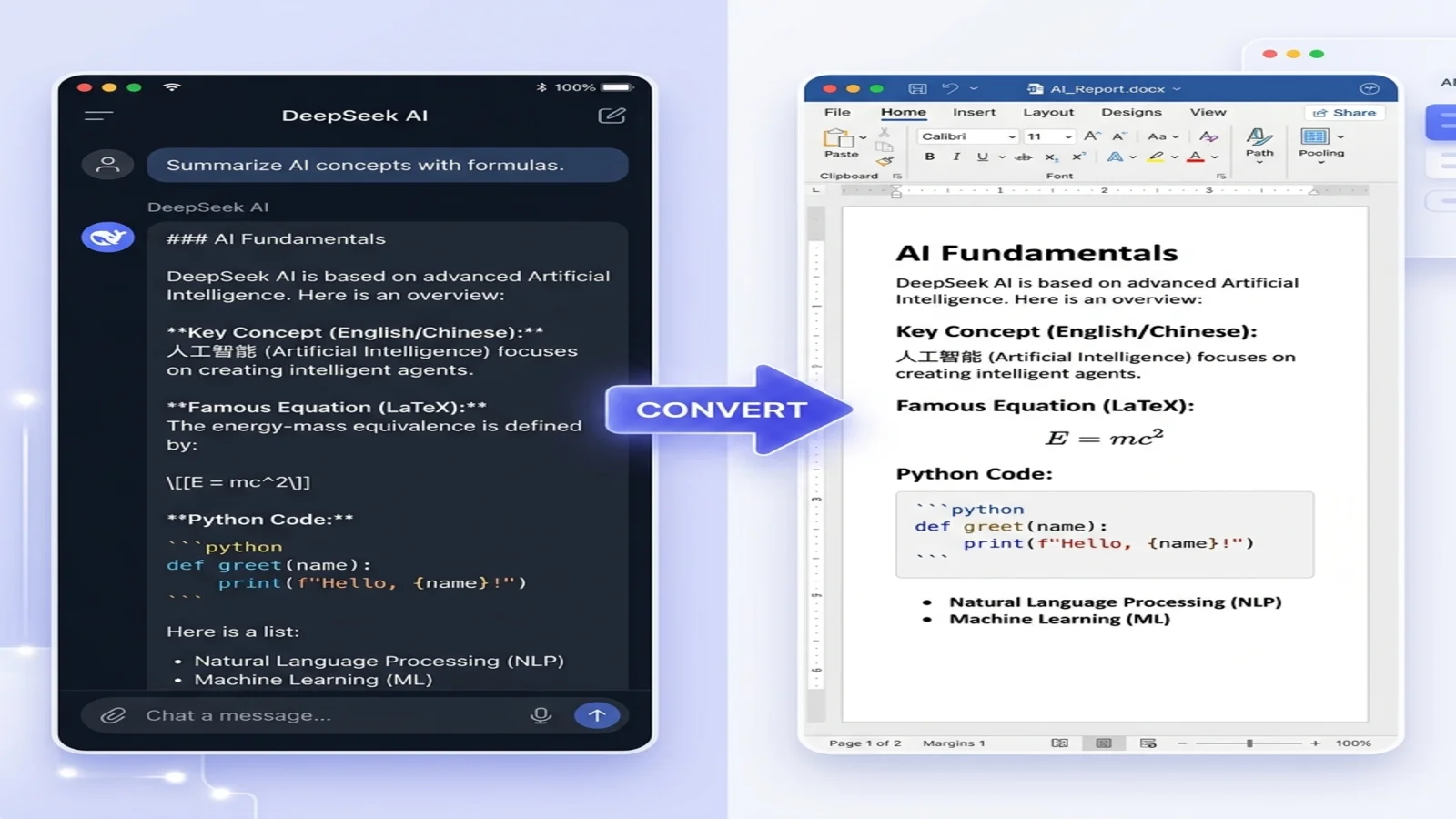
تتحول كتل التعليمات البرمجية (المسيّجة بثلاث علامات اقتباس عكسية) إلى كتل أحادية المسافة محددة بوضوح؛ يدعم Markdown to Word أيضًا رياضيات LaTeX، وهو أمر مهم للمستندات الفنية والأكاديمية.
الروابط والوسائط المتعددة
تُصدَّر الروابط التشعبية بصيغة [text](url). فضّل عناوين URL المطلقة على النسبية حتى لا تنكسر الروابط بمجرد مغادرة المحتوى لبنية Notion. تصبح تضمينات الصوت والفيديو روابط تشعبية بسيطة — للحصول على مستند Word نظيف، إما أن تزيل الوسائط غير المدعومة أو تستبدلها بصورة مصغرة ثابتة مع رابط. بعد التحويل، تستحق أدوات فحص الروابط في Word مرورًا سريعًا.
تقنيات متقدمة واستكشاف الأخطاء وإصلاحها
بالنسبة للتحويلات المتكررة، يمكن برمجة سير العمل. تدعم مكتبات Node.js مثل mammoth.js معالجة DOCX برمجيًا، مما يجعل من الممكن ربط التحويل بخط أنابيب CI/CD لإنشاء المستندات تلقائيًا.
تخصيص الإخراج بالأنماط والقوالب
بعد التحويل، طبّق قالب Word ليطابق المستند نمط مؤسستك. كما يتيح تعيين عناوين Markdown إلى أنماط العناوين المدمجة في Word لـ Word إنشاء جدول محتويات تلقائيًا. يمكن إضافة الرؤوس والتذييلات وأرقام الصفحات والشعارات عبر قائمة الإدراج في Word. بالنسبة لخطوط أنابيب التقارير المتكررة، يمكن لوحدات ماكرو VBA تطبيق نمط متسق عبر مستندات عديدة.
المزالق الشائعة
- التنسيق المعطّل: قد تفقد القوائم المتداخلة بعمق المسافة البادئة في المحوّلات الأضعف — عاين الإخراج قبل الاعتماد عليه.
- الصيغة غير المدعومة: قد تُعرَض الرموز التعبيرية المخصصة أو الكتل الخاصة كنص عادي؛ استبدلها قبل التحويل إذا كان المظهر مهمًا.
- الملفات الكبيرة جدًا: تقسيم تصدير ضخم إلى أقسام يبقي كل تحويل سريعًا وسهل المراجعة.
بالنسبة للصفحات المعقدة بشكل غير عادي، غالبًا ما يكون النهج الهجين — تحويل آلي مع جولة قصيرة من التعديلات اليدوية — أكثر كفاءة من محاولة أتمتة كل حالة حافة.
اختيار محوّل
أهم صفة في المحوّل هي دعم GFM، لأن جداول Notion وقوائم مهامها تعتمد عليه. بعد ذلك، ابحث عن معاينة حية (لتتمكن من اكتشاف المشكلات قبل التنزيل)، وتضمين الصور، ودعم LaTeX إذا كنت تعمل بالمعادلات. تزيل الأداة القائمة على المتصفح خطوة التثبيت؛ أما أداة سطر الأوامر مثل Pandoc فهي أفضل عندما تحتاج إلى المعالجة المجمعة أو التحكم الطباعي الكامل.
الخلاصة
مع إعدادات التصدير الصحيحة ومحوّل يدعم GFM، يصبح تحويل صفحات Notion إلى مستندات Word احترافية أمرًا مباشرًا. صدّر من Notion بصيغة Markdown، وعالج مسبقًا إذا لزم الأمر، وحوّل، وحسّن في Word. استخدم Markdown كتنسيق وسيط، واختر محوّلًا موثوقًا، وستحصل على ملفات DOCX مصقولة جاهزة لأي جمهور.
هل أنت مستعد للتجربة؟ حوّل Notion Markdown إلى Word — إنه مجاني ولا يستغرق سوى بضع ثوانٍ.
هل وجدت هذه الأداة مفيدة؟ ساعدنا في نشر الكلمة.